A MAC address lookup shows which organization was assigned the start of an address, not the owner's name or location. Compare an unfamiliar router entry with your devices first, then look up its maker to narrow the possibilities.
The address visible to the router may be private rather than the hardware address printed on a device. That difference explains many failed matches, especially with newer phones and Macs.
In this guide
Copy the address for the connection you are checking
Copy the full MAC address from the router's connected-device list or your device's network details. It usually has six pairs of hexadecimal characters, which use the digits 0 to 9 and letters A to F.
Colons and hyphens can separate those pairs. An IP address such as 192.168.1.20 is a different value and won't work as a MAC lookup. Neither will a serial number or the cellular IMEI printed on a phone box.
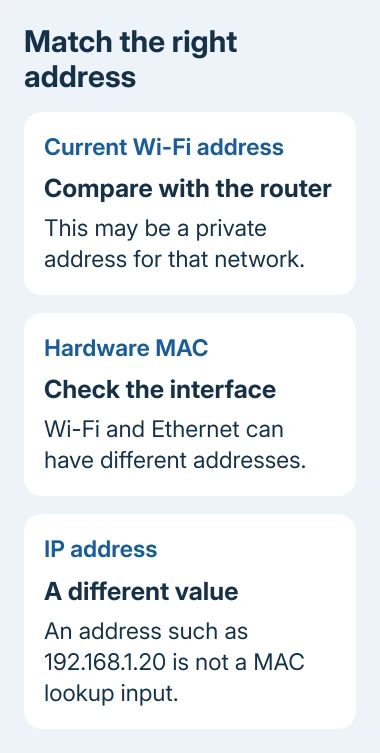
Note the connection type beside the address you've copied. Ethernet, Wi-Fi, and a USB network adapter can each have their own address, even when they belong to the same computer.
For a router entry, also note the device name it shows and whether it's currently connected. Those details help you match the entry to a device. A saved or offline entry isn't necessarily a device using the network right now.
I'd make that comparison before treating an unfamiliar manufacturer name as an intruder. The company behind a network component may differ from the brand written on the laptop or smart-home product.
Find the address on the Mac you are using
In your Mac's settings, open Apple menu > System Settings > Network, select the connection you're checking, click Details, then Hardware. Read the MAC address for that connection.
Apple's Hardware network settings guide describes this route. Selecting Ethernet while checking a Wi-Fi router entry gives you the wrong connection's address, even though both addresses are valid.
For your current Wi-Fi address, open System Settings > Wi-Fi, click Details beside the connected network, and check Wi-Fi address and Private Wi-Fi address. Compare this connection's address with the hardware address.
On macOS Sequoia 15 or later, the private-address choices include Off, Fixed, and Rotating. Fixed keeps one private address for that network; it doesn't use the factory hardware address.
Don't change the setting just to run a lookup. Compare the address in use with the router first. Turning privacy off changes the address the network sees and can disrupt a registration that used the previous address.
The iPhone MAC address instructions cover the separate phone route. Check the address for the Wi-Fi network you're using when comparing a phone with the router. Don't assume the address in About will always match.
Search the prefix in a manufacturer lookup
Open the Wireshark OUI Lookup Tool. Use its search field to look up the organization assigned an address prefix, the opening part of the address. Start with that prefix and check the organization in the result.
For the usual MA-L type of address assignment, the first three pairs are the organizationally unique identifier, or OUI. They identify the assigned organization; the rest of the address distinguishes individual devices.

Type those first three pairs exactly as shown into the Search field. If your copied format produces no result, try the same prefix without separators. Don't replace letters with similar-looking numbers.
A match names the organization assigned that prefix. It doesn't reveal a user's name, email, or physical location. Use the organization to narrow your device list; a person's identity isn't part of the result.
Other assignments have longer prefixes. Paste the complete address into the same Search field to check those matches too. The tool accepts full addresses as well as prefixes, so another lookup isn't required for this check.
The IEEE registration authority maintains the underlying assignments. Its MA-L information explains the OUI scheme; smaller address-block assignments also exist. An empty search result doesn't mean the address is fake.
Understand why the maker and product brand differ
A laptop sold by one company can use networking hardware associated with another. A USB Ethernet adapter can add another company's name to the mix. Check which connection and adapter you're using before rejecting an exact address match.
Compare the entire address when deciding whether a router entry belongs to your device. Several products can share the same assigned prefix. A matching organization alone can't distinguish your laptop from another product using that range.
If several devices could match, open each one's current network details and compare the full address. Check that it's on the network you're comparing, since it can use a different private address on another Wi-Fi network.
For an office network using device authentication, an administrator can check the MAC address in the ISE logs. Give them the address from the failed connection, rather than one from a different adapter.
Handle private addresses and empty search results
Private Wi-Fi addresses keep your device from showing the same hardware address everywhere. Looking up a private address may give you no useful organization or a result that doesn't identify the device's maker.
On supported Apple devices, Fixed means a private address stays stable for that network. Rotating means it changes periodically. With either choice, a lookup may not identify the product maker.
To register a device on a network, ask the administrator which address they need. A fixed private address may work. Reading or submitting an address doesn't mean turning off privacy across your networks.
If the search is empty, check the characters you copied, separators, connection type, and private-address setting. Compare directly with your device's network screen: that can identify the entry even without a manufacturer result.
Take an unknown network entry to the right person
For a home network, ask the router maker how its device list handles private addresses and saved offline devices. Send the full entry, whether it's connected, and which device you expected it to be.
For work or school Wi-Fi, send those details to the network administrator. Ask them to compare the address with the current connection records. Don't approve or remove someone else's device based only on a manufacturer name.
The Short Version
Start by matching your device's full MAC address to the router entry, then look up its prefix. Private addresses and separate adapters explain many mismatches. A lookup names the organization assigned that prefix, not the device's owner.
Checked November 12, 2026.