

An iPhone can be erased through a computer without entering its Apple ID password, but Activation Lock survives an erase. If the phone still unlocks, try resetting the account password on that trusted device first.
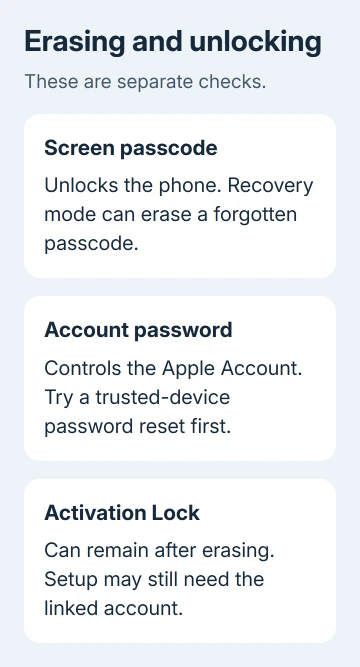
The screen passcode and Apple Account password do different jobs. Losing one doesn't always mean losing both. Check whether the prompt wants your screen passcode or account password before erasing your photos and messages.
In this guide
Choose the route that leaves the phone usable
Apple Account is the newer name for Apple ID. The account linked through Find My still controls Activation Lock. After a factory restore, the phone can show Hello and still ask for that account during setup.
I'd recover the account before erasing a phone that still opens. That keeps the signed-in device available to verify you and lets you save data before it's gone. A reset isn't a way to recover unsaved files.
Choose the situation that matches your screen:
- Settings opens: try changing the account password on the phone, then erase the phone through Settings.
- The screen passcode is forgotten: use recovery mode and a computer, with account access ready for setup.
- iPhone Locked to Owner appears: deal with Activation Lock. Repeating the restore won't release it.
Before an erase, check whether the photos and other information you need already exist in a backup or another saved copy. If the phone unlocks, use the computer backup procedure while you still can.
Reset the account password on a phone that unlocks
Open Settings > your name > Sign-In & Security > Change Password. Follow the prompts. On an iPhone already trusted by the account, the device passcode can let you change the account password without remembering it.
Apple recommends a trusted device in its forgotten-password instructions. If Stolen Device Protection applies, the phone can require biometric verification and a security delay before sensitive account changes.
Let that process finish. Don't erase your trusted device to try to skip the wait. Once the password changes, keep the new password available for the erase and later setup. Confirm that the account shown in Settings is yours.
Then open Settings > General > Transfer or Reset iPhone > Erase All Content and Settings. Tap Continue and follow the prompts for the phone passcode, account password, backup, and cellular plan.
Choose whether to keep or erase the eSIM according to who will use the phone next. Erasing an eSIM doesn't cancel the carrier subscription. If you're deleting it, arrange reactivation with the carrier before relying on that number again.
When the erase finishes, the phone shows Hello. For the ordinary reset with account access restored, the factory restoration guide explains the Settings and computer choices.
Use recovery mode when the screen passcode is lost
Recovery mode lets Finder or Apple Devices erase the phone and reinstall iOS even when you can't unlock it. It doesn't require the old screen passcode to begin. Activation Lock, when enabled, remains a separate setup check afterward.
You'll need a USB cable and a Mac or Windows computer connected to the internet. Use Finder on a current Mac or install Apple Devices on Windows. For Mojave and earlier macOS versions, you'll need iTunes.
Power off first. For Face ID models, press Volume Down together with the side button until the shutdown control appears, then slide it to power off. On a Home button model, hold its side or top button to bring up that slider.
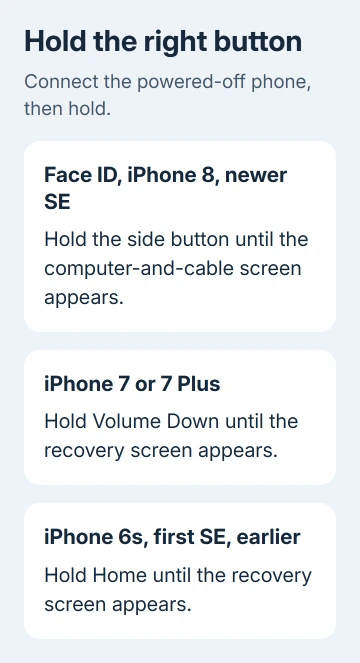
Connect the cable to the computer. Next connect it to the powered-off iPhone and immediately hold the button for that model:
- Face ID models, iPhone 8 or 8 Plus, and second- or third-generation iPhone SE: hold the side button.
- iPhone 7 or 7 Plus: hold Volume Down.
- iPhone 6s or earlier, including first-generation SE: hold the Home button.
Keep holding when the Apple logo appears. Release when you see a computer and cable, which is the recovery screen. If you see the Lock Screen again, turn the phone off and repeat the connection steps.
Restore the phone and finish the download
In Finder or Apple Devices, select the connected iPhone. Approve the computer's connection prompt if one appears. Choose Restore, rather than Update, when asked how to handle the phone in recovery mode.
Follow the confirmation prompts and keep the USB cable connected during the iOS download and installation. This erases the phone's existing data. Loading a backup comes later, after the phone has restarted into setup.
A download lasting over 15 minutes can outlast recovery mode. If the phone exits that screen, let the computer complete the download. Turn the phone off and repeat the model's recovery-mode sequence, then continue the restore.
Hello means the restore has finished, but the previous account can still be linked. Continue setup and check whether it asks for that account before handing the phone to someone else.
If a button won't work or recovery mode never appears, ask Apple or an authorized service location for help. Ask for assistance restoring an iPhone with a forgotten passcode, and bring the phone and cable.
Handle Activation Lock instead of erasing again
At an Activation Lock screen, follow the offered options. Some screens allow the device passcode; others require the account originally linked to the phone. You can use the passcode only if the screen offers that option.
For your own account, complete password recovery. If a previous owner is still linked, have them release the phone from their own account. They can use icloud.com/find, select the phone, and use Remove This Device when available.
That account page requires the owner's sign-in. The previous owner should complete the removal themselves. Making a new Apple Account for yourself doesn't change the account linked to this phone.
If the owner can't release it and you have purchase documentation, start the support request linked in the Activation Lock removal instructions. For a company or school phone, have the organization's IT administrator release the lock.
The Short Version
Try the trusted-device password reset first. Recovery mode can erase a locked iPhone, but Activation Lock can still block setup. Recover the linked account or submit purchase documents for lock removal before using the phone again.
Checked November 12, 2026.
 If you have any business, I can build it online






