

An iPad that taps things by itself or misses touches needs a clean screen and a test with its charging cable unplugged first. A frozen app needs a restart instead; colored lines or flicker that remain across apps can need display service.
Watch what actually happens before changing settings. Random touches, a stalled picture, slow animations, and a damaged-looking display can all be called glitching, but they need different fixes.
In this guide
1. Remove the cable and clean the touchscreen
Disconnect Lightning or USB-C accessories, including the charger, and try the iPad on battery power. Wipe away water or debris so the screen and your hands are clean and dry. Then try ordinary taps and scrolling again.
Apple recommends cleaning and disconnecting accessories in its intermittent touchscreen checks. If touch works after unplugging it, try a different outlet, cable, or charger before reconnecting your usual setup.
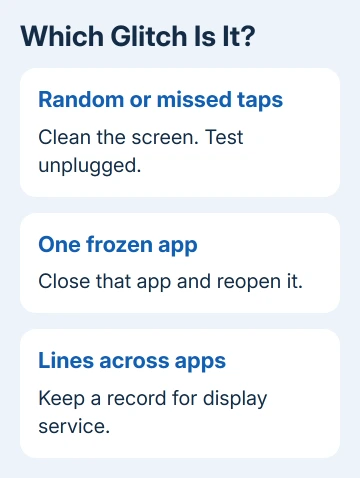
Test the Home Screen and another app. If touches behave normally in both while unplugged, check the accessories you unplugged. If a drawing or game app is the only place this happens, use the app checks later in the guide.
Don't keep entering a passcode while the screen is making its own taps. Stop interacting with that screen until the unwanted touches settle or the device can be restarted. Repeated wrong entries can create a separate access problem.
If unplugging makes no difference, continue with the case and protector. Comparing chargers helps only if unplugging yours changes how the screen responds.
2. Check the case and screen protector
Take off the case, remove the screen protector if fitted, and test the uncovered display. They're both part of the touchscreen checks for oversensitive or intermittent touch.
Check the edges as well as the center. Scroll a page, tap several onscreen controls, and try typing a short note. Check whether the same missed touches or unwanted taps still happen with the case and protector removed.
If the bare screen behaves properly, replace the troublesome case or protector with one made for your exact iPad. Don't reinstall the same accessory immediately and then assume a software update caused the returning fault.
If the glass is cracked or lifting away from the frame, arrange service rather than pressing it down. Have the screen checked for damage, especially if touch has become unreliable too.
I'd do these two checks before changing accessibility settings or resetting the iPad. They take away possible causes without deleting an app, changing your account, or disturbing saved work.
3. Restart the iPad, using the right buttons
When the screen still works, use Settings > General > Shut Down, move the power slider, and let the iPad switch off. To start it again, keep its top button pressed until it powers up. Try the same action that was glitching after it starts.
On a frozen no-Home-button model, find the volume button nearest its top button. Press it briefly, then let go. Repeat with the farther volume button. Finally, keep the top button pressed, releasing when the Apple logo shows.
For Home-button models, press and hold Home along with the top button. Release when the Apple logo shows. These models use a different sequence, so don't copy the volume-button instructions onto a Home-button iPad.
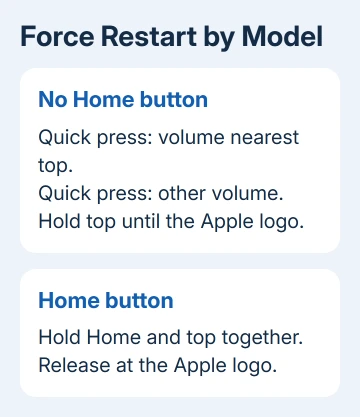
Use the physical positions of the volume buttons for the no-Home-button sequence. Screen rotation and changing volume-button behavior shouldn't decide which button you press first.
A restart that restores touch lets you continue with updates and app checks. If the iPad remains stuck at startup or doesn't respond to the correct sequence, use the frozen-iPad recovery procedure.
4. Repair an app that glitches on its own
If other apps and the Home Screen respond normally, quit that app. For no-Home-button models, start at the bottom edge, slide your finger upward, then pause midway. In the App Switcher, flick that app's preview upward to dismiss it.
For Home-button models, press Home twice quickly, then dismiss the troubled app by swiping its preview upward. Launch it again and try the failing action. Leave working apps alone while checking this one.
In the App Store, tap your account picture, then App Updates on the current interface. Older layouts list updates on the account page. Check the app even if iPadOS is current; apps receive their own releases.
If closing, restarting, and updating don't help, the app repair sequence includes removing the app and getting a fresh copy. Save or sync its important content first, because deleting an app can remove data stored inside it.
For a single app that still fails, contact its developer. Include your model, system and app versions, and describe the triggering action. Explain exactly what goes wrong in that app, rather than reporting that the whole iPad is broken.
5. Separate slow movement from a faulty display
Delayed typing, slow app opening, and jerky movement are performance problems when the screen still follows the right touches. Open Settings > General > iPad Storage and review the available space and recommendations.
Low storage, power-saving settings, and temperature can affect performance. The slow-iPad checks cover those cases in detail. Treating slow movement as random touch can send you toward the wrong repair.
For an available system update, open Settings > General > Software Update. Back up the iPad first, then follow the update instructions with enough power and a working connection. Don't assume an update repairs a physically damaged screen.
If the display flickers or shows colored lines, check whether the same distortion appears on the Home Screen and in several apps. If the distortion stays in the same area as you switch screens, have the display checked.
Take a screenshot of the iPad, then check it on another device if one's available. If that image looks normal but the iPad's screen is distorted, show support the difference. It helps describe the fault without identifying the damaged part.
6. Arrange service for touch or display faults that remain
If random touches, dead areas, or distortion remain, use Get service on the touchscreen support page. Ask for a display and touch assessment, with the results of your checks, rather than guessing which part needs replacing.
Tell support whether the fault happens while unplugged, with the case removed, and after restarting. Include any drop, liquid exposure, or cracked glass, plus the model and system version from Settings > General > About when accessible.
For an intermittent fault, a short video taken with another device can show the unwanted touches or flicker. Keep personal messages out of the frame. Save a current backup while the iPad still responds, before its service appointment.
The Short Version
For unreliable touch, wipe the display and compare it without its charger, case, or protector. Restart with the correct buttons. Repair a single failing app separately; lasting touch faults or distortion need a service assessment.
Checked November 12, 2026.
 If you have any business, I can build it online






