Twitter, now X, can stop loading in Chrome because of stored data, an extension, or an outdated browser. Try x.com in Incognito first. If it loads there, check extensions and clear X's stored data before changing other settings.
If X also fails on your phone and in another browser, check the connection or a wider service problem instead. A feed that won't refresh after signing in is different from Chrome failing to open the site at all.
In this guide
1. Compare the normal tab with an Incognito window
Enter https://x.com directly in Chrome's address bar. This avoids an old bookmark or search result leading to an unrelated page. Reload once and note whether you see a connection error, a blank page, or an X error message.
Open Chrome's three-dot menu and choose New Incognito window. On Windows or Linux, Ctrl + Shift + N opens it; on a Mac, use Command + Shift + N. Open the same address in that window.
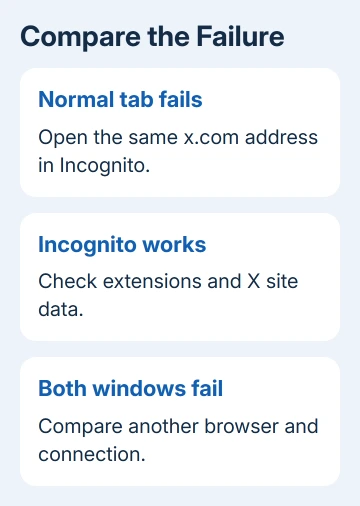
If the public page opens, Chrome can reach X from that window. Sign in only if you need to compare the feed and know your login details. The signed-out page can work while your account still has a problem.
Google's Incognito instructions explain how it keeps that session separate. Extensions are normally unavailable there unless you've allowed them, so this test helps you check for both stored data and extension problems.
If X works in Incognito but fails in the normal window, continue with extensions. If it fails in both, check a different device or browser before deleting any saved data.
2. Turn off extensions that change the site
Open Chrome's menu and choose Extensions > Manage extensions, or enter chrome://extensions in the address bar. Switch off extensions that block ads, change scripts, alter X's layout, or manage privacy on web pages.
Reload x.com in the normal window. If it starts working, enable a single extension, reload X, and continue through the list in that pattern. The extension that brings the failure back needs its settings adjusted, an update, or removal.
Keep the comparison within the normal window. Moving between signed-in and signed-out tabs at the same time can make an account restriction look like an extension failure.
Check Details > Allow in Incognito for an extension if the private-window result surprised you. An extension allowed there can affect both windows, so Incognito isn't automatically a test with every extension disabled.
For a managed browser, some extensions and settings can't be changed. Give the administrator the affected address and extension list instead of trying to remove management from a work or school profile.
If disabling the extensions changes nothing, turn the useful extensions back on, then move on to stored site data. Removing the entire list makes the responsible extension harder to spot and can remove useful settings.
3. Remove X's stored site data without clearing everything
Have your password and two-factor authentication method ready before deleting site data. Cookies keep that site's session signed in; removing them signs you out. Saved passwords and browsing history can stay.
Enter chrome://settings/content/all in the address bar. Use the site's search field to search for x.com, then remove its stored data. Repeat for twitter.com if an old entry is present.
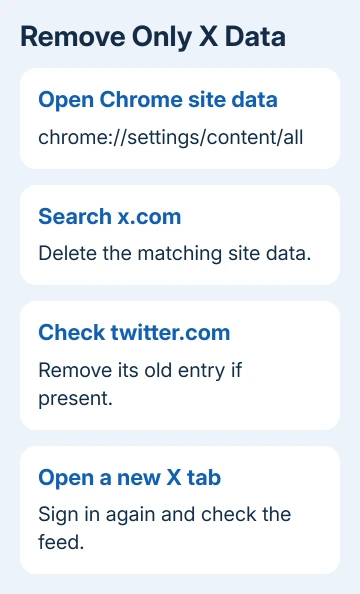
Chrome's individual-cookie controls let you target a site while keeping other services signed in. Chrome's wording can vary by version; look for the option to delete data for the matching site.
Close the existing X tabs, open a new one, and visit x.com again. After signing in, try both the Home feed and an individual post. That checks more than whether the site's opening page appears.
If pages still show old or broken graphics, use Chrome's Delete browsing data controls to clear Cached images and files. Leave unrelated categories unchecked. Cookies and cached files are different kinds of stored data.
If cloud storage is affected too, the MEGA loading guide starts with cached web files and separates them from account storage.
If only one account fails while another works in the same browser, stop clearing browser data repeatedly. Record the account's error and move to the support route at the end.
4. Update Chrome and finish the relaunch
Open Help > About Google Chrome from the menu. On a Mac, Chrome > About Google Chrome also reaches the update check. Chrome checks for updates on that page and installs any available update.
Click Relaunch when offered. Save anything unfinished in web forms first. An update downloaded in the background hasn't completed until the browser restarts, so leaving Chrome open for days can leave the older version running.
After relaunching, open x.com in a fresh tab. If your operating system is too old for a supported Chrome version, check the supported-browser requirements rather than installing an unofficial browser package.
Chrome's update procedure also explains the About page and relaunch. If the browser itself displays an update error, repair that problem before assuming the update is installed.
If other pages also turn white or disappear, use the Chrome blank-page checks. A browser-wide display fault needs a wider check than X's cookies.
5. Check the network when other windows fail too
Try another website, then X in another current browser. If possible, try the phone app or browser over cellular instead of the same Wi-Fi. This helps you tell a Chrome profile problem from a problem with your shared connection.
If X works on a cellular connection but fails on home Wi-Fi across devices, check the router, VPN, or network filtering. Temporarily disconnect a VPN for the comparison, then reconnect it when you're finished testing.
If disconnecting the VPN restores the site, report the affected server or region to the VPN provider. Don't change Windows drivers or wipe Chrome when the site fails only through that VPN connection.
For Chrome's ERR messages, follow the page-loading error checks. A Chrome connection error means something different from an X page that opens but can't load its feed.
For a certificate warning, keep its exact error code. The Chrome connection-privacy guide explains checking the displayed code. Don't bypass that warning just to reach a social feed.
6. Report the failure that remains
If X fails across devices and connections while other services work, give it time before changing the computer again. Repeatedly deleting one laptop's browser profile won't fix a service failure affecting several devices.
For an account-specific error, use X's web troubleshooting and support routes. Include the exact message, Chrome version, whether Incognito works, and whether the same account loads on another device.
Leave passwords, login codes, and session cookies out of your report. If the error appears only after sign-in, say so clearly. That helps support distinguish an account issue from a site that the browser can't reach.
The Short Version
Try x.com in Incognito, disable interfering extensions, and delete only X's site data. Update and relaunch Chrome. If other browsers and devices fail too, check the network or service; an account-only failure needs X support.
Checked November 12, 2026.