

FaceTime Handoff needs matching call addresses and one shared Apple Account. When a call works on your iPhone but won't move to your Mac or iPad, check the selected FaceTime number or email on both devices first, then check Handoff.
A missing transfer suggestion and a transfer that fails after you select it need slightly different checks. Neither is the same as FaceTime being unable to place a call at all.
In this guide
1. Match the FaceTime address on both devices
Open Settings > Apps > FaceTime on your iPhone. For iOS 16 and 17, the path is Settings > FaceTime. Check the Apple Account and the selected phone numbers or email addresses used for calls.
On an iPad, open the same FaceTime settings. On a Mac, open FaceTime, then choose FaceTime > Settings in the menu bar. Check the account and receiving addresses there.
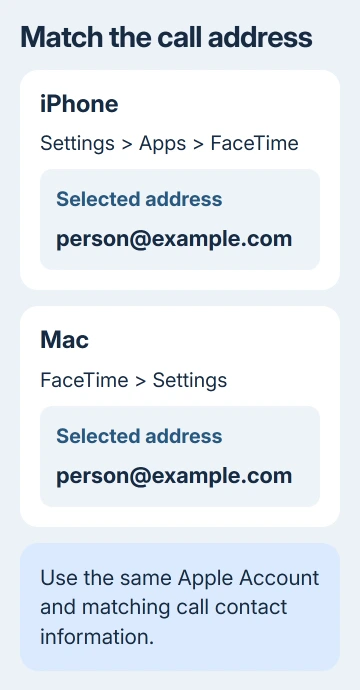
Apple's call transfer instructions say the selected contact information must match on the device receiving the transfer. Signing in to iCloud isn't enough if FaceTime uses different addresses.
For example, a Mac using only an email address and an iPhone using only a phone number need a shared address selected. Select an available address shared by both, then start a fresh call and try moving it.
Keep your existing receiving addresses unless you need to remove one. Both devices need a shared address, but people who already call your phone number should still be able to reach you.
If either device can't start an ordinary call, fix that first. The iPhone FaceTime checks cover activation and calling failures that a Handoff switch won't repair.
2. Enable Handoff and keep the devices nearby
On your iPhone or iPad, open Settings > General > AirPlay & Continuity > Handoff and turn it on. Some versions call the middle menu AirPlay & Handoff.
On your Mac, open System Settings > General > AirDrop & Continuity. Enable Allow Handoff between this Mac and your iCloud devices. On earlier macOS releases, the panel is called AirDrop & Handoff.
Turn on Bluetooth and Wi-Fi on both devices. Put them beside each other, unlock the receiving device, and keep the active call open on the original device while trying the transfer.
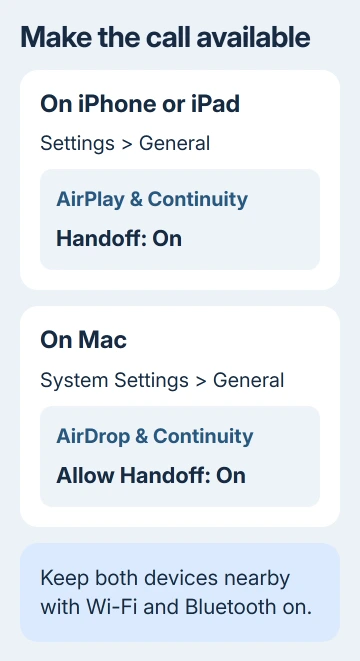
These settings let nearby devices offer to move a call from one to the other. A working internet connection on the Mac doesn't replace Bluetooth or the Handoff setting. Check all three rather than changing the router immediately.
I'd check these switches before signing out of an Apple Account. An account sign-out changes much more than this transfer feature, especially when calls already work at both ends.
If the settings were already correct, continue with the transfer control itself. Opening FaceTime on the second device and dialing again creates a separate call attempt; it doesn't move the conversation already in progress.
3. Use the call suggestion on the receiving device
During the iPhone call, look on the Mac or iPad for the suggestion to move the call. Select that notification, or use the FaceTime video or call control in the receiving screen's top area.
Choose Switch or Join, then confirm when prompted. The device and type of call determine which wording appears. Keep the original call connected while the receiving device takes over.
After a successful move, the original device shows a banner confirming the call continued elsewhere. Its Switch control lets you bring the conversation back. That banner is a clearer success check than simply seeing FaceTime open.
If the suggestion appears but the move fails, note which confirmation you reached. That tells support whether the devices found each other but couldn't move the call, or never offered to move it.
For a Mac that joins but has no usable picture or sound, check its FaceTime camera and audio choices. A microphone routed to the wrong headset is a separate problem from moving the call.
4. Check the minimum versions and the target device
Moving an active FaceTime call between iPhone, iPad, and Mac requires iOS 16, iPadOS 16, and macOS Ventura 13 or later, as applicable. General Handoff support on an older Mac doesn't mean it supports FaceTime call transfers.
Check iPhone and iPad versions in Settings > General > About. On a Mac, choose Apple menu > About This Mac. Update a supported device through General > Software Update in Settings or System Settings.
A Mac running Monterey or earlier can support some Continuity features while still being too old for this one. Its older Handoff checkbox in System Preferences won't add a FaceTime transfer feature the operating system lacks.
Apple TV uses a different arrangement. FaceTime transfer requires an Apple TV 4K (2nd generation or later), using that same Apple Account. The iPhone continues working as its camera and microphone.
That TV arrangement supports iPhone XR, iPhone XS, or later through Continuity Camera. Don't expect the iPhone's camera role to end just because the call appears on the TV.
5. Check local network access, then report the failed move
A VPN can interfere when its configuration blocks local networking. If this is your personal VPN, check its local-network access option and retry with that access allowed. On a managed device, have its administrator review that permission.
This matters even when webpages open normally. Access to the internet and permission for nearby devices to communicate are different parts of the connection. Report whether transfers work on a trusted home network but fail at work.
If both devices meet the requirements and settings match, end the call normally, restart both devices, and try one fresh transfer. Save your Mac work before restarting. Record whether the suggestion is absent or the confirmation fails.
For a continuing failure, contact Apple Support about FaceTime call Handoff. Give both device models, their operating system versions, the matching selected address, and the exact point where moving the call stops.
The Short Version
Match FaceTime's selected contact information, enable Handoff, and keep Wi-Fi and Bluetooth on. Use the receiving device's call suggestion and confirm the move. Check the minimum versions before treating an older Mac as faulty.
Checked November 12, 2026.
 If you have any business, I can build it online






