

Start learning computer coding with one language, a beginner course, and a small program you can change yourself.
Python is a practical first choice for calculations and simple automation; HTML, CSS, and JavaScript fit a website goal better. Pick one route, run a tiny example, and change it before moving to the next lesson.
That gives each new idea a purpose.
In this guide
Choose the first project before the first language
A useful starting project has an obvious result: a calculator gives an answer, a quiz checks a response, or a web page shows your text. Choose something small enough that you can explain what it should do in one sentence.
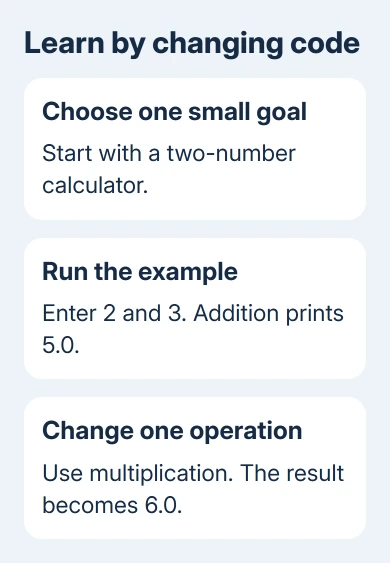
I'd start with a two-number calculator if you don't have a specific goal yet. It introduces input, stored values, and output without making you set up accounts, servers, or a complicated screen before you've written your first lines.
For a website, start with HTML for the page's structure, CSS for its appearance, and JavaScript for interactivity. They work together, so an HTML lesson alone won't teach you how to write a program's instructions.
For calculations or small computer tasks, Python lets you concentrate on instructions and results. For a particular game or mobile app, check that platform's beginner materials before choosing a language just because it's popular.
The first choice doesn't lock you into a career. Learning to store a value, make a decision, and repeat an action gives you ideas you'll meet again in other languages.
Follow a beginner course in order
Microsoft says its Python fundamentals learning path covers first programs and basic programming concepts. It's marked Beginner.
Its lessons cover a first program, data, setting up Visual Studio Code, and decisions in code.
Begin with the first module and work through its examples in order. If a lesson introduces something unfamiliar, finish its exercise before opening another course with a different setup.
Keep a short note with three things: what the program should do, what happened when you ran it, and the change you made. Those notes will help you more than copying every definition from the lesson.
The course includes modern coding tools, including AI assistance. Use its explanations to help you, but make sure you understand the lines you run.
Getting a finished suggestion doesn't teach you how to change the program when you need it to do something else.
Set up one place to write and run code
A code editor is where you write the file. Python is the software that runs Python instructions. Visual Studio Code can bring the file, a terminal, and debugging controls into one window, but the editor alone doesn't install every language.
For the Python download, open Python Downloads and choose the download offered for your operating system. Use the links for other operating systems if you need a different download.
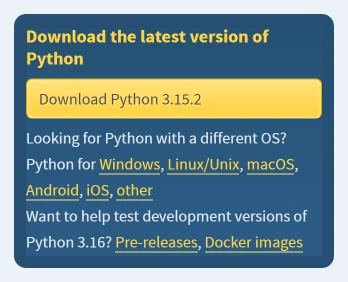
Follow the Python setup tutorial for the downloads and installation steps for your operating system.
You'll need Python, Visual Studio Code, and its Python extension for that route.
- Create a folder for this first project and open it in Visual Studio Code.
- Create a file named calculator.py inside the folder.
- Open the Command Palette and run Python: Select Interpreter.
- Select the Python installation you want to use.
- Use Run Python File in Terminal to run the saved file.
The Command Palette opens with Ctrl + Shift + P on Windows or Command + Shift + P on a Mac. An interpreter is simply the installed Python program that reads and runs your code.
If Windows reports that Python was not found, fix that setup message before changing the calculator. Even correct code won't run until the interpreter is available.
Make a calculator, then change one behavior
Put these lines in calculator.py. This is a small learning example: it asks for two numbers, converts the typed responses into numbers, adds them, and prints the result.
first = float(input("First number: "))
second = float(input("Second number: "))
total = first + second
print(total)
Run the file and enter 2 for the first prompt, then 3 for the second. The result should be 5.0. The decimal point comes from using float, a number type that can represent fractional values.
The names first, second, and total are variables: names used to keep values for later. input gets text from the keyboard, float converts text containing a number into a numeric value, and print shows a result.
Now change the plus sign to a multiplication sign, *, and run it again with the same inputs. The result should be 6.0. One change makes it easy to connect what you edited with what the program does.
Next, rename total to result everywhere it appears. Then add a third input or change the prompt wording. These small edits make you read the code, rather than copy a finished answer and immediately leave it behind.
Learn the ideas your next change needs
Once the calculator works, add a choice between addition and multiplication. That's a reason to learn an if statement, which chooses an action when a condition is true.
To repeat a quiz question or process several items, learn a loop. To reuse a calculation without copying its instructions everywhere, learn a function, a named group of instructions you can call again.
Store several related values in a list when a single variable stops being convenient. You can then work through those items with a loop. Each idea gives you a way to do something your growing program now needs.
Don't add a database, a web framework, and a deployment service to this first exercise. Keep the result on your own computer until you can explain the input, calculation, and output without following the lesson line by line.
Read an error as a specific repair request
Typing letters when the calculator expects a number produces a conversion error. Python couldn't turn those letters into a number. Try entering a number before changing unrelated lines.
A SyntaxError points to code Python couldn't read. Check punctuation, closing parentheses, and the line just before the reported location. A NameError can mean a variable name was misspelled or used before it received a value.
Change one thing and run the same example again. If an edit creates a new problem, undoing one change is manageable. Replacing the whole file makes it much harder to understand what fixed the error.
When asking for help, share the smallest piece of code that shows the problem, the complete error text, and the result you expected. Remove passwords and personal data from anything you share.
If finding the project becomes a problem, our guide to searching several file types helps you look for scripts and documents together. Keep your program in a named project folder.
The Short Version
Choose one small project, follow a beginner course, and run your own changes after each new idea. Learn decisions, loops, functions, and lists as the project needs them. Fix setup errors separately from mistakes in the code.
Checked November 12, 2026.
 If you have any business, I can build it online






