
OneDrive Personal opens through File Explorer once your personal Microsoft account is connected. Press Windows + E, then select OneDrive - Personal in the left pane.
If that entry is missing, start OneDrive and connect the personal account. Open the folder to work with your files, or click the cloud icon to check syncing and settings. You can also access your files in a browser.
In this guide
1. Open the personal folder in File Explorer
Press Windows + E to open File Explorer. Look in its navigation pane for OneDrive - Personal. If a work account is also connected, its entry usually includes your organization's name instead of Personal.
Select the personal entry and open a familiar folder. Seeing your file list confirms that the account's folder is available on this PC. It doesn't mean every listed file has already been downloaded for use without the internet.
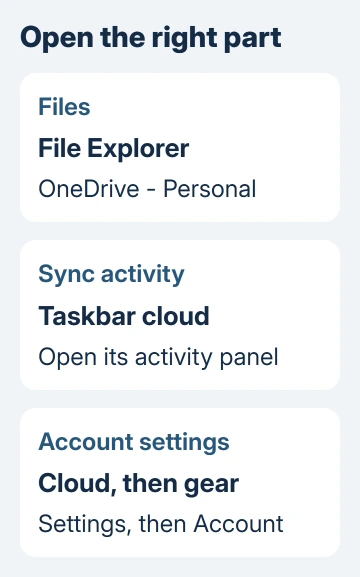
Windows can show a shorter OneDrive name when only one account is connected. Check the account through the cloud icon before deciding that a missing Personal label means you've opened the wrong folder.
Microsoft's Windows sync setup instructions explain that synced files appear directly in File Explorer. A separate full-screen OneDrive window isn't required to work with them.
If your files appear and open, you're finished with setup. Pin a frequently used folder to Quick access through its right-click menu if you'd like a shorter route next time. Leave the folder in its existing OneDrive location.
If the entry is missing, continue with the desktop app. If it's present but contains unfamiliar files, check the signed-in email address before copying anything into it.
2. Start OneDrive and connect the right account
Select Start, type OneDrive, and open the OneDrive app. On a PC that hasn't been set up, a sign-in screen appears. Enter your personal Microsoft account email address and complete the sign-in prompts.
A personal Microsoft account can use an Outlook.com address or another email address registered with Microsoft. Enter the email address you used when those files were uploaded. Creating a fresh account won't bring your old files into it.
If the same address offers a choice between a personal identity and an organization account, select the personal account for your own storage.
They're separate accounts, even though they show the same email address.
On This is your OneDrive folder, accept the proposed location with Next, or choose Change location before proceeding if you need a different location. Continue through the introductory screens to reach your OneDrive folder.
Check any folder-backup choices that appear during setup. Opening existing OneDrive files doesn't require you to add every Desktop or Documents folder to backup. Choose those separately according to what you want stored in the account.
Once setup finishes, return to File Explorer. The personal folder should now be listed, and the taskbar cloud beside the clock should show the account's activity. An upload or download in progress means syncing is still working.
I'd check one familiar document before moving a large collection. Recognizing its name and contents tells you more than seeing an empty folder you've just created.
3. Use the cloud icon when the app seems invisible
Starting OneDrive can bring up a folder or leave it running near the clock. Open the taskbar's hidden-icons menu if you can't see its cloud. Click the cloud to see recent activity and any sign-in or sync message.
The personal account normally uses a white cloud; organization accounts normally have blue clouds. Open the account's panel and check its identity, especially when more than one cloud is visible.
For settings, select the gear in the cloud panel and choose Settings. The Account page shows the connected account and offers Add an account when another account can be added.
OneDrive supports one personal account in the desktop sync app at a time, alongside multiple work or school accounts. Adding your personal account doesn't turn the organization's folder into personal storage.
To keep selected work documents in personal storage, copy them between the accounts and verify the uploaded destination.
If the app won't produce a cloud or a setup prompt, use the OneDrive startup repair. A reset can help with that startup problem, but you don't need one to open a working folder.
On an organization-managed PC, ask IT if personal OneDrive is permitted when the sign-in choice is blocked. Repeating the installer won't change a policy set by the organization.
4. Know which files will open without internet
A blue cloud beside a file means it's online-only. Opening it downloads its contents, so internet access is needed for that download. The filename can be visible even when that file isn't stored locally yet.
A green outlined circle with a check means the file is locally available. A filled green check-circle marks an item you've asked OneDrive to keep on this device.
Before traveling, right-click the needed file or folder and select Always keep on this device. Let downloading finish while you're online. Open an important document once before leaving your Wi-Fi connection.
Changes inside the OneDrive folder sync between the PC and the account. Deleting a synced file also removes it from the cloud account; this folder isn't a separate backup copy you can empty to tidy the PC.
If you see a red error symbol or a paused cloud, check it before expecting your recent edits on another device. The cloud panel's message tells you whether to sign in again or deal with storage or syncing trouble.
5. Use the website for occasional access
For access without connecting the desktop app, visit onedrive.com and complete the browser sign-in for your personal account. This is useful on a PC where you only need to view or download a few files.
A website that won't load calls for OneDrive outage and account checks before reconnecting the desktop folder.
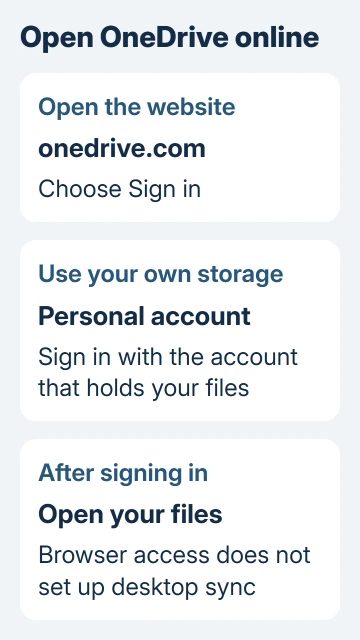
The browser shows the account's online contents. It doesn't automatically create a synced folder in File Explorer. Download a needed file through the website's controls if you want a local copy without setting up desktop syncing.
If ordinary folders open but Personal Vault asks for extra verification, follow the Personal Vault checks. That protected folder has its own verification and locking behavior.
If neither route accepts the account, follow the sign-in screen's account help. If the folder won't open, send OneDrive support your account email and the exact warning, and say whether the files open online.
The Short Version
Select your personal folder in File Explorer, or connect the account through OneDrive setup if it's missing. The cloud opens settings; file icons show offline availability. The website offers browser access without desktop sync.
Checked November 12, 2026.






