A Winamp installer blocked by Windows 11 needs a different fix from one that opens but fails during setup. Download the desktop installer through Winamp's official site, then use the error message to choose the next step.
A Store-only restriction can be changed on a personal PC, but a security block or administrator policy isn't the same setting. Keep protection on even if an older Winamp installer used to run.
In this guide
1. Use the desktop download and identify where it stops
Open the official desktop player guide and select Download Winamp for Desktop in its System Requirements section. That link downloads the Windows installer.
Save the installer before opening it. If the browser reports an incomplete or failed download, remove that copy and download again. Wait for it to finish before starting setup, so you're opening the complete installer.
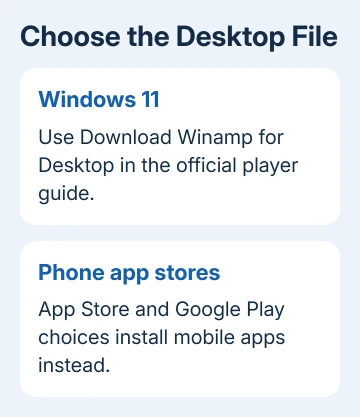
Watch the next screen. If Windows shows a warning before setup opens, check restrictions or security. If setup opens but stops copying files, check the existing installation and the error naming the failed file.
Winamp's desktop guide lists Windows 11 compatibility for the 5.9 generation. That doesn't mean every historical installer, optional plug-in, or online service will work on every current Windows setup.
I'd keep the installer filename and a picture of the error before trying again. The app version and the point where it stops help support understand what went wrong.
2. Change a Store-only recommendation when appropriate
If the message says the app isn't a Microsoft-verified app, open Settings > Apps > Advanced app settings. Check Choose where to get apps. A Store-only selection can prevent a downloaded desktop installer from continuing.
On your own PC, if you want to install desktop software, choose an option that permits apps from outside the Store, such as Anywhere. Reopen the official installer and see whether normal setup now starts.
Microsoft's app recommendation settings distinguish recommendations from Store-only restrictions. This setting doesn't override every security warning or organization policy.
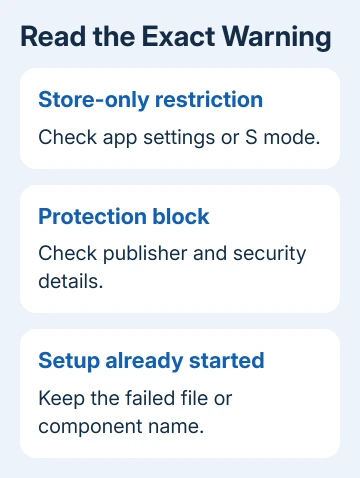
If that control is missing, grayed out, or managed, check your Windows edition and whether the PC is managed. Don't edit the registry to imitate another PC's setting. Ask the administrator when a work or school device controls installation.
Try the installer again after changing only this setting. If the original message is replaced by a different security warning, read the new warning because it addresses a different restriction from the Store setting.
3. Check S mode separately from ordinary app settings
Open Settings > System > Activation and check whether Windows 11 is running in S mode. S mode restricts installation to Microsoft Store apps, so a downloaded Winamp desktop installer can't install while that restriction is in place.
If this is your personal computer and you decide to leave S mode, use the Switch out of S mode route in Activation. Follow its Microsoft Store page and select Get. Switching out is free and permanent.
Don't select an edition-upgrade purchase as a substitute. The S mode instructions distinguish leaving S mode from upgrading Windows to another edition.
After the switch completes, reopen the installer. If Windows isn't in S mode, leave this setting alone. Leaving S mode solves its installation restriction; it doesn't repair a damaged download or a blocked signature.
For a managed computer, the organization can require S mode or other installation limits. Ask whether the desktop player is permitted before requesting a change to that device's setup.
4. Treat a protection warning as its own problem
For an app blocked for your protection, note the full message and publisher details. It's a different warning from a Store recommendation. Compare a fresh official download before considering any change to Windows settings.
Right-click the installer and choose Properties. If Digital Signatures appears, inspect its details. Ask the publisher about a missing or invalid signature; the Winamp name alone doesn't tell you the file is safe.
Open Windows Security > App & browser control to see which protection is reporting the block. Follow the details it provides. Smart App Control, reputation checks, and administrator policy have different controls and explanations.
The App & browser control guidance explains those protections. Leave them enabled while asking Winamp for a current installer or an explanation of the block.
If this computer shows an organization restriction, give IT the filename and publisher information. Company policy can still apply even when you're signed in as an administrator.
A fresh official installer that's still blocked needs publisher or administrator action. Avoid modified installers or disabling signature checks. Neither fixes the publisher's file or explains why Windows rejected it.
5. Repair a failed setup or older installation
If file copying stops, close Winamp and restart Windows before retrying once. Keep the error's file or component name. An open player or failed earlier install can affect setup. That's different from Windows blocking it before launch.
If an existing Winamp installation must be removed, save your playlists and important settings first. Open Settings > Apps > Installed apps, find Winamp, and use Uninstall. Follow its uninstaller, then restart if requested.
Don't manually empty Windows Installer folders to remove the old program. Those files belong to the installation system. If uninstalling fails, work from its error message instead of deleting folders until the app disappears from the list.
Use the installation and removal troubleshooting offered for Windows 11 and follow any recommended action in the error notification.
If the message identifies an optional component, record its name and check whether setup lets you leave that component unselected. Don't assume an old online-service component is needed to play a local music file.
After setup completes, launch Winamp and open one local audio file from inside the player. If it works but double-clicking an MP3 opens another app, installation succeeded. Change which app Windows uses for that file type separately.
For broader system failures, the Windows repair-install guide is a later option when several programs fail. For a Winamp-only issue with a broken old listing, check the leftover app entry before considering system repair.
If it still fails, use the Winamp Help Center. Give the installer version, Windows version from winver, exact error, and whether an older copy was installed. Ask for a current supported installer or help with the failed component.
The Short Version
Winamp's error determines whether to check Store restrictions, S mode, or Windows security. Keep protection on for security blocks. If setup runs but fails, check its error and the old installation.
Checked November 12, 2026.