An AirPrint-compatible HP printer can print from your iPhone without an extra driver or app. Put the phone and printer on your home Wi-Fi, then choose your HP printer in the document's Print menu.
The printer is selected inside that menu, rather than paired in the iPhone's Bluetooth settings. Start by checking the exact HP model, because not every HP printer supports AirPrint.
In this guide
Confirm AirPrint support and the home Wi-Fi connection
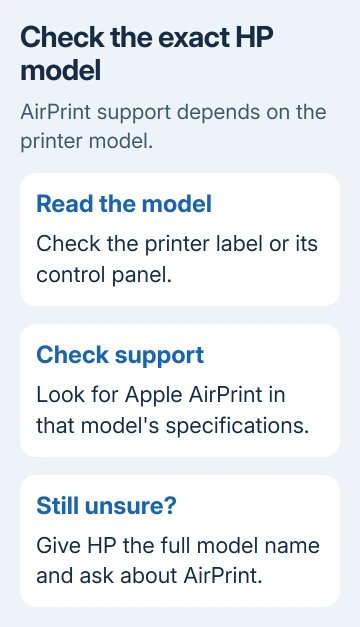
Read the full printer model from its control panel or identification label. Check that model's specifications for Apple AirPrint. Apple's AirPrint information links to a searchable printer list; ask HP about a model you can't confirm.
Turn on the printer and load suitable paper. Check its screen for errors and resolve them before printing. A paper, ink or open-cover warning needs attention before the printer can finish a job from your phone.
On the iPhone, open Settings > Wi-Fi. Note the network with the check mark. Check the printer's network information through its own screen, network report or model instructions, and connect it to that same home network.
For a printer already connected to the router, keep its working network settings. For a connection lost when you replaced the router or changed its password, follow the HP Wi-Fi setup steps before selecting the printer on your iPhone.
Printers differ in how they join Wi-Fi. A touchscreen model may have an on-screen setup menu; a button-only model needs its own setup procedure. Use your model's setup instructions instead of guessing which buttons to hold.
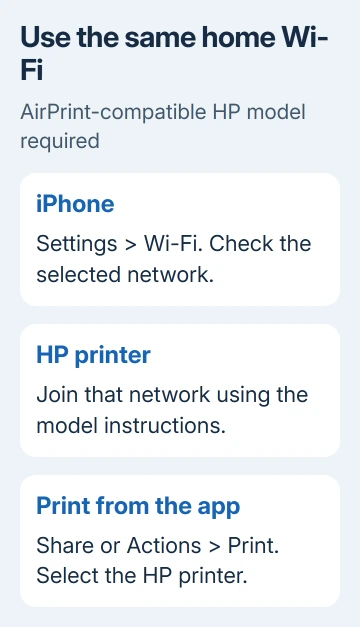
For the normal home-network method, keep the phone on the home network while printing. If you switch networks during a job, you'll be checking a different connection from the one that sent it.
Open Print from the item you want on paper
Open a photo in Photos, a message in Mail, or a page in Safari. Tap the app's Share or Actions control, then find Print among the available actions.
Different apps put Print in different places. It may be inside a menu rather than shown beside the document. Scroll through the action list before assuming the printer connection is at fault.
If the app has no Print action, check its Help or open the document using another print-capable app. AirPrint being available on the iPhone doesn't add a print button to every app.
I'd use one ordinary photo or a short document for the first job. It makes the result easy to recognize, and you won't accidentally send a long attachment while you're still checking the printer choice.
Select the HP printer and send one job
In the print options, tap No Printer Selected or the current printer name. Choose your HP printer from the list. Read its full name, especially if more than one printer is available nearby.
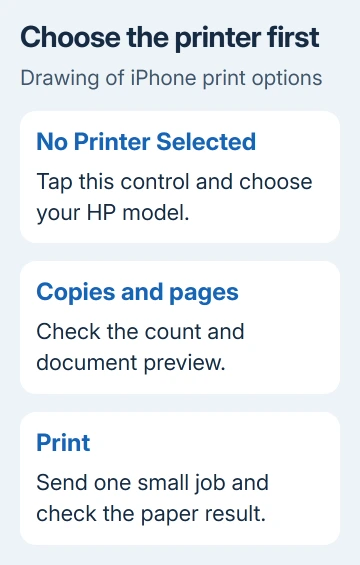
Choose how many copies you need and select the pages you want for a longer document. The printer's capabilities and the app determine the other options, so a missing two-sided or color option isn't automatically a connection failure.
Review the preview before sending. A web page can include navigation and other material outside the section you meant to print. A PDF attachment may have several pages even when only its first page is visible in the app.
Tap Print in the upper-right corner. Give the printer time to wake and process the job. Check the printed page for the expected content, page range and number of copies before sending the rest.
Once you've selected the right printer and it produces the page, you know the connection works. A printer name appearing in a list is only the selection stage; the printed page tells you whether the whole job completed.
Watch the queue or cancel an accidental job
While a job is active, open the iPhone's App Switcher and select Print Center. The queue shows the documents waiting to print. Select the job and tap Cancel Printing if it shouldn't continue.
For a Home-button model, double-click Home. Without a Home button, swipe upward with your finger starting right at the display's lower edge. Pause briefly before lifting your finger. Choose Print Center from the recent apps.
Print Center appears while printing is active. It isn't a permanent place to manage your printer settings. If the job has finished and the queue is gone, check the printed pages rather than searching for a saved pairing screen.
Avoid tapping Print repeatedly while the first job is still waiting. Open the queue to see whether the job reached it. That helps you see what's waiting and avoids several copies coming out when the printer starts again.
When the HP printer doesn't appear
Check the exact model's AirPrint support and the Wi-Fi names first. Then restart the printer and iPhone and reopen the Print menu. Try another app with a known Print action to separate an app problem from printer selection.
A USB-only printer doesn't become an AirPrint printer by plugging it into a computer. AirPrint needs a network connection the printer supports for that purpose. A Bluetooth connection to a computer also isn't the AirPrint route.
Without a shared Wi-Fi network, check the model's HP instructions for a supported direct-printing method. Don't assume every HP printer offers the same connection options, or that Bluetooth pairing will replace the network step.
An HP printing app can provide extra functions on supported models, but ordinary AirPrint printing doesn't need a driver download on the iPhone. Check the app's model support before installing it as another way to print.
For a different printer brand in the same household, the Canon phone connection guide covers its own setup options. Button sequences from that printer shouldn't be used on the HP device.
Ask HP to check the model's AirPrint setup
If a confirmed compatible model still doesn't appear, use support.hp.com and enter its full model name. Ask for help checking its AirPrint availability, network connection and firmware, using the procedure for that model.
Provide the iOS version, printer model, Wi-Fi names and Print-menu error. Say whether another Apple device prints successfully. That tells support whether to focus on the printer setup or this phone's connection.
The Short Version
Confirm AirPrint support, connect the iPhone and HP printer to the same Wi-Fi network, then use the document's Print action. Select the printer, review copies and pages, and tap Print. Use Print Center for an active queue or cancellation.
Checked November 12, 2026.