The ene.sys warning means Windows blocked that driver from loading. MSI provides a removal tool for its notebooks showing the message at login. Confirm the filename, then use that specific fix before changing Windows security.
On another brand, start with an updated driver or control app from that PC's manufacturer. The same Windows warning can name many drivers, so an ene.sys repair shouldn't be applied to a different filename.
In this guide
1. Read the filename in the startup warning
Look for Program Compatibility Assistant and A driver cannot load on this device. Expand any available details and note the driver name and company name. These steps are for ene.sys, including its .sys ending.
The message means Windows started but refused to load one driver. That's different from a blue screen or a computer that never reaches the desktop. Keep the full warning if the desktop also has another problem.
Microsoft says the alert can result from Memory integrity blocking a driver. Its driver-loading help recommends checking for a compatible update.
Memory integrity protects Windows processes from untrusted code. Turning it off changes that protection. I'd try the supported driver update or removal before changing security just to silence a login message.
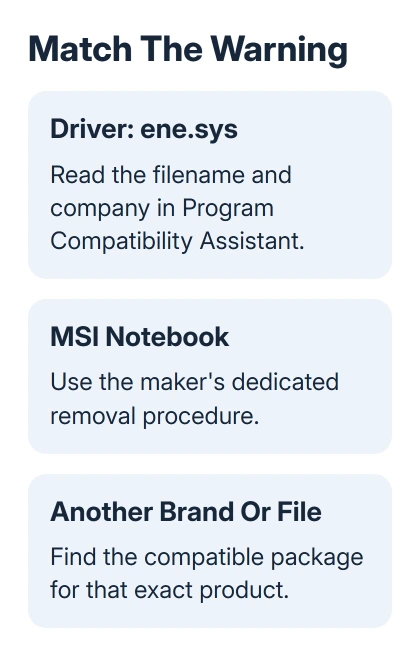
Write down the laptop's brand and complete model number alongside the warning. Those details decide whether the MSI-specific procedure applies or whether you need help from another manufacturer.
2. Use the dedicated removal tool on an MSI notebook
MSI's ene.sys repair page applies to its notebooks showing this warning at login. Follow the download link labeled ene.sys Driver Removal Tool on that official page.
Save RemoveDriver.zip, then open its location in File Explorer. Right-click the ZIP file, select Extract All, and finish extraction. Use the unpacked folder to run the program; don't run it from inside the ZIP preview.
Run the executable supplied in that extracted folder and follow its prompts. Save open work, then restart the notebook. The tool removes the ene.sys driver; it isn't a general driver-cleaning utility for other manufacturers.
Use the download linked from the official FAQ. A similarly named executable from a search advert or file-sharing page isn't the same verified source. If the official page refuses access, ask MSI support for the tool linked in FAQ8657.
After signing back in, check whether the same compatibility warning appears. If it has stopped, keep using the notebook and check that your usual features work. There is no reason to repeat the removal on every startup.
If the warning still names ene.sys, record whether the tool completed or showed an error. Send that result to notebook support with the model and Windows version, rather than downloading the same tool again and again.
3. On another brand, update the software that supplies it
Keep the driver and company names from the warning. Use the PC or motherboard maker's support site to find the matching package for your model. Don't choose another company's removal tool just because the filename matches.
A laptop and a separately purchased desktop motherboard can have different support downloads. Choose the product your hardware and software came with, rather than a similar-looking model.
If the vendor offers an updated compatible package, follow the package instructions, including its restart request. Check the same warning at the next sign-in. Check that Windows no longer blocks the driver named in the warning.
If the supplying app isn't clear, ask the manufacturer to identify ene.sys from the warning's company information. Don't delete files by hand from C:\Windows\System32\drivers. That isn't the same as uninstalling their software.
If the driver belongs to an optional control app, ask whether its update replaces the blocked driver or if you should uninstall the app. Don't remove unrelated graphics, storage, or network drivers just because they also end in .sys.
4. Check Windows Update for a compatible driver
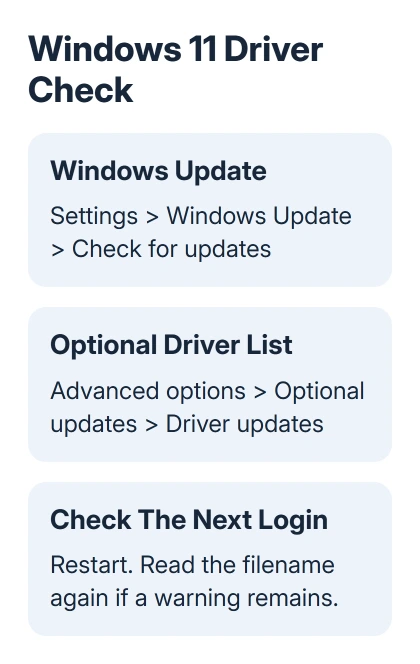
In Windows 11, open Settings > Windows Update and select Check for updates. Install available updates and complete any required restart. Check whether the warning returns before changing anything else.
For offered driver updates, open Windows Update > Advanced options > Optional updates. Expand Driver updates if it appears. Review the device and manufacturer before selecting a package, then use Download & install.
Not every computer has an optional driver listed. An empty list means Windows Update has no driver package to offer there. It doesn't mean that every manufacturer's own download is already installed.
For Windows 10, the main route is Settings > Update & Security > Windows Update. Use View optional updates when offered, then review Driver updates. The warning can occur there too, although the Settings layout differs.
The Windows driver update guide covers the difference between Windows Update, Device Manager, and model-specific downloads. Choose the route for the affected device and leave unrelated updates alone.
Restart after the selected repair and read the driver name again if a warning remains. A new message naming a different file needs its own compatible package; the absence of ene.sys doesn't fix a separate driver block.
5. Keep a security change separate from a driver repair
Search Start for Windows Security, open Device security, and select Core isolation details when available. Read Memory integrity without changing it. This shows you the protection mentioned in the warning.
For a separate Device Manager warning, use the device error-code guide. Check the code in that message separately; it isn't automatically the same fault as this login dialog.
If a work app needs the blocked driver, give the warning to IT. Ask for a compatible package or approved replacement. Include the filename, company, Windows version, and affected feature in that request.
For a home computer with no compatible package, ask the manufacturer whether a replacement is planned and whether the app can be removed. The practical next step depends on which feature actually needs the driver.
Reaching the desktop doesn't mean every device feature works. The feature that needs the blocked driver can still be unavailable while Windows runs. Check that specific function after updating or removing its software.
The Short Version
Confirm that the warning names ene.sys. On an MSI notebook, follow the official removal-tool procedure and restart. For another brand, get a compatible package from its manufacturer or Windows Update before changing Memory integrity.
Checked November 12, 2026.