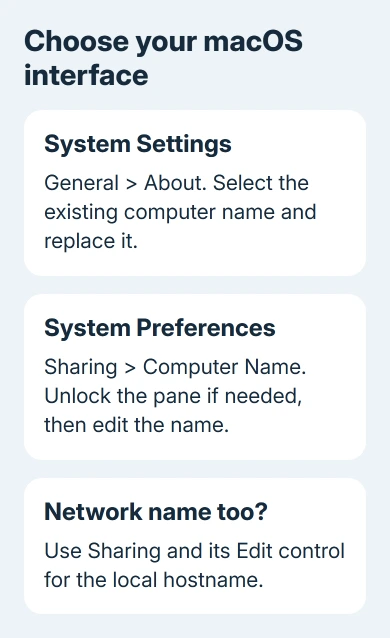
Change a MacBook's computer name in System Settings under General > About. Select the existing name and type the new one. This changes the computer's label without renaming your login account or moving your files.
The local network name is a separate field in Sharing. Check that too when the name you're trying to change ends in .local or has an unwanted number attached.
In this guide
Rename the Mac in current System Settings
Open the Apple menu > System Settings, choose General, then open About. Select the computer's current name and replace it with the name you want. Click elsewhere in the window when you've finished typing.
Choose something recognizable, such as Study MacBook or Travel Mac. You don't need to include the owner's full name, and the label doesn't have to match the hardware model printed on the box.
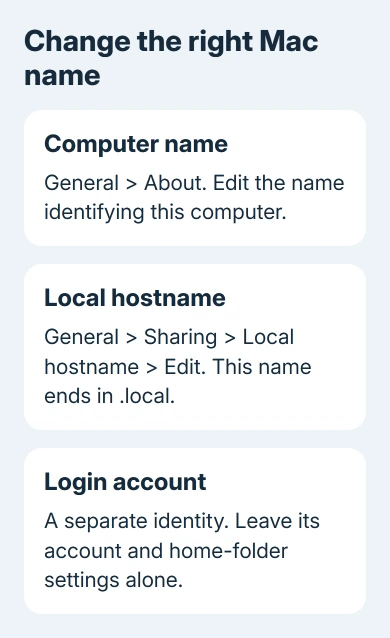
Apple says to view and edit the name in About in its Mac naming instructions. This route applies to Macs with System Settings, including macOS 27.
System Settings offers these naming controls on both processor types: Intel and Apple silicon. Follow the instructions for your macOS interface; the processor doesn't change how you rename the computer.
Check that your new name appears before leaving About. Select it again to fix any typing mistakes. You don't need a Terminal command to make this change.
I'd choose a short name you can distinguish from your other computers. Two laptops called MacBook are harder to recognize when someone asks which machine they're connecting to.
Use Sharing on an older Mac
Macs running macOS Monterey 12 or earlier use System Preferences, rather than System Settings. Open Apple menu > System Preferences > Sharing and find Computer Name near the top.
If the pane shows a closed lock, click it and enter your password to unlock the controls. Replace the text in Computer Name, then click outside the field. Check that the new text stays in place.
Don't turn on File Sharing, Screen Sharing, or another service simply to rename the machine. The name field is in the Sharing pane, but changing that field doesn't require you to start a sharing service.
If the name field isn't editable on a computer supplied by work or school, ask its administrator whether device naming is managed. Keep the management profile in place and ask IT to change the name.
Once the computer name is correct, change the local hostname only if you need that renamed too. A name shown in a login window may instead belong to the user account, which has different controls.
Change the local name ending in .local
The local hostname identifies your Mac to compatible services on the same network. Bonjour is the discovery system that helps those services find nearby computers without you typing their numeric network addresses.
Normally, the local hostname comes from the computer name, with hyphens replacing spaces and .local added. For example, Study MacBook becomes Study-MacBook.local. Check the field itself when you need to give someone the exact name.
In current macOS, open System Settings > General > Sharing. Scroll to Local hostname, click Edit, enter the replacement local hostname, and click OK.
On Monterey and earlier, use System Preferences > Sharing. The local network name appears beneath Computer Name. Unlock the pane if necessary, click Edit, enter the new local hostname, then confirm with OK.
Leave Use dynamic global hostname alone unless a network administrator has given you a reason to use it. You don't need a separate global naming service to rename a Mac on your home network.
After saving, read the displayed local hostname again. If someone uses that name to reach a shared service, give them the new value so they don't continue connecting with the old address.
Deal with a number added to the network name
A number can be added when another Mac on the local network has exactly the same name. Editing it away while both Macs still share a name can bring the number back.
Choose distinct computer names for the Macs you own, then check each machine's local hostname. A simple room or purpose label is easier to distinguish than repeatedly removing a number from two otherwise identical names.
Local hostnames aren't case-sensitive. Changing Study-MacBook to study-macbook doesn't create a different network identity. Use different wording if your aim is to tell two computers apart.
A computer name that Bonjour doesn't recognize can produce Macintosh.local as the local network name. Check the naming fields themselves rather than assuming that the text in another app is the name you saved.
The computer-name lookup steps help distinguish the current device name from a username or model. They're also useful when you're reading a name from a remote computer instead of the Mac in front of you.
Keep the login account and other devices separate
Renaming the computer doesn't rename your home folder, your macOS login account, or your Apple Account. Those names serve different purposes, even when they happen to contain the same person's name.
Leave the account's Advanced Options and home-folder path unchanged for this task. Changing those fields is a different procedure with a risk of making the account difficult to access.
Similarly, a phone's label has its own control. Use the iPhone naming steps if the device with the unwanted name is your phone rather than this MacBook.
If another device still shows an old label, confirm the Mac's About and Sharing fields first, then refresh the other device's list or reopen its app. Check which list still has the old name before changing more settings.
If a personal Mac won't save the edit, give Apple Support its macOS version and the field involved. Say whether it reverts immediately or after restarting. Send those details to IT for a managed Mac.
The Short Version
Edit the computer name in General > About, or Sharing in older System Preferences. Use Sharing's Local hostname editor for the .local name. Choose distinct names on the network and leave account and home-folder settings alone.
Checked November 12, 2026.