A computer's name is listed in its About settings. On Windows, look for Device name; on a Mac, read the name in the About window. That's the name to send when your IT department asks which computer needs help.
The laptop's model, your account name and its network address each tell you something different. For a quick Windows lookup without opening Settings, run hostname in Command Prompt or PowerShell.
In this guide
Read Device name in Windows Settings
Press Windows+I to open Settings, then choose System > About. Both Windows 11 and 10 use that route. Under Device specifications, find Device name and copy the entire value.
The name might be something you chose, or an automatically assigned combination of letters and numbers. Keep any hyphens when copying it.
For example, OFFICE-LAPTOP is a device name. ThinkPad T14 describes the hardware family rather than a name chosen for that computer.
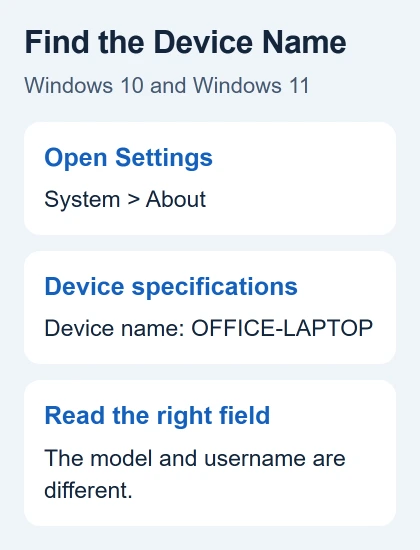
Microsoft says another route in its computer-name instructions is to use search: press the Windows key, type System, and select About. Use that when navigating the Settings sidebar is awkward.
Check that you're reading the About page on the computer you need to identify. Reading it inside a Remote Desktop session gives you the remote computer's details, even though you're looking at them on your own laptop.
I'd use this screen first when helping someone over the phone. The field has a clear label, which helps prevent copying a username or the manufacturer's model number instead.
Get the Windows name with one command
Open Start, type Command Prompt, and open the ordinary app result. An administrator window isn't needed to read the name. Enter this command, then press Enter:
hostnameThe next line shows the computer's host name: its device name without the full address a business network might use. Copy that line, leaving out the prompt that appeared before the command.
For example, a prompt ending in C:\Users\Alex> contains a user-folder name. That text isn't the result. Read the separate line printed after you run the command.
The same command works in PowerShell and Windows Terminal. If Terminal opens a PowerShell tab, type it there and read the result. You can stay in that tab.
The hostname reference covers Windows 10 and 11. It describes the result as the host portion of the full computer name, so a company domain suffix may be absent.
Use the command that matches your shell
Command Prompt has another way to show the name:
echo %COMPUTERNAME%In PowerShell, the equivalent is:
$env:COMPUTERNAMEBoth read an environment variable, a named value Windows makes available to programs. The Command Prompt version can show uppercase letters even when hostname uses another capitalization. That alone doesn't mean you've found two machines.
If a command prints %COMPUTERNAME% instead of a name, check which shell you're using. Percent signs belong to the Command Prompt version; PowerShell uses the $env: form. The simpler hostname command avoids that difference.
Don't change environment variables to make two outputs match. This lookup only needs the current name. If the result looks wrong, compare it with the About screen without changing any settings.
Check whether IT needs the full computer name
A business computer can have a short device name and a longer name that includes its domain. Ask which one the support form requires instead of adding an email domain to the short name yourself.
On the Windows About page, look for Domain or workgroup under related links when that link is available. It opens the older System Properties controls, where the Computer Name tab shows the full name and domain or workgroup details.
For example, a short name could be OFFICE-LAPTOP while a full name includes the organization's network suffix. A workgroup label is a separate field. Copy the value from the field requested by the technician.
If your work computer doesn't show those details, send IT the Device name and tell them which field the form asks for. They can check their device records without you changing the computer's domain or workgroup.
Find the Mac's name in About
On current macOS, choose the Apple menu > System Settings > General > About. Read the computer name at the top. The macOS version, chip and serial number shown nearby answer different questions.
On older Macs using System Preferences, the name is available in System Preferences > Sharing. Read Computer Name there. Opening that screen to look at the name doesn't require turning on File Sharing or another service.
A Mac also has a local hostname. Open System Settings > General > Sharing and read it at the bottom of the window. It normally uses hyphens for spaces and ends in .local.
The Mac name and network-address controls distinguish that local name from an address used by a sharing service. Copy whichever field the other person asks for.
For hardware advice, the PC specification checks explain which model and component details matter. A device name by itself won't tell a technician which memory or replacement parts fit.
Send the name with enough context to use it
Copy the name into your support message and say whether it came from Windows Device name, the full computer-name field or macOS About. That saves them having to ask which name you sent.
When arranging a connection, the name alone isn't the whole setup. The Remote Desktop setup steps cover the connection requirements separately. Check the target computer's identity before sharing connection details.
If the name on screen differs from an asset sticker, send both to your organization's help desk. A sticker may track inventory while Windows tracks the current installation.
Don't rename a work computer to match the sticker without IT's instructions.
For a personal device where the results don't match, send Microsoft Support or Apple Support a screenshot of just the name field. Crop out unrelated account details and say whether you ran the command on that device or in a remote session.
The Short Version
Read Device name in Windows System > About, or run hostname. On a Mac, open General > About. Use the full computer-name field when IT requests a domain-qualified name, and keep the device name separate from your username and model.
Checked November 10, 2026.