Repeated USB disconnects often come from a loose cable, an unpowered hub, or a device drawing more power than its connection can supply. Connect the device directly to the computer first, then try another suitable cable and port.
If one device drops out, check its cable, power, or driver. If several disappear together, check their shared hub, dock, or port. If Windows chimes but nothing seems to stop working, first find which device is disconnecting.
In this guide
1. Remove the hub and check the connection
Save any work on an external drive and stop transfers before changing its cable. Unplugging a drive while it's writing can damage the file you're saving.
On a Linux computer, unmount the USB storage before switching its connection.
Disconnect the troublesome device, wait briefly, then attach it straight to a computer USB port. Leave adapters, extension leads, keyboard pass-through ports, and an unpowered hub out of this first comparison.
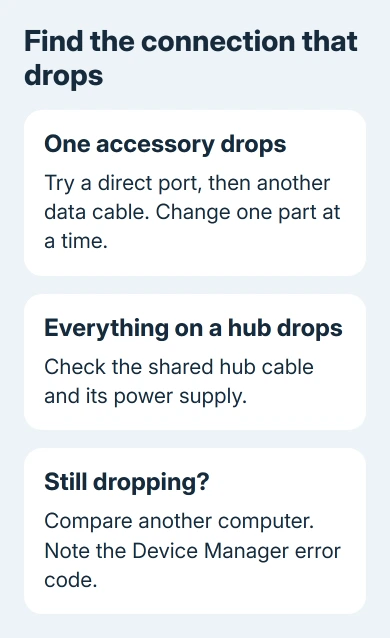
Use the device normally and watch whether it stays connected. A mouse that stops freezing or a drive that stops vanishing on the direct port points toward the equipment you took out of the connection.
If the cable detaches, try a known-working replacement that supports data and the device's requirements. Phone charging alone doesn't confirm that a cable supports file transfers or a demanding USB accessory.
Try another direct port while keeping the cable unchanged. If the device only works with its plug held at an angle, have the connector checked instead of wedging it in place.
Microsoft's USB connection checks recommend reconnecting, trying another port, and checking hub power. Those are useful first repairs before changing Windows settings.
2. Give the device and hub enough power
Connect a dock or powered hub to its correct power adapter. For an external drive or other device with its own power supply, connect that supply too. An available socket on a hub doesn't promise enough power for every attached device.
Plug a laptop into its charger during the comparison and disconnect USB accessories you aren't using. The computer may limit power available to a newly attached device when it's on battery or already powering other equipment.
If everything on one dock drops together, try the dock's cable and power supply before replacing individual accessories. Start with the connection those accessories share.
If Windows warns that the USB device needs more power, focus on its power supply. Connect the device's external power where supported, disconnect other USB accessories, or try it on another computer.
A USB-C plug also doesn't guarantee the features your device needs. A dock may require a particular data or display capability. Match the USB-C port and cable requirements rather than judging them by the connector's shape.
I'd make the direct-port comparison before buying a powered hub. It can show that the existing hub is involved, but it can also reveal a bad cable that a new hub wouldn't repair.
3. Check which device is actually disappearing
Press Windows+X and open Device Manager on Windows 10 or 11. Keep it visible while the fault occurs. Look for the device vanishing, reappearing, or showing a warning symbol.
Open the affected entry's Properties and read Device status. Note the complete error message and code. A failed device descriptor or port reset gives you more useful information than the connect sound alone.
If you hear chimes but can't identify what drops, use the random device-connect sound checks. Don't uninstall a controller at random just because the sound is associated with USB.
If a group of devices refreshes in the list, check their shared connection. The list moving alone doesn't tell you which part is faulty. Check what stops working: one microphone, one external drive, or every accessory on the dock.
For a phone, notice whether charging also stops or only file access disappears. A locked phone or a changed USB mode can affect file access without physically disconnecting its charging connection.
Pause backups through an unstable drive connection. If that drive holds your only copies of important files and drops on other computers too, get advice from a data recovery specialist before running any repair that changes its contents.
4. Update the driver for the device that fails
When the device works on another computer but keeps dropping on this one, check Windows updates and the computer maker's driver package. Start with the identified device, dock, or USB controller rather than a random driver-download utility.
On Windows 11, open Settings > Windows Update, check for updates, then inspect Advanced options > Optional updates for a relevant driver. Install a listed driver update only if it matches the hardware you're checking.
On Windows 10, open Settings > Update & Security > Windows Update. Inspect View optional updates if offered. Normal free support has ended, so the updates you can get depend on your support plan.
A manufacturer's dock utility or support page may provide dock firmware separately from a device driver. Select your dock's model number and follow the update's power requirements. Don't use firmware intended for a similar-looking dock.
Restart after the relevant update, then repeat the same device and port comparison. If an update introduced the fault, check the hardware maker's notes and whether Roll Back Driver is available in the affected device's Driver tab.
5. Treat sleep-only drops differently
Notice whether the failure happens during active use or only after idle time and sleep. A cable that disconnects while you're moving it and an accessory that fails to wake need different repairs.
Update the device and dock software first for a wake-related fault. If the manufacturer recommends a power-management change for that exact model, follow those steps, then check whether the device works after the computer sleeps and wakes.
Leave USB selective suspend enabled during general troubleshooting. It saves power by suspending idle devices, and current driver guidance recommends keeping it. Follow a model-specific exception only when its maker calls for it.
If the same device fails with a good cable on two computers, ask its manufacturer for a hardware and connector check. If several good devices fail on one direct port, give the computer maker that result and the Device Manager code.
The Short Version
For repeated USB disconnects, start with a direct connection and a replacement data cable. Check shared hub power when several accessories disappear. Identify the device before changing drivers, and check sleep-related failures separately.
Checked November 12, 2026.