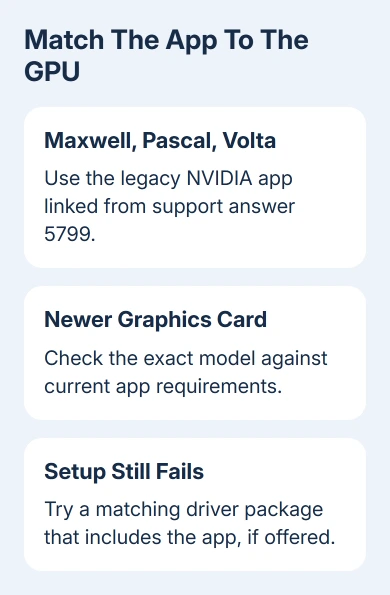
NVIDIA app error 0xE6000000 can mean the installer doesn't support the GPU. Check its model before reinstalling drivers. Maxwell, Pascal, and Volta GeForce cards need the separate app linked from NVIDIA's support page.
The app can also install through a compatible graphics-driver package when standalone setup fails. That still needs a package for your GPU; it won't make unsupported hardware compatible with the latest app.
In this guide
1. Read the setup message and identify the graphics card
Write down the full message along with the error code. If it says the system configuration isn't supported by this installer, check hardware compatibility first. The code alone isn't a reason to change BIOS settings or reinstall Windows.
A separate app-package parsing message calls for checking its package format and deployment event, rather than this NVIDIA code.
Right-click Start > Device Manager, expand Display adapters, and note the NVIDIA model. A laptop can list integrated graphics and a separate GPU. Use the NVIDIA entry, even if another adapter appears first.
If you see Microsoft Basic Display Adapter, the proper driver may be missing. Check the laptop or card model before downloading. A desktop's processor name doesn't identify its separate graphics card.
Open the GPU's Properties > Driver and note its driver version. The Windows driver instructions explain how Windows obtains hardware updates.
The app and display driver are separate pieces of software. A working desktop doesn't mean the app's installer supports that GPU, and an app installation error doesn't automatically mean the working display driver needs removal.
2. Use the legacy app for Maxwell, Pascal, or Volta
NVIDIA recommends app 11.0.5.420 for Maxwell, Pascal, and Volta GeForce GPUs on its legacy architecture support page. Use that page's own GPU list to match the exact model.
For example, a GTX 1060 or GTX 1080 belongs to the Pascal family. A newer standalone installer can reject these cards even with Windows 11 installed. Running the same installer again won't add support for these older GPU families.
Download the legacy installer through that support page. Close any installer already running, then launch it. Before approving Windows' administrator prompt, check that the file came from the linked NVIDIA download.
If you have an incompatible NVIDIA app installed, remove NVIDIA app through Settings > Apps > Installed apps before installing the matching version. Leave the separate graphics-driver entry alone unless its own installation has failed.
Open the app after setup and check its installed version in settings. The download filename alone isn't enough: the matching package needs to install and launch successfully.
I'd make the package change before touching a stable display driver. For these older cards, the official legacy download addresses compatibility without changing graphics settings that already work.
3. Try the matching driver package's app option
One owner who saw that error code installed the app by downloading the appropriate GeForce driver and choosing the option that included both the graphics driver and NVIDIA app. Later replies thanked them for the workaround.
Open the official driver selector. Choose the exact product series, model, and Windows version. For a laptop, choose the notebook entry if the selector lists it separately from the desktop card.
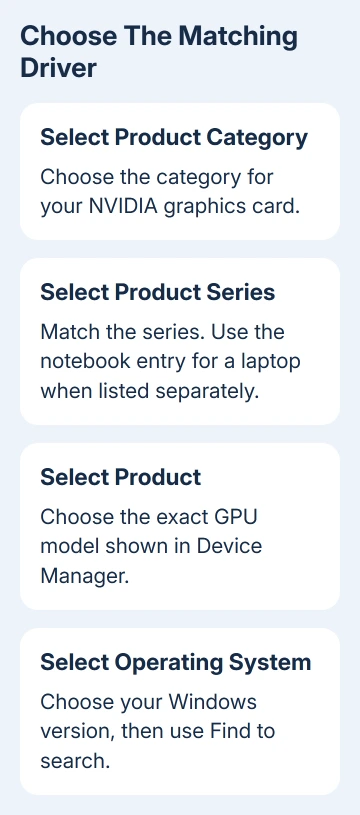
Review the supported products, then launch the matching driver package. If offered, choose both the graphics driver and NVIDIA app. Follow setup and note which parts it says installed successfully.
The option and included app version depend on the package. If it offers only a display driver, don't assume something is broken or fetch a driver for a different card to gain the missing option. Return to the matching app package instead.
For a laptop with customized graphics support, check the laptop maker's driver page when its instructions require a specific package. Keep the full model name with its supported Windows version; a similar model name isn't enough.
4. Check current requirements on newer hardware
For a newer GPU, compare its exact model with the current NVIDIA app system requirements. Windows 11 being listed answers only the operating-system part. The app also has GPU, driver, memory, and disk-space requirements.
The current requirements page lists GeForce driver 551.52 or later, 2 GB of system memory, and 600 MB of disk space. You still need to check GPU support. A newer driver won't make an unsupported GPU family compatible.
If the card is supported but the required driver isn't installed, get a matching driver first. Let that installer finish, then use Start > Power > Restart when requested. Retry the correct app package after Windows returns.
For the timing of that restart, the separate NVIDIA driver restart guide explains how to finish the installation safely. Repeated restarts won't repair an incompatible app download.
Don't choose a clean driver installation just because the app failed. It resets driver settings. Save it for a separate driver problem or specific support instructions.
Send support the failed component and exact versions
If matching setup still fails, save the error, GPU model, driver version, app installer version, and Windows version from Settings > System > About. Note whether you ran the app's own installer or installed it with the driver package.
Ask NVIDIA support to confirm the app package for that GPU. Include the name of any part the driver installer says it couldn't install. On a managed PC, send IT those details before changing security or installation policies.
A separate Device Manager error code needs its own diagnosis if the adapter also has a warning symbol. That Windows device error and the NVIDIA app's setup code are different messages.
The Short Version
Choose the GPU-compatible app package. Maxwell, Pascal, and Volta GeForce cards have an official 11.0.5.420 download. A matching driver package with the app included is another confirmed route.
Checked November 12, 2026.