An error parsing the app package in Windows 10 means the installer can't read or accept its package information. Get a fresh download from the app's publisher, then check its Windows and processor requirements.
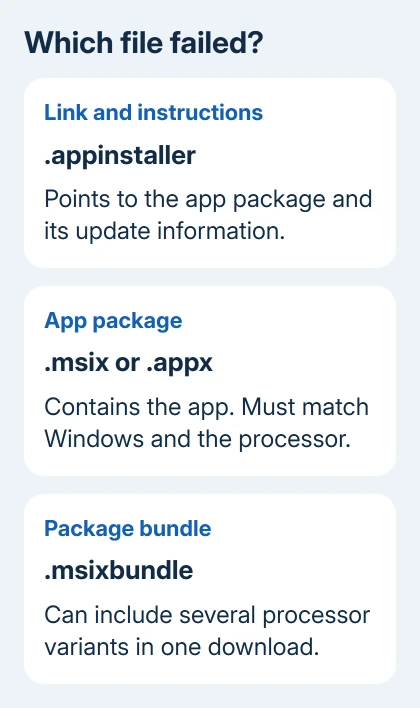
Check which file type failed: an .appinstaller file points to an app and its update information, while .msix and .appx files contain app packages. A broken download link and an invalid package need different repairs.
In this guide
1. Download the correct package again
Return to the publisher's official download page and download a fresh copy to a local folder. Once the download finishes, open the new file instead of the earlier copy in Downloads.
Check the file's full name and extension in File Explorer. In Windows 10, select the View tab and enable File name extensions. This makes it easier to tell an app package from a similarly named web page or incomplete download.
The publisher may offer an .exe or .msi installer alongside MSIX. Use its instructions if that alternative supports your Windows version. Changing the broken file's extension to .exe won't convert it.
Microsoft says to check App Installer compatibility, downloads, dependencies, and certificate trust. Start with those checks instead of assuming the message means Windows itself is damaged.
If the fresh file works, the earlier copy or download was the problem. If it produces exactly the same message, keep the new copy and move to compatibility checks. Repeated downloads won't repair a package built for another system.
2. Match the app to the Windows build and processor
Press Windows + R, enter winver, and press Enter. Record the version and build number, then compare them with the app's minimum requirement. The Windows 10 name alone isn't a compatibility check.
Next, open Settings > System > About and read System type. Choose the download that matches both your processor and Windows system type. A package labeled ARM64 isn't the correct native package for an ordinary x64 Windows PC.
Choose the publisher's bundle for supported processor types if one is available. A bundle can hold several versions of the package, so Windows can pick the right one. Your Windows release still needs to meet the app's requirements.
Very old Windows 10 releases have additional limits. Version 1607 introduced App Installer for .appx and .appxbundle files; version 1709 introduced .appinstaller support. Newer .appinstaller features can require later Windows builds.
Windows 10 version 1909 and earlier needs Developer Mode or the sideloading setting to install apps outside the Store. On a current PC, check the publisher's installation steps before turning on a development setting as a general fix.
Windows 10 reached the end of normal support on October 14, 2025. If the app requires Windows 11, ask for its last Windows 10 release or plan an OS upgrade on supported hardware. Editing the package won't add missing system features.
3. Check what App Installer is being asked to open
An .appinstaller file contains instructions and links, rather than the complete app. Links to the app and any supporting packages it needs must still work. Saving that small file doesn't necessarily download everything the app needs.
For a company app, ask IT whether the download requires the company network or VPN. Give them the original link and explain whether the failure happens while downloading or only after opening the saved file.
Try the publisher's direct package download if one is offered. If the actual .msix or .appxbundle installs but its .appinstaller route fails, ask the publisher to check the .appinstaller file and the links inside it.
The web server must send the correct file type and length. The publisher controls these settings; a Windows checkbox won't fix them. Send the failing address to the publisher rather than changing browser security controls.
I'd check the download links before trying a full Windows repair. When one publisher's package fails but another trusted package opens correctly, start by checking that app's download and package.
4. Follow the specific trust or dependency message
If the dialog changes to an untrusted-certificate warning, read its publisher. App packages need a signing certificate that the device trusts. For a company app, ask IT to install the package along with the company's approved certificate.
Don't import a certificate from a random download page to silence the warning. A certificate changes which software your device trusts, and the app's publisher or your administrator should confirm the correct one.
An error naming a missing framework is a different problem. Apps can need supporting packages such as VCLibs or a .NET framework package. Use the dependencies supplied or linked by the publisher for that app and processor type.
A missing dependency isn't automatically the same as error 0xc000007b when a program starts. That error happens at launch; App Installer can fail before the application is installed at all.
Keep the complete new error message if it names a dependency, certificate, or Windows requirement. It tells the publisher much more than the original general parsing message and avoids trying unrelated repairs.
5. Get the deployment error from Windows
If App Installer still gives little detail, right-click Start and open Event Viewer. Expand Applications and Services Logs > Microsoft > Windows > AppXDeployment-Server, then open its Operational log.
Find the failed installation using the time it happened. Read the General tab and save the error code, package name, and message. The code helps separate a file that can't be opened from a dependency or registration failure.
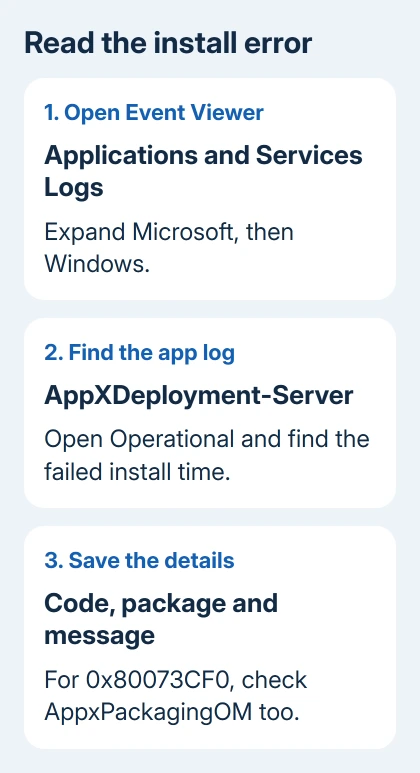
For 0x80073CF0, check the AppxPackagingOM log in the same Windows log tree too. The package-opening failure can carry extra detail there. Send the relevant event text rather than the entire event-log history.
Advanced users can read recent deployment events with Get-AppxLog in PowerShell. This only reads the log. Leave registration or removal commands for a specific repair supplied by the publisher.
An app-specific setup error needs the app maker's instructions once Windows identifies that package as the failure. A general package message doesn't justify replacing unrelated drivers.
If nothing here resolves it, send the publisher your Windows build, System type, package filename, original download URL, and deployment event. Ask for a correctly signed, compatible package or a supported alternative installer.
The Short Version
Use a new publisher download that supports your Windows build and processor. Distinguish an .appinstaller link file from the app package. Follow any certificate or dependency error, then send the deployment event to the publisher.
Checked November 15, 2026.