AirPods volume on Windows can get stuck because of the output choice, app settings or Bluetooth volume control. Select the AirPods under Settings > System > Sound, then compare the Windows slider with the app's control.
A failed stem swipe needs a different check: only certain AirPods models have built-in volume gestures. Check the model before changing Windows drivers or trying a control the earbuds don't support.
In this guide
1. Make the volume slider control the AirPods
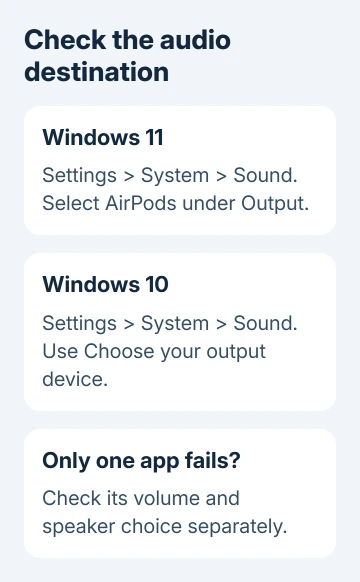
Choose a recording you recognize and begin at a low volume. In Windows 11, open Settings > System > Sound and select the AirPods under Output. Move the volume slider a small amount while listening for a change.
In Windows 10, open Settings > System > Sound and select the AirPods under Choose your output device. Check that the device shown is the AirPods rather than the laptop speakers, monitor or another Bluetooth headset.
The speaker icon's number changing means Windows received the volume command. That doesn't confirm any change in what you hear. Listen for a change, then compare the volume control inside the playing app.
If dragging the slider with your mouse works but the keyboard keys don't, the Bluetooth connection is already responding to volume changes. Check the laptop's function-key mode or keyboard controls before repairing the AirPods connection.
For silence, Microsoft recommends checking the Bluetooth output. A Bluetooth connection alone doesn't select the audio output.
2. Check the app's own volume and output
In Windows 11, open Settings > System > Sound > Volume mixer while the affected app is playing. Under Apps, check that its slider isn't muted and that its Output device points to the AirPods or the intended default.
In Windows 10, right-click the taskbar's speaker icon and choose Open Volume mixer. Check the affected app's slider. For per-app routing, look under Settings > System > Sound > App volume and device preferences.
Also check the player or meeting app's own sound settings. Some apps select their speaker independently of Windows. Pick the AirPods inside that app if it continues sending sound to a monitor or a different headset.
Try playing something in another media app. If its loudness changes normally, keep working on the first app's settings. Leave the Bluetooth drivers alone for now and check the settings in the app that behaves differently.
If both apps stay at the same loudness even though their sliders move, continue with the Bluetooth connection. I'd compare apps before re-pairing; correcting an app's output takes only a moment.
3. Use the control your AirPods model actually has
AirPods Pro 2 or AirPods Pro 3 support volume swipes: lightly swipe up or down on the stem. AirPods Max use the Digital Crown; turn it to change volume instead of pressing it as a playback button.
The current AirPods 5 with Wireless Charging Case also has a volume-swipe control. The standard AirPods 5 has different controls, so use the complete model name to choose the right control.
AirPods 1, 2, 3, 4 and AirPods Pro 1 lack this volume-swipe gesture. Use the Windows or app slider. Pressing their stem or tapping an earbud can control playback without acting as a volume button.
Apple's AirPods control list separates these models. Siri isn't available with a non-Apple device, so a Siri request can't fix Windows volume.
If your model has a physical volume control, try it with another device too. A Crown or supported swipe that fails everywhere points toward the AirPods. If it works on another device, check the Windows connection next.
4. Reconnect Bluetooth, then re-pair if necessary
Turn Bluetooth off in Windows settings, wait 10 seconds, then turn it on and reconnect the AirPods. In Windows 11 use Bluetooth & devices; Windows 10 uses Devices > Bluetooth & other devices.
If the volume is still stuck, remove the AirPods from that list and add them again. The Windows AirPods pairing guide covers connection order. Pairing controls depend on the model.
For AirPods 1, 2, 3 or Pro 1/2, place both earbuds inside their case and open the lid. Hold its rear setup button about 5 seconds, stopping once the light flashes white. Choose them in Windows' Add device > Bluetooth list.
For AirPods 4, 5 or Pro 3, put both earbuds into the case and lift its lid. Double-tap the case front and check for a white flashing light. For AirPods Max, hold the listening mode button about five seconds until white flashes appear.
Test the Windows slider again after pairing. Re-pairing is different from a factory reset. If broader AirPods faults remain, the AirPods reset guide has the separate model-specific procedure.
5. Update the PC before trying a volume-sync workaround
Install available Windows updates, restart, and check the laptop or Bluetooth-adapter maker's driver updates. In Device Manager, expand Bluetooth, right-click the radio and choose Update driver > Search automatically for drivers.
Windows has a feature called Absolute Volume, which links its volume level with the headset's. An older Windows 10 Bluetooth fault let the slider move without changing the sound level. It wasn't specific to AirPods.
If that Windows 10 symptom remains after updating, an advanced option is the Absolute Volume workaround. In Registry Editor, open this key:
HKEY_LOCAL_MACHINE\SYSTEM\CurrentControlSet\Control\Bluetooth\Audio\AVRCP\CTSelect File > Export to back up that key, and note any existing DisableAbsoluteVolume value before changing it. Create or edit it as a DWORD (32-bit) Value, set it to 1, then restart Windows.
Windows and headset volume now work separately and can stop matching. If the change doesn't help, restore the value you recorded or remove the value you created, then restart.
If volume control still fails only on Windows, give the PC maker both app results, your Windows version and Bluetooth driver version. If the AirPods' control fails on another device, arrange a control inspection with Apple Support.
The Short Version
Choose the AirPods output first, then review each app's volume. Match stem gestures to the exact model, then reconnect, re-pair and update Bluetooth if needed. Keep the old Windows 10 volume-sync workaround as a narrow last step.
Checked November 12, 2026.