Safari downloads can get stuck while downloading or saving the file to your chosen folder. Check the download list, then try a fresh copy in On My iPhone if the current destination is a cloud folder.
Even when the progress indicator looks full, the document might not open. Check it in Files to see whether it opens and contains what you expected.
In this guide
1. Check whether the download actually finished
Return to the Safari tab that started the download. Tap its Downloads button to check the item. Read the filename and look for progress or an error before downloading the same file again.
Apple says to use this button for recent downloads and Files for saved documents in its download instructions. The download list tracks progress; Files shows what's been saved.
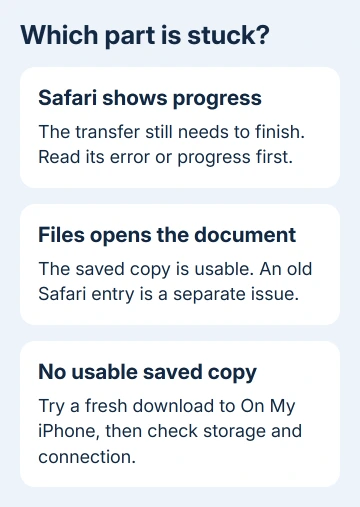
Open Files > Browse, then inspect the folder chosen for Safari. If the document opens and contains the expected pages or media, an old Safari list entry isn't a reason to download it again.
If the file is missing, incomplete or won't open, check where Safari is saving it next. Don't rename an unfinished download to make it look like a PDF or video. Changing its name can't supply the missing contents.
For a completed item that simply seems missing, find the actual Downloads folder before changing any settings. That also helps when an earlier download went to a different folder.
2. Save a fresh copy directly on the iPhone
Open Settings > Apps > Safari > Downloads on current iOS. On iOS 17 and earlier, open Settings > Safari > Downloads. Check the selected location before changing it so you know where to look for the earlier attempt.
Choose On My iPhone, return to the original webpage and start one fresh download. When it finishes, check Files > Browse > On My iPhone > Downloads and open that new copy.
This saves the file on your phone instead of in the cloud. Try it when Safari's progress display reaches the end but you still can't open a file from the selected service.
The location change applies to later downloads. It leaves existing cloud documents where they were, and it doesn't repair an earlier incomplete copy. Use the new item's name and time to tell the attempts apart.
If the local copy opens, you have a usable document. Leave the old copy alone until you've checked the new one, then decide whether you still need to repair cloud storage or move the finished document there.
If the new download also stalls, changing the save location hasn't solved it. Check space and the connection next. I'd leave Safari history intact during this comparison to keep the source webpage and its sign-in available.
3. Check available space in the selected location
Open Settings > General > iPhone Storage and let the storage breakdown appear. A download saved on your phone needs room there, even when your cloud storage plan has plenty of space left.
If the phone shows a storage warning, review its recommendations and remove familiar content you can spare. Check the download's stated size on the source page when it's available, then retry after freeing space.
For an iCloud Drive destination, also inspect Settings > your name > iCloud for account storage. Phone capacity and iCloud capacity are separate. Buying cloud storage doesn't enlarge the phone's internal storage.
When removing existing documents, delete the file or remove only its local copy based on whether the cloud original should survive. Deleting an iCloud Drive document can remove it from your other signed-in devices too.
Return to the same source link after dealing with the storage warning. If the file now opens, you've got the copy you needed. If space is available and it still fails, compare the connection and the download link.
4. Compare another connection and a fresh source link
Try opening another webpage in Safari. If other pages also fail to load, fix the internet connection before retrying the file. A download can't complete while its connection is unavailable.
Switch between a trusted Wi-Fi network and cellular data, then request a fresh download from the source page. For a large file, check your cellular allowance before using cellular data for this comparison.
Keep the comparison simple: the same document, one new attempt, one changed connection. If changing networks fixes the download, report the failure to the original provider. Leave the phone's storage settings as they are during that check.
A download link from email or an account page may require a current sign-in. Return to that service, sign in normally and generate a new link instead of repeatedly reopening an old address.
If one document fails but another download from that service works, request a replacement from the sender. Include its filename and error. They can then check the document rather than your phone settings.
5. Restart only after keeping the original link
Save the source webpage's address or keep the message containing it. Then restart the iPhone normally and retry the download. This gives Safari a fresh session without erasing all browsing data.
Face ID models use two buttons: Side plus either volume button. Keep both pressed until the slider appears. For a Home button model, hold Side alone, or Top if its power key is on top.
Drag the slider, wait for shutdown, then hold its Side or Top power key to start it again. Once the phone reconnects, request a new download rather than judging the old progress display alone.
If downloads from several unrelated sites still fail with local space available, use Settings > General > Software Update to check for an iOS update. Make a backup before starting that installation.
When the file still won't arrive
For one failing service, ask its support team to check the download link and provide another copy. For failures across several sites, contact Apple Support about Safari downloads and give your iOS version, error text and local-save result.
Tell support whether you can see a document in Files that won't open, or whether the finished file is missing entirely. Those are different failures, and that distinction saves another round of repeating the same checks.
The Short Version
Check progress, try a fresh local copy and inspect phone and cloud space separately. Compare another connection. Send one broken file back to its sender; report failures across sites to Apple Support.
Checked November 12, 2026.