Pixel Buds Pro can show as connected to a PC while Windows still sends sound to the monitor or laptop speakers. Select the earbuds in Settings > System > Sound > Output, then check the app's own output if only one program stays silent.
If the earbuds aren't offered as an output at all, this is a Bluetooth audio connection problem. Check the simpler sound controls first, then reconnect and pair the earbuds again if needed.
In this guide
1. Send Windows audio to the Pixel Buds
Start a song or video and leave it playing while checking the output. Watch its playback timer: if it keeps moving, the app is playing even when nothing reaches your ears.
In Windows 11, open Start > Settings > System > Sound. Under Output, select your Pixel Buds Pro. Choose a comfortable output level and clear any mute setting.
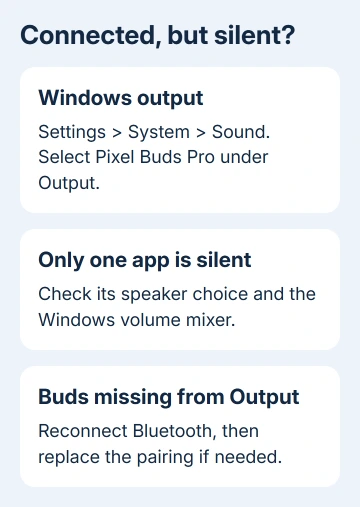
In Windows 10, use Start > Settings > System > Sound, then select the earbuds under Choose your output device. The names differ, but both controls choose the device used for playback.
Microsoft says to check volume and output early in its Bluetooth troubleshooting. Seeing the earbuds in the Bluetooth list doesn't mean Windows is sending sound to them.
If the song now plays through the earbuds, stop here. If the Pixel Buds aren't listed under Output, skip the app check and continue to reconnecting them. Repeatedly increasing volume won't create a missing output device.
2. Check the silent app separately
When the earbuds play other programs normally, open the silent program's sound settings. A meeting app can select its own speaker, while a browser tab can be muted independently of Windows.
In Windows 11, open Settings > System > Sound > Volume mixer with the affected app running. Check its volume, mute state and Output device, then choose the Pixel Buds if it points somewhere else.
In Windows 10, open Settings > System > Sound > App volume and device preferences. Inspect the affected app's output and volume there. Some programs need to be playing sound before they appear in this list.
For calls, check which device the meeting app has selected for Speaker as well as for its microphone. Choosing the earbuds as a microphone doesn't necessarily select them as the speaker. Use the app's test sound when it provides one.
Close and reopen the affected program after changing its output. If other apps work but this one still doesn't, follow that program's audio help before resetting the earbuds.
I'd check this before reinstalling a Bluetooth driver. If music plays but one app stays silent, you've already narrowed the problem to that app.
3. Reconnect without another device taking the audio
Disconnect the earbuds from a nearby phone or tablet for this check. Pixel Buds Pro can be used with multiple devices, so keep them connected only to the PC while you check the sound.
Check that both earbuds and the case have charge. Put the earbuds back in the case, then take them out and select them in the computer's Bluetooth list to reconnect. Start playback directly on the PC.
If sound still doesn't arrive, turn Bluetooth off on the PC, wait 10 seconds and turn it on again. In Windows 11 the switch is in Settings > Bluetooth & devices. In Windows 10, use Settings > Devices > Bluetooth & other devices.
Watch for the earbuds to reconnect, then return to Sound and check Output. If they now appear and play, you've restored the connection without removing the saved pairing.
For a quiet bud, inspect its speaker mesh and gently remove loose debris using the cleaning directions. Don't push anything into the openings. Cleaning can help a blocked mesh, but it won't make missing earbuds appear in Windows Output.
4. Remove the old pairing and add it again
In Windows 11, go to Settings > Bluetooth & devices > Devices. Open the Pixel Buds device menu and choose Remove device. Restart the PC before adding the earbuds again.
In Windows 10, use Settings > Devices > Bluetooth & other devices, select the Pixel Buds and choose Remove device. After restarting, return to that page to add a Bluetooth device.
Place both buds inside their case with the lid open. Hold the case's pairing button until its light pulses white, then choose Add device > Bluetooth in Windows and select the Pixel Buds.
For the case controls and other hosts, the Pixel Buds pairing guide explains the setup sequence. Pairing again replaces the saved connection that isn't giving you sound on the PC.
After pairing completes, return to System > Sound and select the earbuds. A successful pairing message isn't the final check; play the same song and confirm that you hear it in both ears.
5. Repair the PC's Bluetooth connection
On Windows 11, open Get Help and run the Bluetooth troubleshooter. Follow its prompts and test playback afterward. It can try to repair the Windows connection without changing the earbuds' settings.
Check Settings > Windows Update for updates. For Windows 10, the route is Settings > Update & Security > Windows Update. Apply any available updates, accepting a restart prompt when one appears.
If the problem followed an upgrade or update, open Device Manager > Bluetooth. Right-click the PC's Bluetooth adapter, choose Update driver, then Search automatically for drivers.
When Windows doesn't find a newer driver, visit your PC manufacturer's support page and get the adapter driver listed for your model. Give its support team the adapter name if the correct package isn't clear.
If the earbuds appear as an output but still won't play, check their audio format too. In its sound properties, try 2 channels, 16 bit, 48000 Hz if that option is offered. Don't force a format that the device doesn't list.
6. Compare the earbuds with a phone
Connect the earbuds to a phone and play familiar audio. If both earbuds work there but stay silent on the PC, give the PC maker the Windows version, Bluetooth adapter and the troubleshooting results.
If the earbuds fail on the phone too, use Google's Pixel Buds audio help and its Contact us option. Report whether one bud or both are affected and whether they charge normally.
For ordinary PC sound failures that also affect wired headphones or speakers, the Windows sound guide covers the wider audio checks. Use those checks when the problem affects more than your earbuds.
The Short Version
Select the earbuds as Windows Output and check the app's speaker and volume. Reconnect, re-pair and check drivers as needed. If phone playback works, pursue PC support; if it also fails, ask Pixel Buds support.
Checked November 12, 2026.