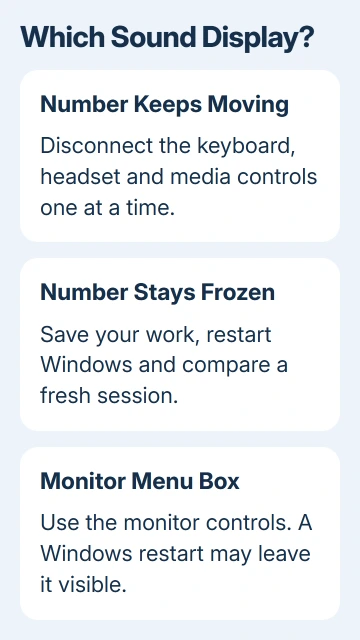
A Windows 11 sound bar that won't go away can mean a keyboard or headset is sending volume commands over and over. Disconnect external volume controls first. Watch whether the volume number stays frozen or keeps moving.
The small volume display should disappear after an adjustment. The larger taskbar sound panel waits for you to dismiss it. A monitor can show its own volume box too, so start with the display you're actually seeing.
In this guide
1. Release the volume controls and disconnect accessories
Press and release your keyboard's volume-up, volume-down and mute controls once. Check a volume wheel too, including one on a gaming keyboard, USB headset or speaker controller. A control held against an object can keep sending commands.
Disconnect an external keyboard, then wait without touching other controls. With a wireless keyboard, turn it off or unplug its USB receiver. Keep a laptop's built-in keyboard available so you can still use the computer.
Unplug your headset or its USB adapter next, then any controller with media buttons. Disconnect one device at a time. When the bar disappears, reconnect that accessory and see whether normal use brings it back.
If one device repeatedly triggers the display, that's the device to check. Microsoft recommends these keyboard and mouse checks for reconnecting USB devices, bypassing hubs and checking for dirt blocking keys.
Don't force a keycap off a laptop keyboard. Use the cleaning procedure supplied for your keyboard model. A damaged key or volume wheel needs repairing on that device. Changing the Windows speaker driver won't repair the control.
I'd try these controls before reinstalling anything. That check can reveal a button that's still sending input to Windows.
2. Check whether this is the Windows panel or a monitor box
Click the desktop away from open windows, then press Esc. This dismisses an open taskbar panel; it doesn't repair a repeatedly triggered volume display. If the panel closes and stays closed, there isn't a persistent volume fault to fix.
Watch the number when the bar reappears. If it keeps climbing to maximum or falling to zero, check for a control sending repeated commands. If it never moves but sound and other volume controls work, the display itself is more likely stuck.
A monitor can show a volume indicator for its built-in speakers or headphone socket. Compare the box with the monitor's brightness and input menus. Use its physical menu buttons to dismiss the box.
If the box remains visible while Windows restarts or on the monitor's input-selection screen, ask the monitor maker about its buttons and on-screen menu. The crossed-out speaker icon guide covers that separate display problem.
This distinction matters because changing Windows settings won't release a monitor button. Likewise, resetting the monitor won't stop a USB keyboard from sending Windows volume commands.
3. Restart Windows when the display itself is frozen
Save your open work. Choose Start > Power > Restart, then sign back in. Use Restart so Windows starts a new session instead of returning to the same desktop after sleep.
After signing in, leave external media controls disconnected for the first check. Change the volume once with the taskbar control, then wait. The display should appear briefly, then disappear again.
If reconnecting one accessory brings the bar back, check that device. If the display freezes before you connect anything, leave the accessories disconnected and check software that starts with Windows.
A bar returning when one app opens points to that app. Record the app and what triggers the return, such as starting a call or pressing a headset button. Repeat that action when checking the app.
For volume that actually changes during calls, the Windows automatic volume guide covers the Communications setting. That setting addresses sound reduction during calls, rather than a display that won't close.
4. Close media utilities, then compare a clean startup
Quit keyboard customization software, headset utilities and third-party volume-display apps one at a time, using each app's Exit or Quit command when available. Closing a settings window can leave its background program running.
After each change, adjust the volume once and check whether the bar disappears. If one utility makes the problem return when reopened, update that utility from its maker and check its media-key assignments.
When no single app stands out, try a clean boot, which starts Windows without extra startup software. It doesn't reinstall Windows. Write down the enabled entries before disabling them; use that list to restore your startup settings.
- Search Start for System Configuration and open it.
- On Services, select Hide all Microsoft services, then Disable all and Apply.
- On Startup, choose Open Task Manager.
- In Startup apps, disable the enabled items, recording which ones were enabled.
- Close Task Manager, select OK in System Configuration and restart.
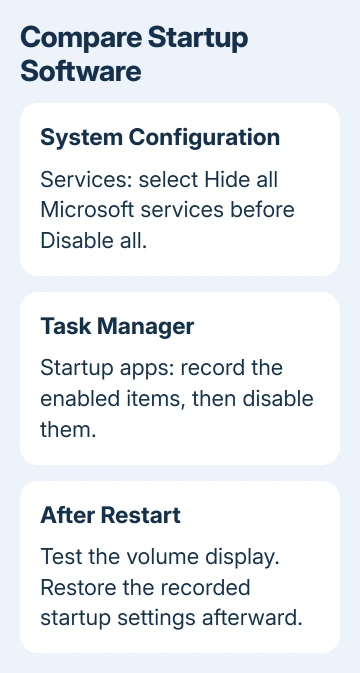
Leave the Boot tab and its advanced options alone. On a work-managed computer, have IT carry out this comparison if these controls are restricted.
If the display works during the clean boot, reenable a group of items, restart and check again before restoring another group. Narrow the group until one app or service brings the problem back. Update or remove that specific program.
Follow the clean-boot recovery instructions to restore normal startup, including your recorded startup items. If the fault remains with extra software disabled, further random app removal won't help.
5. Report the fault to the device maker
For a keyboard or headset that causes the bar on another PC too, give its maker the model number and connection details. Ask about a stuck media control, firmware or replacement under warranty.
If your laptop repeats the fault with external devices removed and a clean startup, contact the laptop maker. Include the Windows version from Settings > System > About, whether the volume number moves, and when the bar first returns.
If sound also fails, report that separately. A frozen indicator with working sound needs a different repair from speakers that don't play anything. Avoid replacing an audio driver solely because a volume graphic remains on screen.
The Short Version
Disconnect external media controls first. Dismiss an open sound panel, distinguish the monitor's own menu, and restart a frozen Windows session. A clean boot helps identify a startup utility that keeps bringing the display back.
Checked November 12, 2026.