Windows 11's Installed apps sizes don't count every file an app creates or downloads. Compare Settings > System > Storage with the drive's free space before deleting content to make the totals match.
If an app's size looks wrong, check what its number includes. If the drive is actually full, you'll need to free some space. Start with unwanted files or apps you recognize.
In this guide
1. Compare the same drive and the same figures
Open File Explorer > This PC and read the free space for the drive you're checking, usually Local Disk (C:). Write down that figure before making changes. It tells you whether the drive itself is running short of space.
Next, open Settings > System > Storage and wait for the category sizes to appear. Check that you're looking at the same drive. Use Advanced storage settings > Storage used on other drives when the files are on another drive.
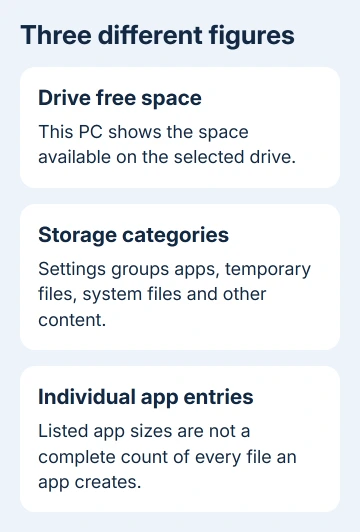
Microsoft says Storage settings show separate categories for Installed apps, Temporary files and System & reserved. Adding only visible app entries can't account for all those other categories.
If the drive has enough free space and nothing is failing to save or update, resetting Windows isn't necessary just because these totals differ. Continue with the app-size comparison to understand which numbers you can use.
If free space is low, keep the original figure for the cleanup check. Check whether that drive has more free space after cleanup, even if a category total takes time to refresh.
2. Treat app entries as estimates, not a disk scan
Open Settings > Apps > Installed apps. Use the drive filter if it's available, then sort by Size. Choose a familiar app whose size is missing or looks wrong.
For Windows Installer programs, the uninstall information includes EstimatedSize. That value comes from installation information. It doesn't necessarily include every document or download you've created with the app since installing it.
For example, a game launcher and the games managed inside it are different things to inspect. Open the launcher's installed-game library or storage settings and read the size of its content there.
Likewise, a video editor's own entry doesn't tell you the combined size of every video project you've saved. Find the project's actual location and inspect that folder rather than assuming the program's row includes it.
Not every app uses Windows Installer, and not every app provides the same size information. A missing number doesn't mean the app occupies no space. A large number doesn't automatically mean you can free that much space straight away.
Don't edit EstimatedSize in the registry to correct the display. That changes a label, not the files on the drive. Keep checking the content locations instead.
3. Find the content that belongs to the large app
Inside the app, look for settings labeled storage, downloads, library or cache. The menu name will depend on the app. Note any content folder or library drive it shows before changing a storage option.
Use File Explorer to find a known content folder, right-click it and choose Properties. Let Windows finish counting. Compare that folder with the corresponding library inside the app.
The Properties window can show both Size and Size on disk. They measure storage differently, so compare Size with Size, or Size on disk with Size on disk. One folder's size still won't account for the whole Installed apps category.
Check Downloads, Documents, Videos and any game library you've selected on another drive. Start with your own files that you recognize. You don't need to search protected Windows folders just to account for a media collection.
To remove a game or a downloaded library, use the app's own uninstall or remove-download control. That lets it update its records along with the content. Check that saved work is backed up before removing it.
A separate problem occurs when a removed program still has a row. The leftover Installed apps entry guide covers that case; a stale entry isn't itself a large hidden folder.
4. Recover real space with Cleanup recommendations
Return to Settings > System > Storage > Cleanup recommendations. Review the available groups and select items you actually want to remove. Read the category and file choices before confirming cleanup.
For the separate Temporary files page, inspect each selected category. Pay particular attention to Downloads if it appears: those may be personal files you still need, rather than disposable installation leftovers.
Use Windows' drive-space cleanup steps when the goal is to make room for an update or save. Those controls free up space; they don't just change the app totals on screen.
After cleanup finishes, return to This PC and compare the same drive's free space with the figure you noted earlier. If it increased, you've freed space on the drive even if an individual app's displayed size didn't change.
For an unwanted app, return to Installed apps, open its three-dot menu and choose Uninstall. Follow that app's removal prompts. Removing a small launcher alone may leave a separate library to manage through its own controls.
I'd check known downloads and large libraries before buying a cleanup utility. You'll be looking at files you recognize, which makes it easier to decide what you can remove.
5. Use Storage Sense for recurring cleanup
Open Settings > System > Storage > Storage Sense to review automatic cleanup. Check its schedule and the choices for temporary files, Recycle Bin content and Downloads before enabling it.
The Windows storage cleanup guide explains the available cleanup choices. Automatic cleanup helps keep storage use under control; it can't make every app publisher report an accurate installed size.
If free space falls rapidly again, note when it happens and which app was downloading, recording or updating. Reopen that app's storage settings and compare its content folder at that time.
For unexplained growth, give the app publisher its folder path, listed size and actual free-space change. If the categories still don't match after restarting, send Microsoft Support your drive comparisons and Windows version.
Leave Windows, WindowsApps and Windows Installer folders alone. Manually removing their contents to balance a Settings total can break programs and updates without explaining why the totals didn't match.
The Short Version
Compare one drive in This PC and Storage, then inspect large libraries through their apps. Remove known content or use Cleanup recommendations. Recovered free space matters more than matching every displayed total.
Checked November 12, 2026.