An iPhone app integrity error points to signing or verification, especially for company or test apps. Check the connection and developer entry first. If the signed installation file is rejected, its provider may need to replace it.
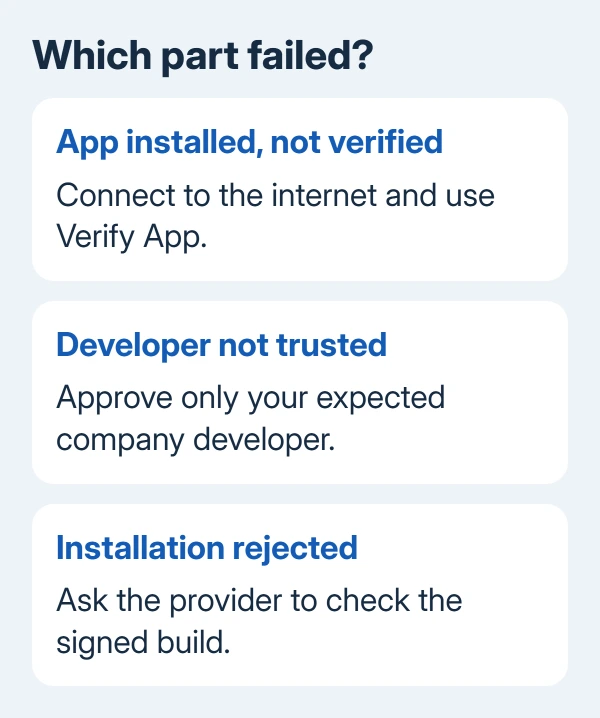
The exact message matters. For an installed company app marked Not Verified, retry verification. An app rejected during installation may need a corrected installation file. Trusting a developer won't repair every installation error.
In this guide
1. Match the error to the way the app was supplied
Check whether this is a store download, company app, or developer test build. The steps depend on how you got the app. The enterprise developer menu is for manually installed company apps, rather than every iPhone app.
If the app came from work, use the company's current installation instructions. A managed device may receive approved apps through its management service instead of asking you to trust a developer manually.
Take a screenshot of the error and note the app name before retrying. Include whether the app icon remains on the Home Screen. That tells the provider whether installation failed or the app installed but won't open.
For an App Store download stuck on a dim icon, follow the iPhone Waiting download checks. An unfinished store download needs different attention from a manually installed app's developer certificate.
If a downloaded installer asks for an unrelated profile or a different organization's trust, stop and ask the app provider to confirm the correct route. Check that your organization recognizes and trusts the developer name.
2. Complete the trust process for an enterprise app
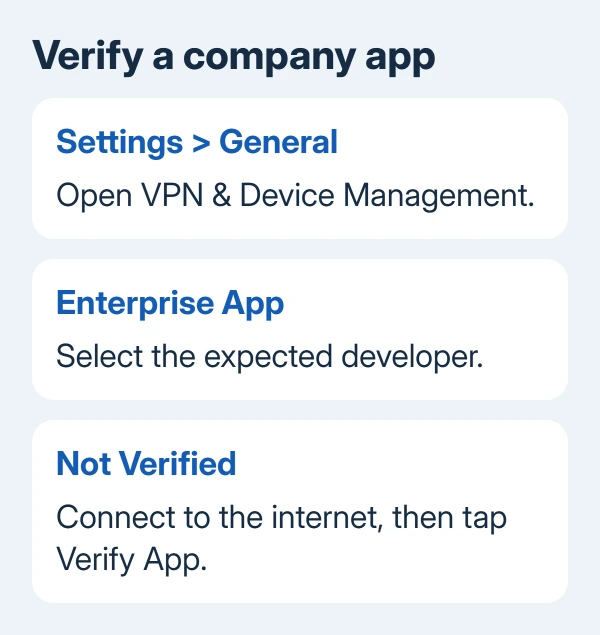
Open Settings > General > VPN & Device Management. In the Enterprise App section, tap the developer named for the company app. You'll see this section when that type of company app is installed.
Apple explains the version difference in its enterprise installation instructions. iOS 18 and newer use Allow & Restart; older versions approve the developer with Trust.
On a current iPhone, tap the developer's trust option and follow Allow & Restart when offered. After the phone restarts, finish the instructions shown on screen. Next, launch the company app.
The restart is part of approving that enterprise developer on recent software. Repeatedly restarting from the side button without completing the trust prompt isn't the same process.
If the app opens, it was waiting for you to approve the developer. Other approved apps from that developer can then open without repeating the same approval for each one.
If there is no Enterprise App entry, don't keep hunting for a hidden universal trust switch. Ask whoever supplied the app whether it's enterprise software, a development build, or an App Store app.
3. Reverify over a connection that can reach the service
An enterprise app showing Not Verified needs internet access to check the developer's certificate. Load a new website in Safari to confirm internet access, then return to the developer entry and tap Verify App.
A company firewall can block that check even when ordinary websites load. The network must allow the verification service at ppq.apple.com. Give that address to your IT team if verification fails only on the company network.
If your organization's rules allow it, try trusted Wi-Fi and cellular data. If the app verifies on the other connection, report the network difference to IT. The phone doesn't need a full reset to fix a firewall rule.
Try opening the app after verification finishes. If it now opens, return to the work you needed it for. If the integrity error remains, ask the provider to check that signed version of the app rather than repeating the same network change.
The phone periodically repeats verification after approval. A previously working app can need access to the service again. For a verification-expiry message, check the connection and involve the organization.
4. Have the developer check a test or ad hoc build
A development or ad hoc app is supplied for testing outside the normal store route. It uses a provisioning profile: a signed record that links the app to its developer and sets how it can be used.
Ask the developer whether this version is still valid and approved to run on your iPhone. Send the developer the exact installation error and iOS version so they can review its signing and profile.
For newer developer teams, development and ad hoc apps also require an internet check when first launched. The provisioning profile requirements describe this connection to the same verification service.
A test build failing its first launch on a restricted network can therefore need a network change approved by IT. If the signing setup is wrong, the developer needs to send a corrected installation file. Changing networks won't fix that.
I'd ask for a fresh approved build before deleting company apps that still work. Removing unrelated apps won't give the rejected app permission to run.
5. Keep app data safe while replacing the package
Ask the provider how the app stores its data before following an uninstall instruction. Some work apps keep their records on a server; others can hold files only on the phone. Confirm which applies to this app.
Use your provider's current installation link. Repeating a rejected installation doesn't change its signing. Have the provider confirm the replacement matches your device and installation method.
Deleting every app from an enterprise developer also removes trust for that developer. Don't use that as a casual cleanup step when several company apps are involved. Their next installation can require the approval process again.
For apps disappearing without an integrity alert, check the separate iPhone app removal and offloading settings. That behavior doesn't by itself mean a developer certificate failed.
If an approved replacement still fails, send IT or the developer the installation time, iPhone model, iOS version, developer name and screenshot.
Have them review the signing, your phone's permission to run the app, and access to the verification service.
For an App Store app that still won't download after the store-specific checks, use Apple Support's app-download help. For a company or test app, its provider is the person who can correct the installation package.
The Short Version
Check how the app was supplied. Use Allow & Restart for enterprise trust on recent iOS, and Verify App for an unverified installed app. Have the provider check signing and distribution when rejection continues.
Checked November 12, 2026.