Windows 11 install error 0x800f0845 can appear after an update fails or Windows rolls it back during startup. Start with the Windows Update troubleshooter if the desktop still opens.
If your PC keeps failing to start, use recovery before trying to install the update again.
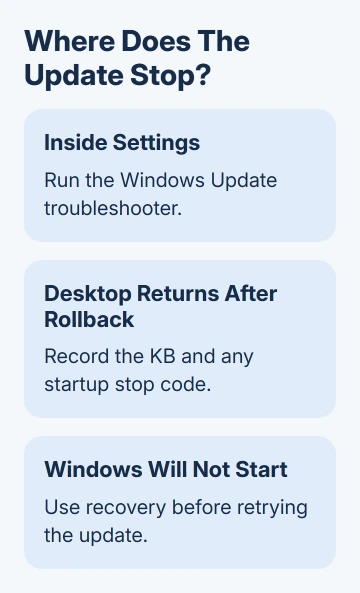
The code alone doesn't identify a damaged file or a particular driver. What matters next is whether the update fails inside Settings, restarts and undoes changes, or leaves the computer unable to start.
In this guide
1. Use the update troubleshooter when Windows opens
Open Settings > System > Troubleshoot > Other troubleshooters. Find Windows Update, select Run, and follow the repair prompts. On current Windows 11 installations, this can open the guided troubleshooter in Get Help.
Use AC power on a laptop during installation. If the tool requests a restart, finish that restart before returning to Settings > Windows Update and trying the update again.
Success means the update finishes and appears under Update history after any required restart. A troubleshooter reporting that it made changes doesn't mean installation succeeded.
If installation fails, record its KB number, the code and when installation stops. Press Windows+R, enter winver, and keep the displayed version alongside its OS build in your notes. These details tell updates with the same code apart.
I'd keep a photo of any stop code shown during the restart. An error recorded afterward in Settings can leave out the earlier crash message that explains why Windows backed out.
2. Separate a failed download from a startup rollback
An error while Windows is still downloading or installing belongs to the update process. A restart followed by a crash and Undoing changes means Windows tried applying the package and couldn't complete startup with it.
Open Settings > Windows Update > Update history and compare the failed package with its release notes.
Look for a known issue that matches your Windows version and the actual symptom, rather than treating every mention of 0x800f0845 as the same fault.
Microsoft says its update troubleshooting steps cover installation failures. The repair depends on what failed, so try the simplest checks first.
Check the system drive in Settings > System > Storage and use its cleanup recommendations if space is tight. Disconnect unnecessary external storage and accessories for the next attempt, leaving the keyboard, mouse and display available.
If Windows restores the desktop after undoing changes, continue with the file repair in the next section. If it can't reach the desktop, skip to recovery.
The next section's commands need a running Windows session. Use recovery instead when Windows won't start.
3. Repair Windows files, then retry the package
Search Start for Command Prompt, right-click it and select Run as administrator. Approve the prompt, then enter this command:
DISM.exe /Online /Cleanup-Image /RestoreHealthDISM repairs the Windows components used to restore system files. Wait for it to finish successfully, then run:
sfc /scannowSystem File Checker checks protected Windows files and replaces damaged ones when it can. Leave the window open until its verification finishes. The system-file repair procedure puts DISM before SFC.
Read the final message rather than assuming that reaching 100% means every problem was repaired. If either command reports that it couldn't complete its repair, keep that message for support.
After successful repairs, restart Windows and retry the failed update. If the scans find no problems but the same startup crash returns, the file checks haven't explained why the update fails.
Move to the repair-install option instead of repeatedly running the scans.
For a different code, use the Windows update error index. Similar-looking numbers can lead to different fixes, and a procedure for a missing package isn't automatically suitable for a startup failure.
4. Reinstall the current Windows version through Recovery
Make a fresh backup of essential files before starting the system repair. Go to Settings > System > Recovery and find Fix problems using Windows Update. Select Reinstall now, review the restart option, then choose OK to begin.
This downloads a repair version of Windows and reinstalls the current version while preserving apps, files and settings. It repairs Windows components without using Reset this PC or switching to a different feature release.
Keep internet access and power available throughout the download and installation. Once the repair completes, finish the restart and return to Windows Update. Check whether the failed update now installs successfully.
The option can be absent on work-managed computers. Your PC needs Windows 11 22H2 or later, with February 2024's optional update or a newer update installed. Its absence doesn't mean the Settings app is broken.
The Windows Update repair route explains the same recovery control for another error. If the repair doesn't help with 0x800f0845, include the package number and startup crash message in your support request.
5. Recover a PC that cannot reach the desktop
If Windows opens Automatic Repair, choose Advanced options to enter the recovery tools. Keep your BitLocker recovery key ready in case recovery asks for it; encrypted Windows installations can require that key before recovery can continue.
Select Troubleshoot > Advanced options > Uninstall Updates. For a failure immediately after a monthly quality update, choose Uninstall latest quality update and follow the prompts. A feature-version upgrade is a different update type.
Removing the update is a way to get Windows starting again. Your PC still needs security updates. When the desktop returns, note the removed package and use the earlier checks before trying it again.
If uninstalling the update isn't available or doesn't restore startup, use Startup Repair from Advanced options. If the PC still won't start, get help with that failure before trying Windows Update again.
Contact Microsoft Support through Get Help, or your PC maker if startup shows a hardware or driver-related crash. Give them the KB, Windows build, stop code, and whether uninstalling the update restored startup.
Work PCs should go to their IT team.
The Short Version
Run the update troubleshooter when the desktop opens, record the failed KB, then repair Windows files. Use the current-version reinstall option for a persistent failure.
Restore startup through recovery first if the update left the PC unable to boot.
Checked November 12, 2026.