Antigravity A1 Android problems need different fixes depending on whether the app won't open, can't find the equipment, or stops during a transfer.
For a connection failure, turn on the phone's Wi-Fi and Bluetooth, then check the app's permissions. For a crashing app, start with an update and a restart.
The Android app handles setup and media tasks, while the A1 system also includes the Vision Goggles and Grip controller. A phone connection problem doesn't automatically mean the drone and goggles have lost their own link.
In this guide
1. Match the failure to the screen that stops
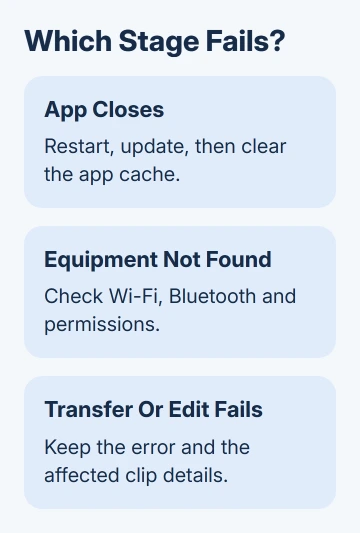
Open the app and note where it fails. An app closing before its home screen needs Android app checks. An app that opens but doesn't find the equipment needs connection and permission checks.
A transfer that starts and then stops has reached a later stage than an undiscovered device. An editing or export failure happens later still. Keep that distinction when choosing which settings to change.
Write down the phone model, Android version, app version and exact message. Find the Android version in Settings > About phone > Android version on a Pixel. Samsung usually places it under About phone > Software information.
Note whether the failure followed an app update, equipment firmware update or permission prompt. That's useful information for support, especially when the same phone worked before the change.
I'd keep one failing clip and its error message before changing the app's storage. If the same clip fails each time, support can use it to try to reproduce the transfer or export problem.
2. Restore the phone's connection permissions
Turn on Wi-Fi and Bluetooth on the Android phone. Power on the A1, Vision Goggles and Grip controller when following the initial setup sequence, then use the app's on-screen connection and activation prompts.
The maker's A1 setup instructions require both Wi-Fi and Bluetooth on your phone for activation. Bluetooth being on doesn't replace Wi-Fi for the whole setup process.
Open Settings > Apps > Antigravity > Permissions. If the app is grouped inside a full app list, choose See all apps first. On Samsung, select Antigravity from Settings > Apps, then open Permissions.
Review the permissions the app has actually requested. Allow Nearby devices when offered for equipment discovery, and review Location if the app requests it for the feature being used.
The labels you see depend on your Android version and phone maker.
For media work, check Photos and videos or the equivalent storage permission offered on that Android release. Restricted access to selected media isn't the same as access to every clip on the phone.
Google's app-permission instructions show how to change each permission the app requests. Return to Antigravity and repeat the connection or media operation after making the relevant change.
If the phone now discovers the equipment and the connection completes, continue with the original task.
If the app sees the device but reports an activation or account error, keep that exact message; more Bluetooth toggling won't explain an account restriction.
3. Update and restart an app that closes or freezes
Restart the phone, reopen Antigravity and repeat the same action. This clears a stuck app session without removing its files. If the crash returns at the same stage, check for an app update next.
If you installed Antigravity through Google Play, open Play Store, tap your profile picture, then choose Manage apps & device and install any offered Antigravity update.
If it came from the manufacturer's installer, use that official update source instead.
Check Android updates too. On a Pixel, open Settings > System > Software updates; Samsung usually uses Settings > Software update > Download and install. Apply the release offered to that phone model.
If the app still freezes, open Settings > Apps > Antigravity > Force stop, confirm, and reopen it. Try the failing action after each change and keep track of its result.
Next try Storage & cache > Clear cache on a Pixel, or Storage > Clear cache on Samsung. The cache is temporary app data. Clear storage or Clear data is a different, more disruptive control.
Don't clear app data or uninstall until any local footage, drafts and other needed work are safely copied. Android's installed-app troubleshooting procedure warns that uninstalling removes data saved in the app.
If other apps work and only Antigravity continues to crash, report the specific action to its support team. Erasing the whole phone isn't needed at this stage when only Antigravity is failing.
4. Separate transfer failures from editing failures
For a transfer problem, return to the app's device connection and confirm the equipment is connected before choosing footage. Note whether the clip never appears, begins transferring and stops, or finishes but won't open.
For a downloaded clip that won't edit or export, check the phone's available storage. On many Android phones this is under Settings > Storage; Samsung uses Settings > Device care > Storage on recent models.
Free space by moving files you already have copies of, then retry one short clip. If that succeeds while a longer clip fails, include both clip details in the support report.
That comparison tells support which clips fail without guessing why.
An app that fails only after the screen locks needs battery and background-use checks rather than an ordinary crash repair. Use the Android screen-off app checks when that timing matches your problem.
If ordinary Wi-Fi also fails outside Antigravity, follow the Android Wi-Fi connection checks. Get ordinary Wi-Fi working first, then try the transfer in Antigravity again.
5. Update the equipment and send the exact failure
Open Antigravity and check its firmware update notifications. Follow the app or Vision Goggles prompts for the equipment update. Keep power connected as directed and don't exit the app or interrupt the update process.
Once the update finishes, reconnect and repeat the same operation that failed. Updating the equipment's firmware is separate from updating the Android app. Record both versions in your report.
Use Contact Us on the manufacturer's official support site for a persistent failure. Send the phone model, Android and app versions, equipment firmware, exact message and whether discovery, activation, transfer or export is failing.
For a crash tied to one clip, add its recording settings and the action that closes the app. Ask support whether they need the original clip or app logs, and follow their upload instructions for that case.
The Short Version
Use Wi-Fi, Bluetooth and the requested app permissions for discovery. Restart, update and clear cache for an app that crashes.
Keep transfer and editing failures separate, preserve local work before reinstalling, and send support the exact failing stage and versions.
Checked November 12, 2026.