

Outlook's passkey prompts come from account sign-in. Skip a personal account's optional setup offer with Not now, when available. For work accounts, an administrator may need to change the registration campaign that sends setup reminders.
A dialog trying to use an existing passkey is different: cancel it and select another available sign-in method. Outlook has no universal switch that permanently disables setup offers and required registration alike.
In this guide
1. Read whether the prompt wants creation or sign-in
A message asking you to create or save a passkey is offering to set one up. A security dialog asking for a PIN, fingerprint, security key, or phone can instead be trying to use a passkey that already exists.
Those are different operations. Canceling the security dialog stops that particular attempt. It doesn't delete a stored passkey or turn off the account's future setup offers.
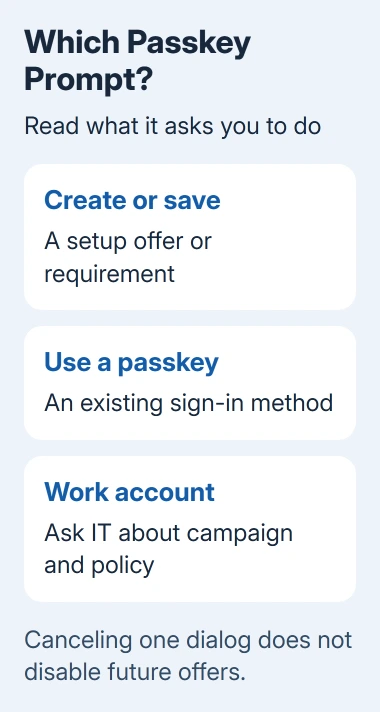
Check the account address and prompt wording first. Outlook.com and Hotmail normally use personal Microsoft accounts. An organization can manage its address through a work account, with its own sign-in rules.
The same computer can use both account types. A successful personal sign-in doesn't tell you what the work account allows. Check that the account selected in the prompt matches the mailbox you're trying to open.
Microsoft explains alternative sign-in methods for an unavailable passkey. Use that route before deleting Windows credentials or changing the computer's PIN.
2. Use another allowed method for the current sign-in
Cancel the passkey-specific dialog to return to the account's sign-in page. Look for Sign-in options, Other ways to sign in, or Sign in another way, depending on the page. Select an available method that you already use.
A password option can appear when the account still has one. A passwordless account uses the other sign-in methods you've set up, such as an authenticator. Don't expect a password box for an account with no password.
Complete the selected method and check whether the mailbox opens. If it does, the immediate access problem is solved. A later setup offer is a separate issue from whether you can read your mail today.
For a Create a passkey offer, use Not now or its available skip control. A work-account prompt can limit postponement or eventually require registration. Dismissing it doesn't set a permanent preference.
Without a usable alternative, open account recovery. For work mail, ask the administrator which method your organization allows. Resetting Outlook won't create a sign-in method the account lacks.
3. For personal accounts, separate the offer from saved keys
Personal Microsoft accounts can display a Sign in faster offer encouraging passkey setup. That's part of the Microsoft account sign-in experience rather than a setting inside the Outlook reading window.
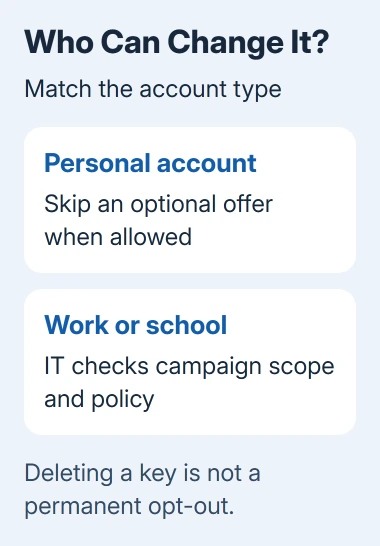
Deleting a passkey through account security removes a sign-in method you might need later. The support instructions don't list deleting a key as a way to stop setup offers. The service can still invite you to create another.
I'd keep a working sign-in method while dealing with the nuisance prompt. Before removing anything, verify that another method works and that its recovery email or authenticator is available to you.
If the problem is an unusable local key that Windows refuses to remove, the Windows passkey deletion guide covers that separate error. Removing a broken sign-in key and stopping setup invitations are different tasks.
The current support instructions don't give personal accounts a way to turn these offers off permanently. Use the offered skip control, and report repeated offers through account support if they interrupt each sign-in.
4. Have the work-account administrator check the campaign
A work or school account can receive passkey registration nudges from Microsoft Entra, the identity service behind its Microsoft 365 sign-in. The campaign can be enabled by an administrator or use Microsoft-managed settings.
The registration campaign controls let an administrator choose which users and groups get the reminders. An administrator can also enable or disable the campaign and control whether users can postpone setup, where that option is available.
Send IT the exact prompt and ask whether your account is included in a passkey registration campaign. Ask them to distinguish that optional nudge from an authentication policy that requires a particular sign-in method.
For the administrator, the route is Microsoft Entra admin center > Entra ID > Authentication methods > Registration campaign. Select Edit, then check the sign-in method it promotes, whether it's enabled, and the users or groups it covers.
If the organization's policy allows it, an administrator can exclude a user or group, or disable the campaign. That stops the campaign prompts for those users. It doesn't change a separate rule requiring a particular sign-in method.
Keep the work account connected while IT checks its campaign. Removing it can interrupt organizational access without changing the server-side prompt. IT needs to change the policy that's causing the prompt.
5. Check an actual requirement before postponing again
If the prompt no longer offers a postponement option, or says the organization needs a specific method, ask IT to check its authentication requirements. You may need an approved passkey rather than a way to turn off the prompt on your PC.
Ask which devices or authenticators are approved, especially if the prompt appears on a shared computer. A passkey can be saved in different places, and the suggested location isn't automatically the right location for your work account.
Setup can offer a device, password manager, phone, or security key where supported. Use the location your organization approves. Don't create a personal-device credential just to dismiss an unexplained work prompt.
If a phone or security key is required and unavailable, ask for the organization's approved recovery method. Trying another Outlook profile won't get around the account's security rules.
6. Report the repeated sign-in with useful details
Record whether this happens in new Outlook, classic Outlook, a browser, or the phone app. Note whether the prompt asks to create a passkey or use an existing one, and whether the mailbox opens after you cancel or choose another method.
Give the work help desk those details and ask whether a setup campaign or a required sign-in method is causing the prompt. For a personal account, use the troubleshooting page's sign-in helper and report the repeated setup offers.
If the actual message repeatedly asks for the account password on an iPhone, the iPhone Outlook password-loop guide addresses that different sign-in failure. Match the next step to the words on the screen.
A PIN repeatedly rejected only by Outlook has an older confirmed Office-credential cleanup, separate from passkey setup reminders.
The Short Version
Separate passkey creation from sign-in. Skip an optional offer or choose an allowed alternative. Work-account campaigns can need an administrator's exclusion or policy review. Deleting a key won't prevent every future invitation.
Checked November 12, 2026.






