

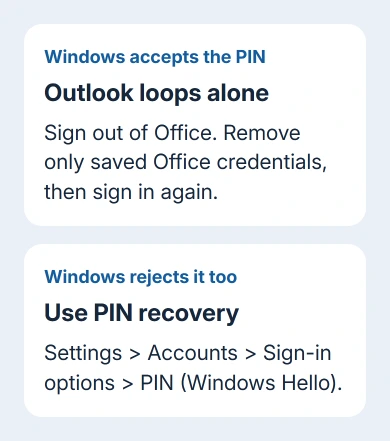
Stale Office sign-in details can make Outlook repeatedly ask for a PIN that Windows still accepts. Sign out of Office, remove its saved credentials, and sign in again for that Outlook-only pattern.
One owner confirmed this sequence restored Outlook access. If the PIN also fails at the Windows sign-in screen, use Windows Hello recovery instead.
In this guide
1. Separate the Outlook loop from a Windows PIN failure
Check when the prompt appears. A Windows Security box after launching Outlook is different from the Windows lock screen refusing to let you into the computer. Write down the account address and the exact wording before dismissing the box.
If Windows accepts your PIN and Outlook alone keeps asking, start with the Office sign-in cleanup in section 2. Changing the PC's PIN first can leave the Office problem untouched.
Microsoft explains that your Windows Hello PIN differs from your Microsoft account password. It belongs to that device, and another computer can use a different PIN.
A prompt mentioning a passkey or security key is another case. Use the Outlook passkey prompt guide to choose another allowed sign-in method or check a setup request.
Don't put an emailed security code into a PIN field. Check what the box asks for: your device PIN, account password and verification code do different jobs. If the displayed address is wrong, return to the account-choice screen first.
2. End the Office sign-in before clearing credentials
Save open documents before changing the sign-in. In classic Outlook, use File > Office Account and select the Sign out command in its User Information area. If Outlook freezes, open Word and use File > Account instead.
The workaround that helped the owner started with signing out of the existing Office accounts and closing every Office app. Keep your account addresses and normal sign-in method handy so you can sign back in afterward.
Close Outlook, Word, Excel and the other Office apps before removing credentials. The cleanup removes the apps' saved sign-in details. It doesn't change your account password.
Signing out can affect Office activation and access in the other apps until you sign back in. On a work computer, ask IT to help with this if your organization manages Office accounts or you don't have a usable recovery method.
If a browser mailbox is already available through your organization's normal address, you can read urgent mail there during the repair. That doesn't require deleting the Outlook profile or reconnecting Windows to a different account.
3. Remove only the saved Office credentials
Open Control Panel > User Accounts > Credential Manager, then choose Windows Credentials. Expand the entries to see their names before removing anything.
Look for Office-related entries, such as those beginning MicrosoftOffice and containing Data. The original advice used a version-dependent MicrosoftOfficeXXData name. Your PC might show a different Office version number.
Remove the matching Office credentials, leaving unrelated network shares, remote-computer logins and other saved accounts alone. You're clearing Office's saved sign-in details, so leave the rest of Credential Manager intact.
The Office sign-in reset documentation includes removing Office credentials from this store. Managed work devices can also keep sign-in details elsewhere.
If no Office entries appear, don't delete whatever remains just to complete the step. Skip to signing in again and give IT that result if the loop continues. This window won't clear all the sign-in details on a newer managed setup.
Open Word and use its sign-in control to sign back into your Microsoft 365 subscription account. Complete any normal verification request, then reopen Outlook and check whether the mailbox loads without returning to the PIN box.
The owner got back into Outlook on the first attempt after that cleanup. Check whether your mailbox now opens, then reopen the other Office apps and confirm you're signed in there too.
4. Reset Windows Hello only when the device PIN fails too
For a PIN that Windows also rejects, open Settings > Accounts > Sign-in options. On Windows 11, expand PIN (Windows Hello). Windows 10 places the PIN control in the same Sign-in options area.
Choose Change PIN when you know the existing PIN. If it isn't accepted or you've forgotten it, select I forgot my PIN. Verify the account as requested, then set the replacement PIN.
If you're locked out of Windows, look for I forgot my PIN at the sign-in screen. Microsoft-account users can use that recovery option.
For a local account without it, choose Sign-in options, sign in with the password, then reset the PIN in Settings.
Once the new PIN works for Windows, reopen Outlook. If only Outlook still loops, tell support that the PIN works in Windows but Outlook still asks for it. Another PIN reset won't fix the Office sign-in state.
On an organization-managed device, a policy or account-verification problem can block the reset. Ask the help desk for the approved recovery method instead of deleting Windows Hello folders or disconnecting the work account.
5. Repair Office if Outlook still freezes at sign-in
In Windows 11, right-click Start, open Installed apps, find Microsoft 365, select its three-dot menu and choose Modify. For Windows 10, find the Microsoft 365 entry in Apps and Features and click Modify.
With a Click-to-Run installation, try Quick Repair for damaged application files. If that doesn't help, Online Repair performs a fuller repair over the internet. Close the Office apps before starting.
The older thread suggested Office repair as a fallback, but its confirmed result was the credential cleanup. Use it to repair the Office apps. It won't change your organization's sign-in policy.
I'd keep your existing Outlook profile while sorting out the sign-in problem. Removing a profile adds account setup work and doesn't automatically repair Windows Hello or the organization's authentication settings.
When the PIN request keeps returning
Give your work help desk the prompt wording, account address, Office build, and whether Windows itself accepts the PIN. Say whether Credential Manager contained Office entries and whether Word can sign in after the cleanup.
Ask them to check managed Office sign-in and whether your device is registered correctly.
For a personal subscription, use Microsoft Support's Microsoft 365 sign-in assistance. The Office sign-out guide covers removing an account when that's what you need.
The Short Version
For an Outlook-only loop, sign out of Office, remove its saved credentials and sign back in. Reset Windows Hello when the PIN fails in Windows too. Escalate a managed sign-in failure with the exact prompt and account details.
Checked November 17, 2026.






