Windows 10 doesn't include Windows 7's desktop gadgets, and no Windows switch restores them. If a clock or weather gadget used to run on your PC, a separate program supplied it. Start by checking that app.
A missing desktop gadget, a blank panel inside a gadget program, and missing taskbar weather need different fixes. Check which one you're using before downloading a replacement or resetting an app.
In this guide
1. Identify the missing desktop item
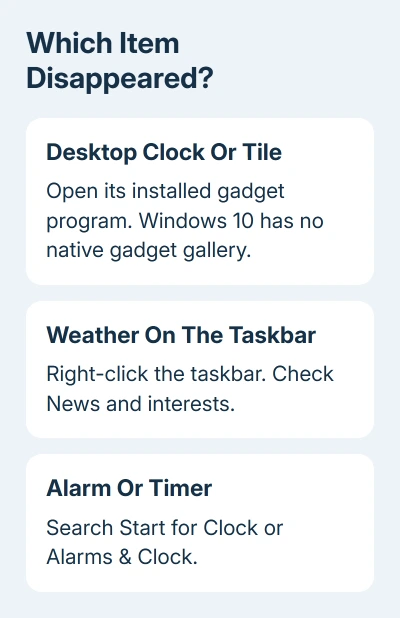
Think about where the item appeared. A clock floating over the desktop belongs to a gadget host or another desktop app. Weather beside the notification area on the taskbar can be Windows 10's News and interests instead.
Open Start > Settings > Apps > Apps & features. Look for the app that supplies your desktop items. Its name might include gadgets, sidebar, clock, or weather. Select its entry to see the publisher and available controls.
Microsoft explains that desktop gadgets were removed because the platform presented security risks. The removal predates Windows 10. A missing Gadgets command on the desktop menu is expected.
Don't follow instructions to enable Windows Gadget Platform in Windows Features. That control belongs to Windows 7 instructions, not a hidden Windows 10 repair switch. Changing unrelated optional features won't bring back the sidebar.
If a program is listed, continue with its own controls. If it isn't, skip to the replacement section. In that case, the app isn't installed, so repairing it isn't an option.
2. Open the gadget program before changing Windows
Search Start for the installed program's exact name and open it. Check the notification area too, including its hidden icons. Some desktop utilities keep running there after their desktop panel has been closed.
Use the utility's command to show gadgets or add a clock. Menu names differ, so consult that publisher's help page. If opening the program brings the clock back, check whether the program was hidden or wasn't starting with Windows.
If it opens normally now but disappears after every sign-in, check Settings > Apps > Startup. Turn on its entry if one exists and you want it to start with Windows. Restart once and check whether the same item returns.
A missing Startup entry doesn't mean the application is broken. Some utilities manage startup inside their own settings. Use that option rather than adding scripts or registry entries from instructions for another product.
For trouble finding the Windows controls themselves, the Windows key checks cover a Start menu shortcut that doesn't respond. Keep that separate from a gadget window that opens but stays empty.
3. Separate an empty weather panel from a program crash
Try another item inside the same program, such as a local clock. If the clock works but weather remains blank, the program can still draw gadgets. The weather panel needs attention, but the app itself can still display other items.
Weather and currency panels need an online provider. Check the publisher's notices for your gadget and version. If it has shut down, you need an update or a supported replacement. Repairing Windows won't bring that service back.
Visit a familiar website using your browser. If that also fails, handle the connection first. If ordinary websites work, don't reset the router just because one gadget can't fetch its data. Its service or connection method may have changed.
When every panel crashes, reopen the host application. Write down any error before reinstalling. If it names a missing component, send that detail to the publisher. It tells them more than a blank weather square does.
I'd check the utility's own support page before reinstalling it. Reinstalling the same abandoned package can't repair a discontinued weather service, and it can remove the layout you already arranged.
4. Restore taskbar weather through News and interests
For weather that disappeared from the Windows 10 taskbar, right-click unused taskbar space. Open News and interests, then choose Show icon and text or Show icon only when that menu is available.
That panel isn't the old Windows Sidebar. Reinstalling a gadgets package won't control it. Likewise, a floating desktop weather tile doesn't become News and interests just because both display the temperature.
For a missing menu, check the Windows build and any workplace restrictions. Press Windows + R, enter winver, and read the version shown. Give your administrator that information when asking about the missing control.
Avoid forcing a managed setting through registry changes. A company policy can control taskbar features, and the administrator needs to confirm whether the feature is allowed on that PC.
Weather should appear in the taskbar again. If it appears but doesn't load, report that as a taskbar feed problem rather than a desktop gadget problem.
5. Replace an unsupported gadget with a maintained app
For time, alarms, or a timer, search Start for Clock. Some Windows 10 installations label it Alarms & Clock. Open the function you need inside that app rather than looking for the retired desktop gadget gallery.
An app window won't act exactly like a gadget that stays on your desktop. Decide whether you need the information itself or a permanent overlay. That choice helps you pick a replacement without installing a whole sidebar for one clock.
For an existing Store app that won't open, Windows 10 offers Settings > Apps > Apps & features > [app] > Advanced options when the app supports it. Try Repair first if available. Reset can remove that app's data and settings.
These buttons don't appear for every desktop program. A traditional utility may offer Modify or Uninstall instead. Follow its publisher's repair instructions rather than expecting Store-app controls to appear.
Windows 10's standard support ended on October 14, 2025. Eligible PCs can have extended security coverage, but that doesn't revive desktop gadgets. The Windows 11 upgrade guide helps with the separate decision about moving the computer.
When the old utility still won't open
Give the publisher the utility name and version, your Windows build, and the exact error. Mention whether every gadget fails or only one online panel. Ask whether that release and its data provider are still supported on Windows 10.
If the publisher no longer maintains it, remove the program through Apps & features and choose a maintained alternative. Don't disable antivirus protection or install unsigned gadget packs to keep an abandoned sidebar alive.
The Short Version
Windows 10 has no native gadgets to re-enable. Reopen the installed utility and check its startup setting. Separate an online panel failure from a crash. Use News and interests for taskbar weather, or choose a maintained app.
Checked November 12, 2026.