Block someone on a current MacBook in System Settings > Privacy & Security > Blocked Contacts. On macOS 26 or later, that list works across the supported apps. Include the person's actual numbers and emails in their contact card.
Older macOS versions use app controls in Messages, FaceTime, and Mail instead. Blocking in Apple's apps also doesn't block someone inside WhatsApp, social media, or another service with its own contact list.
In this guide
Check the macOS version before choosing a menu
Open Apple menu > About This Mac and read the macOS version. Tahoe is macOS 26; Sequoia is macOS 15. Choose the steps for your macOS version, whether your MacBook has an Intel or Apple silicon processor.
For macOS 26 or later, start with the central settings list. For macOS 15 or earlier, use the app-specific steps. An older Mac can still block someone even though it doesn't have the newer menu.
Apple's communication blocking guidance separates these versions and explains the effects across apps. Check the phone number or email as well as the displayed name before blocking the contact.
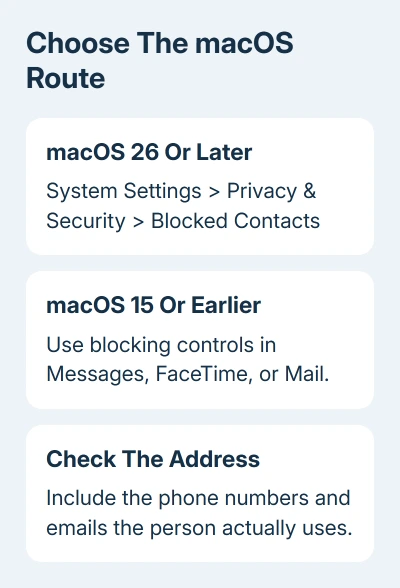
If someone is contacting you through several addresses, open Contacts and check their card. Include each known phone number and email belonging to that person. Blocking a different saved number won't catch a new address they use later.
Add a blocked contact on macOS 26 or later
Choose Apple menu > System Settings, then Privacy & Security. Scroll to Blocked Contacts and open it. Use the add control to choose who you want to block.
In Contacts, select that person, scroll down, and choose Block Contact. Confirm the selection if prompted. Return to the blocked list and confirm it contains the person you chose.
If the selection screen needs a contact card, save an unknown sender's number or email address as a contact first. Give the card a recognizable name so you can distinguish it from people with similar names.
On current macOS, you can also select a person in Contacts, scroll down, and use Block Contact directly. Both routes block the contact in the supported apps. You'll still need separate controls for social media.
If the wrong person becomes blocked, check whether their card shares a phone number or email address with the intended contact. A shared family address can connect people you think of as separate names.
When contacts are missing from the chooser, the iPhone-to-Mac contact sync checks help you find the right account. Don't block a similarly named card just because the expected one hasn't appeared.
Block a sender in Messages on older macOS
Open Messages, then choose that sender's conversation. Use Conversation > Block Person, then confirm when asked. Check the sender's actual phone number or email if several conversations have similar names.
To review the older blocked list, open Messages > Settings > iMessage > Blocked. On older releases, the app menu uses Preferences instead of Settings. Look for the same iMessage and Blocked sections.
The add control in that list lets you choose a contact. If you need to block a number that isn't saved, create a contact card with that number, then select it. Keep the details accurate so the intended address goes onto the list.
Deleting a conversation doesn't block its sender. It removes the conversation from view while leaving the person able to send another message. Use the blocking control before cleaning up a thread when preventing further contact is the goal.
Muting a conversation is different too. Hide Alerts changes notifications, not whether messages arrive. If messages still appear silently, check whether you muted the thread instead of blocking the sender.
Use FaceTime or Mail on older macOS
In FaceTime, find the person in call history. Control-click their name, phone number, or email address, then choose Block this Caller. Check the call history entry's number or email before you block it.
In Mail, select a message from the sender. Open the menu beside their name in the message header and choose Block this Contact. That is different from marking one message as junk or deleting it.
To check what Mail does with blocked senders, open Mail > Settings > Junk Mail > Blocked. Older versions may call Settings Preferences. Check the handling option if blocked mail remains in the Inbox with a blocked indicator.
Check the block list even if you haven't seen a notification from that person. Focus settings and notification preferences can silence Mail or FaceTime without changing whether the person is allowed to contact you.
Know what blocking changes and what it leaves accessible
On macOS 26, blocked contacts can't reach you through the supported communication routes, and emails from them move to Trash. The central blocking controls also change related sharing settings. Read the confirmation to see what changes.
In a Messages group conversation, a blocked person can still see your messages even though you don't see theirs. Don't use the block as a way to make an existing group's history or your future group posts private from that person.
Current software ends Find My location sharing with the person you block. Family Sharing is a separate concern: someone in your family group can still have access to device locations through Find My devices.
Review sharing separately when that matters to your situation. Check Find My, Family Sharing, shared albums, calendars, and any other service you've used together. A communication block isn't the same as revoking every shared item.
Third-party apps keep their own controls. Open that service and use its block setting as well if the person contacts you there. Blocking a phone number in macOS won't automatically change a social account's followers or messages.
If messages still arrive or you need to undo the block
Check the address on the new message. A different email or number needs to be added to the contact being blocked. I'd check that before repeatedly removing and re-adding the same old number.
For macOS 26 or later, return to System Settings > Privacy & Security > Blocked Contacts to remove the intended entry. On older macOS, review the blocked list in the app where you added it.
The iMessage unblocking guide explains what happens when a block is removed. Decide whether to unblock them separately from deleting their contact card. Deleting a card and changing a block aren't the same action.
If that exact address still reaches you, tell Apple Support your macOS version, which app received it, and that the address matches the blocked entry. Don't include passwords or private messages in a public support discussion.
The Short Version
Use central Blocked Contacts on macOS 26 onward, or app controls on older releases. Add the actual sender addresses. Review sharing separately, and use the block controls inside any third-party service they use.
Checked November 12, 2026.
 If you have any business, I can build it online