A rechargeable Apple Magic Mouse pairs with your MacBook through its charging cable. Connect it, switch the mouse on, then unplug it for wireless use. An older mouse with replaceable batteries pairs in Bluetooth settings.
The connector underneath tells you which procedure to use. Keep using your MacBook's trackpad while you set up the mouse, especially while a rechargeable model is upside down with its cable attached.
In this guide
Match the mouse to its connection method
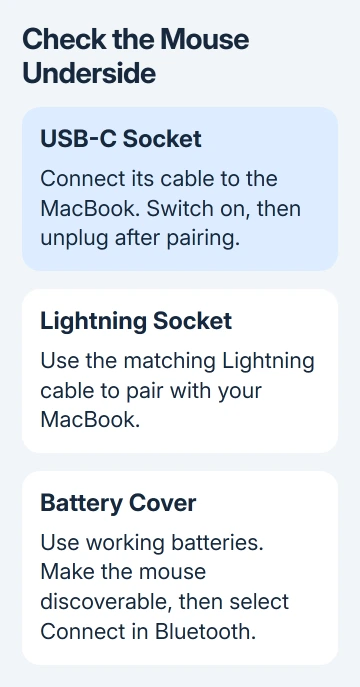
Check the mouse's underside for a USB-C socket, a Lightning socket, or a removable battery cover. A cable socket means the mouse can pair through a cable. The original battery-powered Magic Mouse doesn't have that option.
The newer USB-C Magic Mouse requires macOS 15.1 or later. Check Apple menu > About This Mac before buying a cable for an older MacBook. An adapter can make the plug fit, but your MacBook still needs the required macOS version.
A mouse with a permanently attached USB cable is different again. Connect that cable to a matching port or suitable adapter on your MacBook. It doesn't need to appear in Bluetooth settings before you can use it.
I'd check the underside first. Searching for a pairing button on a rechargeable Magic Mouse wastes time because the cable does the pairing, and the power switch is the control you need.
Pair a rechargeable Magic Mouse with its cable
Use a cable matching both the mouse's socket and a MacBook port. A USB-C to Lightning cable fits a Lightning mouse and a USB-C MacBook. A USB-C mouse uses a USB-C cable.
- Attach the mouse's cable to a port on the MacBook.
- Slide the switch on the mouse's underside to the on position. Green should be visible at the switch.
- Open Apple menu > System Settings > Bluetooth using the trackpad. Older macOS releases call the settings app System Preferences.
- Find the mouse in the device list and check that its battery information appears.
- Disconnect the cable, put the mouse flat on your desk, and move it to check the pointer.
Apple says the accessory cable both charges the battery and pairs the mouse. It isn't just a way to supply power during setup.
The charging port sits underneath the mouse, so keep using the trackpad until you've disconnected it. Once paired, normal use is over Bluetooth. Unplug the cable when you're ready to use the mouse wirelessly.
If the mouse doesn't appear, leave it connected for a minute, then unplug it and move it again. This reconnects a rechargeable Magic accessory. If yours still doesn't appear, try the checks in When the mouse still won't connect.
Connect the older mouse through Bluetooth
The first Magic Mouse uses replaceable batteries. Fit working batteries, close the cover, and turn the mouse on. Its indicator should blink when it's ready to pair; this is different from the newer mouse's green power-switch marking.
- Open the MacBook's Bluetooth settings with its trackpad.
- Turn Bluetooth on if it is off.
- Wait for the Apple mouse to appear among available devices.
- Select Connect beside its name.
- Move the mouse and try clicking a Finder window.
If your mouse's light stays off, check the batteries before another pairing attempt. Make sure they're facing the right way and replace them if they're dead. Without power, the mouse won't appear on your MacBook.
A light that comes on briefly without blinking can mean the mouse is still connected to a nearby Mac. Turn to that Mac and remove its pairing before trying again on the MacBook.
In the other Mac's Bluetooth settings, open the mouse's details and choose Forget This Device. On older versions, move the pointer over the mouse's name and use the remove control. Switch the mouse off, then on, to make it available again.
This disconnects the mouse from the previous computer. Keep another mouse or trackpad handy if you still need to use that Mac while you set up the MacBook.
Finish the click and scrolling settings
Once the pointer moves, open System Settings > Mouse. Adjust tracking speed until a comfortable hand movement takes the pointer across the display. If the pointer moves too slowly, adjust its speed; you don't need to pair the mouse again.
Check secondary clicking if a right-side click acts like an ordinary click. The Mac mouse button settings explain how to choose a side, including a left-side secondary click.
Try scrolling a long page with one finger on the mouse's touch surface. If the pointer works but pages won't move, use the Magic Mouse scrolling checks rather than repeating the connection procedure.
I'd finish with one ordinary task, such as opening a folder and scrolling through its contents. That checks movement, clicking, and scrolling separately and makes a remaining settings problem easier to describe.
When the mouse still won't connect
Start with the power switch: switch off until green disappears, then switch on again. Make sure Bluetooth is on in your MacBook's settings. Restart the MacBook if Bluetooth won't turn on, then return to the appropriate pairing method.
For a rechargeable mouse, check the physical cable connection at both ends and try another suitable cable if available. A wall charger can charge the battery, but it isn't the Mac connection used to pair the mouse to this computer.
If the mouse keeps disconnecting, move it closer and check for nearby wireless interference. This needs different checks from a mouse that never appears, so note which happens when asking for service.
Open Apple's accessory connection support from its setup page. Give the mouse's connector, your macOS version, and whether Bluetooth ever shows it as connected. Ask for pairing help or a battery and hardware assessment.
The Short Version
Connect a rechargeable Magic Mouse to the MacBook with its cable, turn it on, check Bluetooth, then unplug it. Pair the replaceable-battery model from Bluetooth settings. Check macOS compatibility for the USB-C mouse before changing cables.
Checked November 13, 2026.