Classic Explorer's missing toolbar usually needs to be switched back on inside File Explorer. Open a folder, select View, open the menu attached to Options, and look for Classic Explorer Bar.
That applies to the toolbar added by Classic Shell or Open-Shell. A missing Windows taskbar, a collapsed ribbon, and folders that won't open are separate problems. Start with the part that actually disappeared.
In this guide
1. Turn the Classic Explorer Bar back on
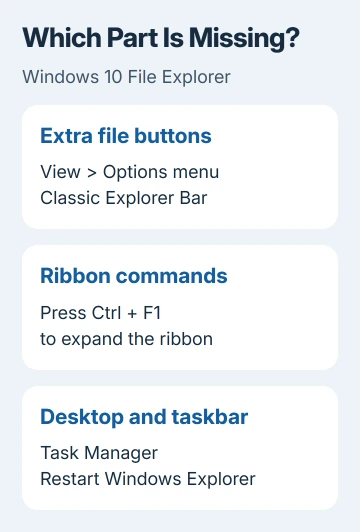
Press Windows + E to open a folder. On Windows 10's ribbon, choose View, then open the small menu attached to Options. Select Classic Explorer Bar if it's listed but unchecked.
The extra row of file-operation buttons should return. Close the folder and open another one to check whether the choice stays enabled. If it does, the add-on is installed and available. Its toolbar was just hidden.
Classic Shell's toolbar troubleshooting instructions describe this ribbon route under Windows 8, whose ribbon layout is also used in Windows 10. Don't use the Windows 7 Toolbars menu instructions on a Windows 10 ribbon.
If the entry is missing or grayed out, check whether the Explorer component is installed. Clicking Options itself can open Folder Options instead of the toolbar menu, so check which control you opened before assuming the entry has vanished.
I'd try this before reinstalling anything. It checks the exact missing feature without changing your Start menu or replacing the Windows shell.
2. Check whether the ribbon or shortcut disappeared instead
An Explorer window that shows File, Home, Share, and View, but hides their commands, has a collapsed ribbon. Press Ctrl + F1 while the window is active to expand it. Pressing that shortcut again collapses it.
Windows commands live in the ribbon; the Classic Explorer Bar adds another row of buttons. Restoring the ribbon leaves that extra toolbar unchanged. If its buttons are still missing, check the View menu entry.
If only the taskbar's folder icon disappeared, try Windows + E. When a folder opens normally, right-click its button on the taskbar and choose Pin to taskbar. A missing shortcut doesn't require a Windows repair.
For other missing controls inside a working window, the File Explorer help page covers previews, extensions, search and folder shortcuts. Use those controls when the missing item belongs to Windows itself.
If the desktop and taskbar are also gone, skip to the Explorer restart section. The toolbar check needs a working folder window. Get the desktop running again before trying its settings.
3. Confirm that Classic Explorer is installed
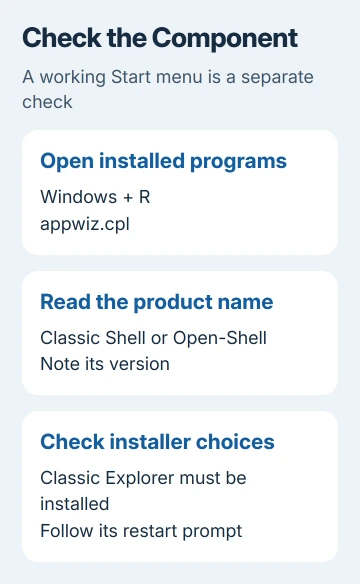
Press Windows + R, enter appwiz.cpl, and press Enter. Look through Programs and Features for Classic Shell or Open-Shell. Note the product name and version before changing the installation.
These suites contain separate components. A working classic Start menu doesn't mean the Classic Explorer component is installed. It can be missing even though the Start button still looks exactly as it did before.
Classic Shell lets you select components during installation. Open the installer for your installed version. If its maintenance screen offers Change, check whether Classic Explorer is selected.
Keep the other components you want. Complete the installer's changes, including any requested restart. Open a folder and check its toolbar menu again. If the entry appears, the component is now available in Explorer.
For Open-Shell, use that project's own installer and instructions rather than treating a Classic Shell installer as the same product. Its official project wiki is the starting point for the maintained fork's documentation.
Don't remove the whole suite just to check one component. That can change your Start menu too, making it harder to tell what brought the toolbar back.
4. Bring back a missing desktop through Task Manager
Press Ctrl + Shift + Esc. In Windows 10 Task Manager, select More details if it opens in the small view. Under Processes, find Windows Explorer, right-click it, and choose Restart.
During that restart, Windows may briefly hide the taskbar. Wait for it to return, then open a folder. Microsoft says restarting Windows Explorer is a repair for a blank screen with a visible pointer.
If Windows Explorer isn't listed, use File > Run new task, type explorer.exe, and select OK. A returning desktop and taskbar mean the Windows shell is running again. It doesn't confirm that the Classic Explorer add-on is installed.
Save work in any responsive applications before restarting the whole PC. If restarting Explorer doesn't restore the desktop, use the Windows blank-screen troubleshooting route rather than installing another toolbar into the failing session.
When Explorer opens but freezes during folder access, that is a separate fault. Report which folder freezes and whether a normal folder on your PC opens; a hidden toolbar doesn't explain a window that stops responding.
5. Check the Windows version after an upgrade
Press Windows + R, type winver, and press Enter. Read the Windows name and OS Build. A computer that now says Windows 11 isn't using Windows 10 just because its taskbar or Start menu still looks familiar.
Windows 11 changes can affect shell add-ons differently. If ExplorerPatcher is also installed, compare its exact version and Windows build with the ExplorerPatcher compatibility checks before changing the shell again.
Don't apply a registry workaround written for a different Windows build. A report about restoring an old toolbar on Windows 11 doesn't make the same change appropriate for Windows 10.
For a toolbar that remains missing, send the Classic Shell or Open-Shell project your Windows build, product version, installed components and whether Classic Explorer Bar is absent, dimmed or unchecked. Those are three different failures.
If ordinary folders won't open even without the add-on, use Microsoft's File Explorer repair page. Tell support whether running explorer.exe brings the desktop back. That helps them tell a Windows startup problem from a missing toolbar.
The Short Version
Enable Classic Explorer Bar through the View ribbon. Check a collapsed ribbon or missing shortcut separately, then inspect the installed Explorer component. Use Task Manager when the Windows desktop also disappears.
Checked November 13, 2026.