

iOS 26.2 fixed automated device enrollment failing after an iCloud backup restore. If a managed iPhone still won't finish setup, check its iOS version and note exactly where setup stops before erasing it again.
Setup can stop while enrolling after a backup restore, accessing encrypted data in a Managed Apple Account, or installing the management profile. Each needs a different repair, so start with the message your phone shows.
In this guide
1. Match the failure to the iOS version
If you can open Settings, open Settings > General > About and note iOS Version. Then check Settings > General > Software Update for the newer compatible version your organization permits.
If setup stops before the Home Screen, write down the last screen you reached and the full message. Tell IT whether this happened after choosing an iCloud backup, during Remote Management, or while signing in with a work Apple Account.
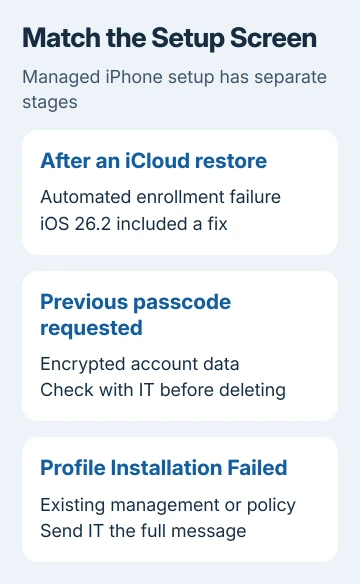
Apple says automated enrollment after an iCloud restore was fixed in iOS 26.2. That fix covers one setup failure. It doesn't mean every enrollment error on a phone running 26.2 has the same cause.
For a phone still on an earlier release, ask IT to update it before trying that restore again. For a phone already on 26.2, use the current approved update and continue with the matching error checks.
The iOS 26.2 update explanation separates that historical release from the newer version offered now. Don't hunt for an old 26.2 installer when the organization supports a later release.
If updating itself fails, give IT the update message as well as the enrollment message. They occur at different stages and may need different repairs.
2. Retry the backup route after IT checks enrollment
If Remote Management fails after an iCloud restore, ask IT to check the company's device assignment and enrollment profile. Give them the serial number from Settings > General > About if you can open Settings.
Ask IT whether the phone should use Automated Device Enrollment, which applies company management during initial setup. Company Portal setup for a personal phone is a separate process. Use it only if IT tells you to.
Before any erase or repeat setup, confirm with IT that your backup exists and that you can recover the data you need. Setup can involve deleting the phone's current contents, so make that decision before proceeding.
After IT approves another restore on the corrected software, continue to Transfer Your Apps & Data. Choose From iCloud Backup, then supply that backup account's login details. Select the backup by its date and size.
Leave Wi-Fi and power connected during restoration and complete the organization's prompts. The backup starting to download isn't the finish. Check that enrollment completes and the phone reaches the managed setup your organization expects.
If it fails again, record the stage and the new message. I'd send IT that second result before trying a third erase; repeated restores don't repair a missing enrollment assignment.
3. Handle the encrypted-data account prompt separately
A Managed Apple Account is the work or school account provided by your organization. It isn't necessarily the same account used for your personal App Store purchases or an old personal iCloud backup.
If setup asks for a previous device's passcode, check which account is shown. The phone needs that passcode to access protected iCloud data. It is a different step from the management server sending its enrollment profile to the phone.
iOS 26.2 added an option for Managed Apple Accounts to delete end-to-end encrypted iCloud data during new-device setup when the previous device's passcode isn't available.
That option deletes encrypted account data. It doesn't just restart the setup screen. Ask IT which data would be lost and whether another trusted device or the old passcode can recover access before choosing it.
Follow the recovery choices offered for that work account. If an expected recovery choice is missing, send IT the account type, iOS version and prompt. Switching to a personal account won't restore access to the work account's data.
When the account-data prompt is resolved but Remote Management still fails, return to enrollment troubleshooting. Finishing one of those steps doesn't automatically finish the other.
4. Read a profile-installation error literally
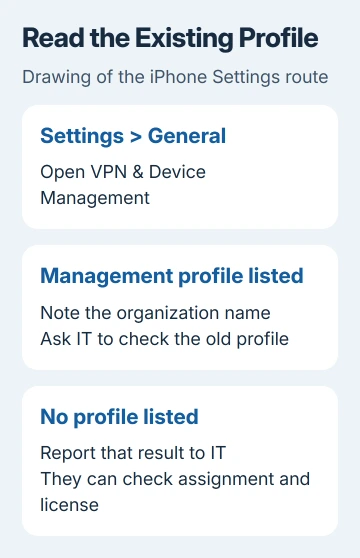
If you can use the phone but Company Portal reports Profile Installation Failed, open Settings > General > VPN & Device Management. Check whether a management profile is already present and which organization it names.
An existing profile can conflict with a new one. Microsoft's Intune profile error instructions distinguish an already-managed device, a previous user's enrollment, a missing license and enrollment restrictions.
For the new MDM payload does not match the old payload, have IT review the existing management profile. MDM means mobile device management. Its profile holds the work settings applied to the phone.
Don't remove that profile on your own. Its removal can take managed settings, apps or data with it, and some supervised phones won't offer a removal button at all. Let IT confirm the intended organization and removal procedure.
If the error names licensing or enrollment restrictions, IT needs to check the user license and the policy for that device type. Another restart or a new personal Apple Account won't grant an Intune license.
Follow IT's re-enrollment steps for a phone previously managed under another user. If directed to Company Portal in Safari, use the specified work login. Your organization controls the steps after you sign in.
5. Escalate with the setup details that change the repair
Send your organization's support team the iPhone model, iOS version, serial number through its approved support channel, full error and failed stage. Say whether the phone was restored from iCloud or set up without a backup.
Say whether the backup came from a managed phone and whether the phone you're setting up uses automated enrollment. iOS 26.1 changed management restoration from an iOS 18 backup when the destination lacks automated enrollment.
For a stalled software installation, the iPhone update procedure gives the separate phone, Mac and Windows controls. Have IT choose the update route for a phone that can't reach Settings.
If an updated phone with the correct assignment still fails, ask IT to open cases with its management provider and Apple enterprise support. Include enrollment logs and attempt times so support can match each to the server's response.
The Short Version
iOS 26.2 fixed one iCloud-restore enrollment failure. Check the version, then identify a backup, encrypted-data or profile error. Have IT verify assignment, licensing and existing management before another erase or profile removal.
Checked November 13, 2026.
 If you have any business, I can build it online






