Windows can stop offering Mount for an ISO when another app takes over that file type. Set the ISO to open with Windows Explorer, then try Mount again. An error saying the file is in use can instead mean the image is already mounted.
A damaged or incomplete download needs a different fix. Start with what you're seeing: a missing menu command, an existing virtual DVD drive, or an error that appears when Windows tries to attach the image.
In this guide
1. Restore Windows Explorer as the ISO's opening app
Right-click the .iso file and choose Properties. On the General tab, find Opens with, select Change, choose Windows Explorer, and select Apply.
Close Properties, right-click the ISO again, and look for Mount. Selecting it should add a virtual DVD drive under This PC. Open that drive to view the image's files.
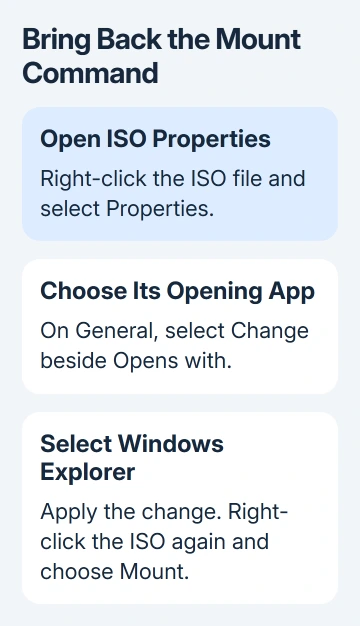
The Windows Explorer association is part of the official ISO mounting procedure. An archive app can open an ISO's contents without attaching it as a drive, which explains why double-clicking can produce an archive window instead.
Mounting alone doesn't start a Windows installation. Running an installer inside the mounted drive is another action. To read or copy something from that image, stop after opening its virtual drive.
I'd try this association check before installing another mounting program. Windows already has the mount feature, and a changed opening app is a different problem from missing support for disk images.
2. Confirm that the file finished downloading
In File Explorer, check the complete filename and its Properties. On Windows 11, use View > Show > File name extensions. Windows 10 has a File name extensions checkbox on the View tab.
The actual file should end in .iso. A temporary download ending or an archive containing an ISO isn't the same thing as the finished disk image. Let the browser complete its download, or extract the actual image from its supplied archive.
Renaming an unfinished file to end in .iso doesn't finish the transfer. Return to the browser's download list to see whether the original download completed or reported a failure.
If the image is stored online without a full local copy, make a complete local copy before trying again. You can then check the saved file without waiting for a network or cloud transfer to finish in the background.
Once the local file is complete, retry Mount. If the menu is present but Windows reports that the file is already in use, check for an existing mount before downloading another copy.
3. Check whether the image is already attached
Open This PC and look for a DVD drive that appeared when you first opened the ISO. The ISO can already be mounted even if Explorer hasn't left a window showing its contents.
Open that drive and check whether it contains the expected files. If it does, the mount has already worked. Another attempt to attach the same image isn't needed to use those files.
For a precise check, open Windows PowerShell from Start and run this with the full path to your image:
Get-DiskImage -ImagePath 'C:\ISO\Installer.iso'Replace the example path with the location of your own file. The command reports whether the image is attached. An Attached value of True means Windows already has that image mounted.
Close any files you opened from the virtual drive before ejecting it. Right-click its DVD entry in This PC and choose Eject if you want to detach it, then try mounting the ISO again.
An in-use error without an attached image needs a different check: close the archive viewer or other app using that file, then retry. If the same error remains, keep its exact wording for the next step.
4. Try the built-in PowerShell mount command
PowerShell provides another route when Explorer's menu doesn't work. It uses the same image file but gives you an error message directly if attaching it fails.
Mount-DiskImage -ImagePath 'C:\ISO\Installer.iso'Use the full path to the downloaded ISO, keeping the quotes around a path containing spaces. Microsoft's Mount-DiskImage reference describes this command and the already-mounted error.
Check This PC for the new DVD drive after running it. If it works, check Explorer's opening app or menu again. If it fails, use the error message to decide whether to check the file or your permission to open it.
Don't change folder ownership or disable security software just because mounting failed. For an access-denied message on a work computer, ask IT whether policy or permissions restrict that image and show them its source and location.
5. Replace a copy that fails verification
An invalid-image error can mean the file itself is faulty. Try another ISO you know works. If that one mounts on the same PC, focus on the troublesome file rather than Windows' mounting feature.
For a Windows installation ISO, download a replacement from the Windows 11 download page. Choose the appropriate image and language there, then let the transfer finish.
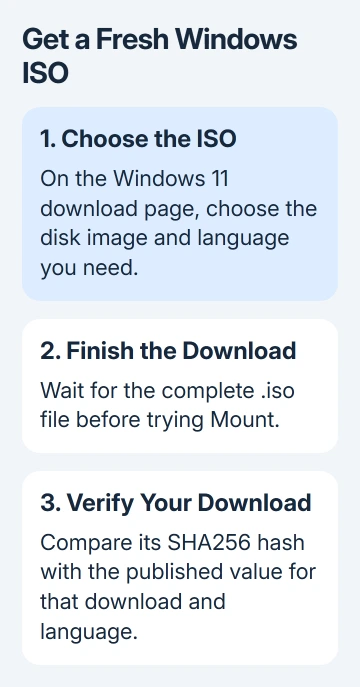
The Windows ISO download guide explains image choice and verification. Check the version currently offered by the download page; its main selector can change when a newer release replaces an older one.
Use the page's Verify your download information to compare the saved file's hash, a fingerprint calculated from its contents. In PowerShell, the check can be run like this:
Get-FileHash -Path 'C:\ISO\Installer.iso' -Algorithm SHA256Match the output against the correct download's published fingerprint, including its language. A mismatch means this copy differs from the published file. Get another copy rather than trying to repair it by changing its extension.
For another publisher's ISO, ask for the current download and its checksum, a fingerprint to compare with your file's hash. A Windows installation image's published hash can't verify an unrelated Linux, software, or recovery image.
6. Escalate the error that remains
If every complete, trusted ISO fails, record the message from PowerShell and your Windows version. Ask your IT team, or Windows support for a personal PC, to check mounting. Explain whether both Explorer and PowerShell fail.
For Explorer that freezes while ordinary folders open, use the File Explorer freeze checks. Fix that wider Explorer problem before assuming every ISO it can't open is damaged.
The Short Version
Set the ISO's opening app to Windows Explorer and try Mount. Check for an existing DVD drive if the file is in use. Use Mount-DiskImage for a clearer error, and verify or replace an image that fails while other ISOs work.
Checked November 13, 2026.