An MSIXBundle that won't open on Windows 11 often needs App Installer installed or updated. If its window opens but reports a certificate, dependency or version error, fix that specific error rather than changing the file extension.
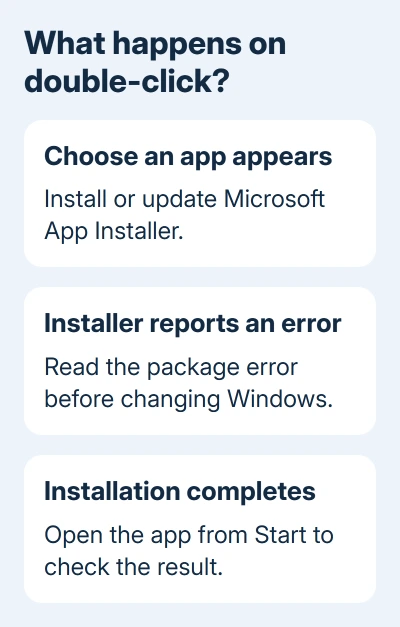
Double-click the bundle and check the screen that appears. A request to choose an app means the bundle hasn't opened. An installer that opens but rejects the package needs a different fix.
In this guide
1. Restore App Installer when the bundle won't open
Open the Microsoft Store app from Start and search for App Installer. Select the app published by Microsoft Corporation, then install or update it. App Installer is the Windows component that opens MSIX and MSIXBundle packages.
After it finishes, return to the bundle in File Explorer and double-click it again. A working App Installer opens a window with the app's details and a control to install it. Read the publisher and app name before proceeding.
Microsoft says winget can update App Installer in its update instructions. If winget already works, run this in Terminal or Command Prompt:
winget upgrade Microsoft.AppInstallerIf Windows says winget isn't recognized, use the Store route instead. Winget and App Installer are related components, so a missing command isn't a reason to keep entering it or download an installer from an unknown mirror.
On a work PC where the Store is blocked, ask IT to deploy or update App Installer. Tell them whether the bundle has no associated app or opens with an error. That helps IT decide whether to fix App Installer or look at the package error.
2. Confirm the package and its Windows requirements
Use the publisher's download or an approved work copy. Check that it's an .msixbundle, rather than a shortcut or incomplete file. In File Explorer, View > Show > File name extensions reveals the complete name.
A bundle can contain app packages for several processor types. Windows chooses the appropriate package when one is included. The developer's bundle might still lack a version for your computer.
Open Settings > System > About and check System type. Match the publisher's requirements for x64 or ARM64, and read the minimum Windows version. Press Windows key + R and run winver to see your installed Windows release and build.
If the app requires a newer supported Windows build, update Windows through Settings > Windows Update, or get a compatible release from the publisher. Renaming an ARM package or forcing the installer doesn't supply a missing x64 version.
I'd check the publisher's requirements before trying repair commands. A correctly working installer can reject a package that was built for another system, and reinstalling App Installer won't change that requirement.
3. Use PowerShell to expose the full installation error
When the app opens but installation fails without enough detail, open Windows PowerShell while signed into the account that needs the app. Run this command with your bundle's path, keeping quotation marks around paths that contain spaces:
Add-AppxPackage -Path "C:\Packages\Example.msixbundle"The path is an example, not a command to run unchanged. In File Explorer, right-click your bundle and choose Copy as path, then use that path after -Path. The file must exist at that location.
This command tries to install the app for the account you're signed into. It doesn't repair the package or bypass signing requirements. Copy the resulting error text, including the error code made up of letters and numbers, if it fails.
A successful command normally returns to the prompt without the red error text. Search Start for the installed app and try opening it. If installation succeeds but launch fails, keep that distinction when contacting the publisher.
For Windows app installation through a package manager rather than a local bundle, the Calculator installation options show a separate supported route for that particular app.
4. Match a dependency or version error to its fix
A dependency is another package the app needs, such as a runtime or framework. If the error names Microsoft.VCLibs, Microsoft.WindowsAppRuntime or another framework, record the exact name, required version and processor type.
Follow the app publisher's official instructions to get that dependency, or ask IT for the approved set of packages. Installing an unrelated version because its filename looks similar can leave you with the same missing-dependency error.
When the publisher supplies the main bundle and its dependency file, Add-AppxPackage supports installing them together. Replace both example paths with the supplied files:
Add-AppxPackage -Path "C:\Packages\Example.msixbundle" -DependencyPath "C:\Packages\RequiredFramework.appx"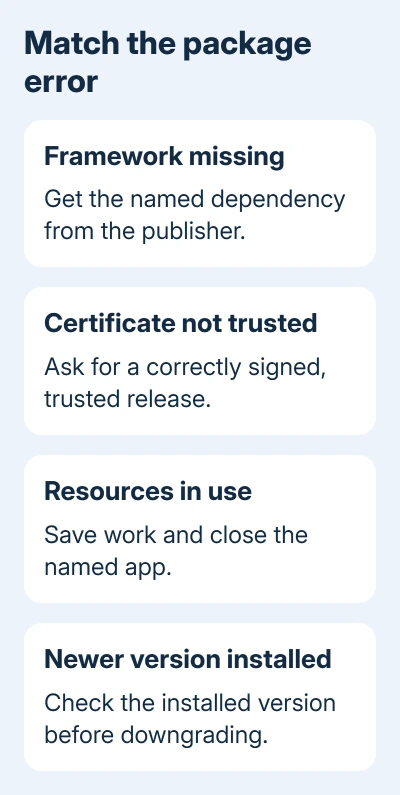
A version-downgrade error needs a different response. Check Settings > Apps > Installed apps and compare versions. Keep the newer release unless the publisher specifically requires a supported downgrade process.
If Windows reports that package resources are in use, save your work and close the named app. Restart the PC if needed, then retry before reopening it. Avoid forcing applications closed while they contain unsaved work.
5. Handle signing and workplace restrictions correctly
A certificate warning means Windows doesn't trust the package's signing identity. For a public app, download a properly signed release from its publisher. A different copy from a file-sharing site isn't a repair for a trust failure.
For an internal or development app, ask the developer or IT team to check the signing certificate and how it's installed on your PC. They may need to distribute the organization's certificate through the approved management process.
Don't enable Developer Mode or import an unknown certificate just to make a warning disappear. Developer Mode isn't a replacement for checking who produced the app and why Windows rejected it.
For an administrator block, ask IT if the app is permitted and needs central deployment. On a managed computer, workplace installation rules can still apply even if your account is a local administrator.
The Winamp installation checks address a different installer format and its errors. Use advice that matches the actual bundle message rather than applying every Windows installer repair to this file.
6. Send the developer the deployment details
For an unresolved failure, open Event Viewer from Start. Browse Applications and Services Logs > Microsoft > Windows > AppXDeployment-Server > Operational. Find the event matching the time of the failed installation.
Send the publisher or IT team the error code, event details, bundle filename, Windows build and System type. Include any named framework or certificate problem and say whether App Installer opened before failing.
Ask for a compatible, correctly signed bundle with its required dependencies. Those details tell the developer which package problem to fix, instead of leaving them with a general report that Windows won't install apps.
The Short Version
Restore App Installer when a bundle won't open. For rejected installations, collect the error and check requirements, dependencies, signing or policy. Ask the publisher for a corrected package when the file needs changing.
Checked November 13, 2026.