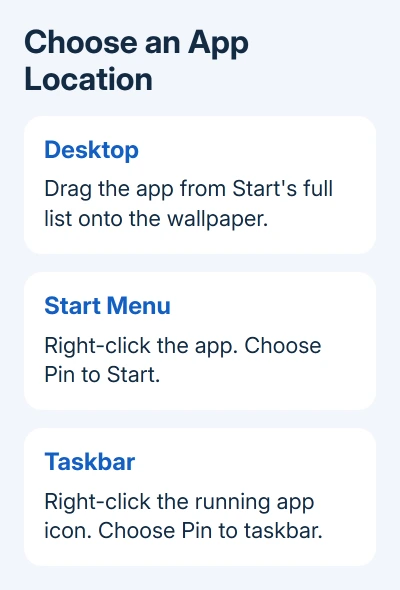
Windows 11 puts app icons on the desktop by creating shortcuts. Open Start's full app list and drag the app onto the desktop. If by home screen you mean the menu that opens when you click Start, use Pin to Start instead.
A desktop shortcut, a Start pin and a taskbar pin open the same installed app from different places. Choose the location you want first, then use the matching steps. Pinning an app to Start won't also create an icon over your wallpaper.
In this guide
Add an app icon to the desktop
The desktop is the area behind your open windows, where the wallpaper and Recycle Bin appear. Press Windows + D to show it, then open Start. Leave enough desktop visible to drop an app outside the menu.
- Click Start, then All or All apps, depending on the Start layout.
- Find the installed app in the full list.
- Drag its entry out of Start and onto an empty desktop area.
- Release it, then double-click the new icon to open the app.
Use the app list; search results and pinned tiles can behave differently when dragged. Microsoft describes this app-list method in its desktop-icon instructions.
The new icon opens the app you already have installed. It doesn't make a second installation or move the app's program files. You can place it wherever it fits on your desktop without changing where Windows stores the application.
Double-clicking should open the expected app. If it opens a browser page instead, check what you dragged. A website shortcut and an installed application's shortcut can look similar while leading to different things.
Pin an app inside Start instead
Click Start and type the app's name. Right-click the matching app result and select Pin to Start. Open Start again and look in its pinned area. This is the right choice when you want favorite apps together in the Start menu.
The app can remain in the full list after you pin it. That isn't a duplicate installation. The full list shows installed applications, while the pinned area holds the apps you choose to keep handy.
Choose Unpin from Start in the pin's right-click menu when you want it gone. Leave Uninstall alone when you want the application to stay installed. Unpinning just changes where the app appears in Start.
Start layouts vary between Windows 11 releases, so another PC's app list can look different. Pinning affects Start. Dragging an app out onto the wallpaper creates a desktop launcher instead.
I'd pin your regular apps and keep the desktop for the few icons you want in view. Keep only the launchers you actually use, even though Windows allows all three locations.
Keep an app beside Start on the taskbar
When the app is running, right-click its taskbar icon and select Pin to taskbar. Close the app afterward. Its icon should stay on the taskbar, ready to open it again with a click.
Another route is to search for the app from Start, right-click it and look for Pin to taskbar. In some menus this is inside More. If that menu doesn't show the option, open the app and pin its running icon instead.
A taskbar icon that disappears when you close the app was only showing its running state. Pinning is the step that keeps it there. Drag a pinned icon along the taskbar if you'd like to change its position.
To remove that pinned icon, right-click it and select Unpin from taskbar. The app stays installed and its desktop shortcut, if you created one, remains available. Each location has its own pin or shortcut to manage.
If Start's buttons aren't responding at all, use the Windows Start menu fixes before trying to customize its pins. Fixing an unresponsive menu takes different steps from adding a desktop shortcut.
Create a shortcut to a file, folder or known program
For a file or folder, open File Explorer and locate it. Right-click it, select Show more options, then Send to > Desktop (create shortcut). If the full menu already shows Send to, you don't need the extra menu step.
Try this for a project folder or document you open often. It creates a link to that item while leaving the original in its existing location. Moving the original later can leave the shortcut unable to find it.
This also works on a known program's executable file, the file that starts the app. Don't select an uninstaller or updater from the same folder. Choose the Start app-list method if you aren't sure which file launches it.
You can also right-click an empty desktop area and choose New > Shortcut. Follow the wizard to select a file or folder you recognize, click Next, enter a useful name and select Finish. Avoid typing a guessed program path.
Restore hidden icons or add This PC
If every desktop icon is missing, right-click an empty area, open View and enable Show desktop icons. That setting can hide existing shortcuts without deleting them. Check it before spending time recreating every icon.
For This PC, Recycle Bin, Network or your user folder, open Settings > Personalization > Themes > Desktop icon settings. Select the icons and click OK. These settings control Windows system icons, rather than every installed app's icon.
To make icons easier to read, right-click the desktop and choose View > Large icons, Medium icons or Small icons. Holding Ctrl while using the mouse wheel on the desktop also changes their size.
Icon size doesn't change the application's own text size. Keep icon size and Windows display scaling as separate adjustments. If your problem is only that familiar icons vanished, check the missing desktop icons guide.
If the app isn't listed or the icon won't open
Search for the app by its full name and check whether it's installed on this Windows account. A download file isn't necessarily an installed app. Open the installer only if it came from the app's legitimate publisher or Microsoft Store.
If Start opens the app but its desktop shortcut fails, delete the broken icon and recreate it from the app list. If both fail, give the publisher the error message. Replacing an icon won't repair the application.
The Short Version
Drag an installed app from Start's full list onto the desktop. Use Pin to Start for the menu or Pin to taskbar for the bottom bar. Turn on Show desktop icons if existing shortcuts are hidden.
Checked November 13, 2026.