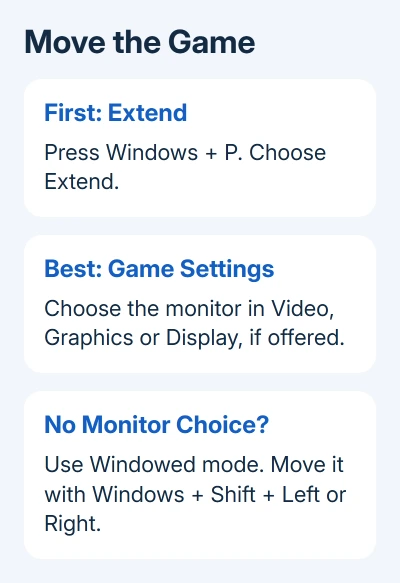
A fullscreen game on the wrong monitor usually needs its display selection changed inside the game. Without a monitor selector, choose Windowed mode, move it with Windows + Shift + Left or Right, then try fullscreen again.
Some games return to the Windows main display whenever they enter fullscreen. Set the gaming screen as primary before launching those titles. The method depends on whether the game picks a monitor or lets Windows move it as a window.
In this guide
Put both screens in Extend mode first
Press Windows + P and choose Extend. This gives Windows a desktop spread across the connected displays. Duplicate mirrors the same picture, so it won't give you one screen for the game and another for a browser or chat.
Open Display settings from the desktop's right-click menu. Select Identify to show a number on each screen. Drag the numbered rectangles into the same left-to-right arrangement as the monitors on your desk.
Choose Apply after rearranging the screens. Monitor 1 doesn't have to be your gaming screen. Use the number that Identify showed on the screen you want, even when Windows gives the larger monitor a surprising number.
If the second display isn't shown, moving the game isn't the next step yet. Select Multiple displays > Detect where available. Check the cable, monitor input and power, then return once Windows can see two separate screens.
The HDMI settings guide helps when the connection itself is the problem. A game setting can't select a display that Windows hasn't detected.
Choose the monitor inside the game when possible
Open the game's Settings or Options and look under Video, Graphics or Display. Check for a setting named Monitor, Display or Output Monitor. Labels and availability vary by game, so use its own support instructions for the exact control.
Select the screen you want and apply the change. Accept a keep-settings confirmation only after the picture appears correctly. If the selected mode leaves no usable picture, let that confirmation expire.
Match the resolution to the screen you're moving to instead of keeping the old monitor's setting. A 1080p and a 1440p screen don't need identical game settings. Check the game's refresh-rate option if it has one.
Then quit normally and launch the game again. Check whether your monitor choice has stayed saved. A game that opens correctly once but reverts on the next launch needs its saved settings checked, rather than another cable swap.
Move the game as a window when no selector exists
Save your progress or return to a menu before changing display mode. I'd do this outside a live match; you need a moment to see which screen has the controls and confirm that the change worked.
- Open the game's display settings and choose Windowed.
- Click the game so it's the active window.
- Hold Windows + Shift, then press Left or Right toward the other screen.
- Check that the whole game window appears on the intended monitor.
- Try the game's Borderless, Windowed Fullscreen or Fullscreen option.
Microsoft's Windows keyboard shortcuts list this combination for moving an active window. Windows 10 and 11 support it, but games can block normal window movement in fullscreen.
If a title bar is visible, you can also drag that bar across to the other screen. Move the window into the destination display before maximizing it. Moving only the pointer over another monitor doesn't move the game.
Alt + Enter switches display modes in some games. Try it if the game supports it. If nothing happens, use the game's own menu. No single mode-switch shortcut works in every PC game.
Keep borderless mode if exclusive fullscreen jumps back
Borderless mode fills a display while running as a window. Exclusive fullscreen lets the game control the display mode more directly. A game can handle them differently even when both fill the screen.
If borderless keeps the moved game on the intended screen, try playing that way. Exclusive fullscreen can send it back to the game's chosen output. Check its monitor selector or the Windows main-display setting next.
Don't assume borderless always performs better or worse. Frame rate, HDR and app switching depend on the game, hardware and Windows settings. Get the game working on the screen you want before adjusting performance options.
If the picture works but the mouse leaves the game, check its cursor-lock or fullscreen controls. Pointer movement and monitor choice are separate settings. Moving the game doesn't automatically decide where its pointer can travel.
Make the gaming screen the main display if needed
Close the game. In Windows 11, open Settings > System > Display, select the numbered gaming monitor and expand Multiple displays. Select Make this my main display. Reopen the game and check where it starts.
Windows 10 also uses Settings > System > Display. Select the screen, scroll to Multiple displays, then select Make this my main display. Both versions apply this setting to the selected screen.
If the option is already selected or unavailable because that screen is already primary, choose another method in the game's settings. Rechecking the same box won't change a monitor choice the game has made for itself.
Changing the main display can move other apps and Windows controls. Consider that if this PC is also your work setup. A game-specific selector is more convenient when you want to keep your usual desktop arrangement.
If the game still returns to the wrong screen
Check whether only this title behaves that way. Move an ordinary app with the Windows shortcut. If it works, give the publisher the game title, display mode, Windows version and monitor arrangement you've checked.
For windows that move after sleep or reconnecting a dock, use the window-position after sleep fixes. Windows moving a window after sleep needs different troubleshooting from a game opening on the wrong screen.
Ask the publisher whether the game supports a monitor selector or a documented display launch option. Don't paste a random monitor command into every launcher's options; launch commands differ between engines and games.
The Short Version
Use Extend, select the monitor inside the game, or move it in Windowed mode. Try borderless if fullscreen jumps back. Set the gaming screen as the Windows main display when the game follows that setting.
Checked November 13, 2026.