An Apple Watch serial number check starts in Settings > General > About on the watch. Enter the number on Apple's coverage page to check its record. A recognized serial alone can't confirm the watch is genuine or ready to pair.
The paired iPhone and the watch case offer other ways to find the number. Use those when the screen won't turn on. You'll still need to check the seller's ownership and Activation Lock separately from coverage.
In this guide
Find the number on the watch or paired iPhone
The watch's About screen is the simplest starting point when it's working. Leave the band attached for this check; a separate checker app isn't needed. Keep the watch nearby while recording the number so you can compare it carefully.
- Press the Digital Crown and open Settings.
- Tap General > About.
- Scroll to Serial Number.
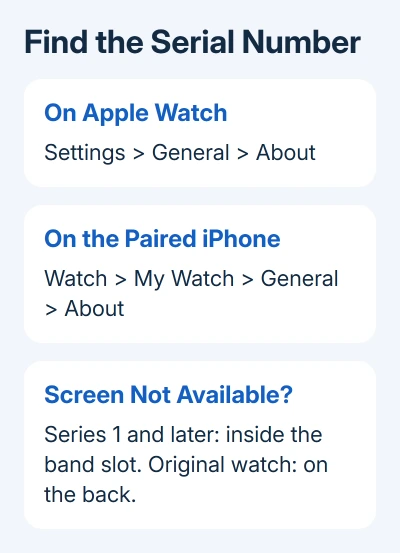
On the paired iPhone, open the Watch app, tap My Watch, then General > About. Look for Serial Number on that screen. The number belongs to the selected watch, so check the watch name when several watches use the same phone.
The iPhone route is helpful when the watch's display is awkward to read. It isn't a way to look up any nearby watch. A seller's screenshot of this page also needs to match the actual watch being offered.
Apple explains both routes and the case engraving in its serial-number instructions. I'd copy the number from the device before using a box label, particularly when the watch has changed hands.
Read the case when the screen isn't available
For Series 1 and newer watches, take off the band and read the serial inside its slot. This includes SE, Ultra, Nike and Hermes versions. On the original Apple Watch (1st generation), the engraving is on the back.
Series 1 and the first-generation watch aren't interchangeable names. Their serial numbers are in different places. On a later watch, reading only the back can leave you checking case details while missing the serial.
Set the watch on a soft cloth with its screen facing down. Hold the band release while sliding the band sideways out of its slot. If it's stuck, press the release again and try gently rather than forcing it.
Use good light to read the small engraving. Record the whole number, then check it against the watch's About entry when it can switch on. Ask the seller or service provider to explain any mismatch before relying on the paperwork.
Check coverage with the complete serial number
Open Apple's coverage checker. Choose your country or region if asked, then enter the watch serial. Complete the verification and submit it. Check which product it identifies and the coverage shown.
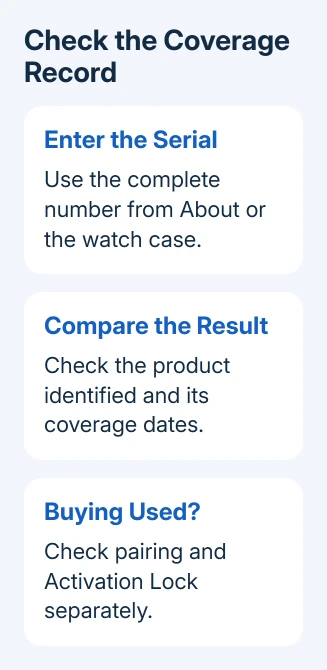
The result shows the coverage record linked to that serial number. It doesn't examine the watch in your hand, test its battery or check that the seller can remove their account. Check those separately when buying or arranging service.
A recognized serial with expired coverage is different from a serial the checker doesn't recognize. Expired coverage doesn't make the watch unusable. Check paid-service options or other rights that apply to your purchase.
You may need to correct an inaccurate estimated purchase date. Keep the original sales receipt if coverage dates don't match it. A receipt for your used purchase isn't the same as the original authorized purchase record.
Don't confuse the serial number, IMEI and model number
Every Apple Watch has a serial number. An IMEI identifies the cellular device and appears on GPS + Cellular models. A GPS-only watch doesn't need an IMEI, so an empty or absent IMEI field isn't, by itself, a fault.
The model number identifies the model variant rather than one individual watch. In the paired iPhone's Watch app, open My Watch > General > About and find Model Number. Tap that field to switch from the part number to the A-number.
Look up that A-number in Apple's model information to check the series or regional version. It tells you the version, rather than identifying your individual watch. Two watches can share an A-number while carrying different serial numbers.
The back engraving can also help confirm the case size and other model details. Compare those physical details with the listing.
Check pairing and Activation Lock before buying used
Ask the seller to unpair it from their iPhone and remove Activation Lock before handover. Erasing without removing the lock can leave it tied to their account.
Start setup with your own iPhone before finishing the transaction. If setup asks for the previous owner's Apple Account, stop and have the seller resolve it. Don't accept a promise that a paid unlock website will remove the account later.
The Apple Watch connection guide helps when a watch is available to pair but the connection fails. The owner needs to remove Activation Lock; changing Bluetooth settings won't remove it.
For a watch you already own, note any passcode problem separately. A device passcode and Activation Lock protect different things. The forgotten Watch passcode procedure explains the reset route without treating it as an account bypass.
When the checker rejects the number or the details disagree
Recheck the number against the actual engraving or About screen. Make sure you haven't entered the IMEI, model number or a number from an accessory box. Retype it carefully once instead of repeatedly submitting a copied mistake.
If the site still rejects it, contact Apple Support through its Apple Watch service options. Share the serial privately, plus the model details and receipt if you have it. Ask about identification or correcting the coverage record.
The Short Version
Find the serial in About or on the case, then use Apple's coverage page. Keep the model number, cellular IMEI and Activation Lock checks separate. Resolve mismatched records and previous-owner prompts before buying.
Checked November 13, 2026.