

To jailbreak an iPad, you need a tool that supports its exact model and iPadOS version. For older iPads listed by palera1n, a Mac runs the tool and guides the tablet into a special startup mode. Finish by adding Sileo through the loader.
These steps aren't a universal jailbreak for a current iPad. Check the model before downloading anything: a supported iPad Pro from one generation doesn't make every iPad Pro compatible.
In this guide
Match the iPad against the supported list
Open Settings > General > About and record Model Name and the software version. Tap Model Number if needed to reveal the A-number. The iPad generation guide explains how to distinguish similar names.
The project's supported iPads are iPad mini 4, iPad Air 2, iPad fifth, sixth, and seventh generation, and these older Pros: 9.7-inch, 10.5-inch, and 12.9-inch first and second generation.
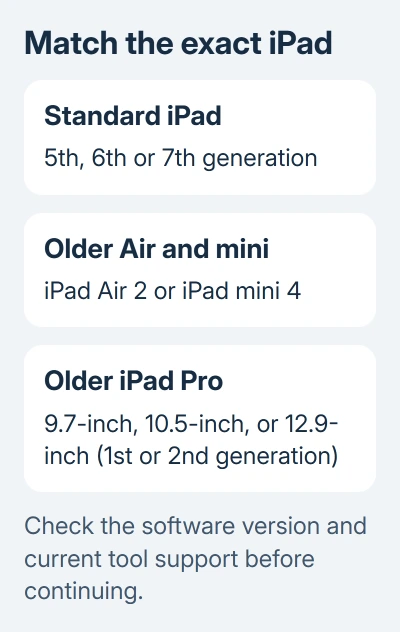
Check the official device-support table against the full model. The tool works with A8 through A11 hardware on supported versions of iOS or iPadOS 15 onward. The software version alone doesn't make a tablet compatible.
An M-series iPad isn't part of that hardware list. Neither is an iPad Air simply because Air 2 is listed. If your model doesn't match, stop this procedure and use the device selector for its own options.
That selector has separate entries for iPad, iPad Air, iPad Pro, and iPad mini. Choose the family and exact device, then read the result for the installed version. If no supported method appears, don't continue with this procedure.
Back up before changing the system
Connect the iPad to a Mac, open Finder, and select it in the sidebar. Approve Trust on the devices when asked. Under General, choose the backup option that saves the iPad's data to that Mac.
Select Encrypt local backup if you need the additional information an encrypted backup preserves, set a password you'll remember, then choose Back Up Now. Wait for the last-backup time to update before continuing.
Apple's computer backup steps explain those controls. Keep access to files you sync separately too, so you can still open important files outside that backup.
Jailbreaking alters iPadOS security and can cause crashes, update failures, and app problems. Apple may deny service for unauthorized software. I'd use a spare supported tablet instead of one needed for work or school.
This also doesn't remove Activation Lock or a school management profile. If ownership or management is the actual problem, use the owner or administrator's recovery route rather than expecting a jailbreak to settle it.
Install the official tool on your Mac
Open palera1n's official download page and choose macOS. Use the installation command displayed there. The page also offers a universal Mac command-line download for manual installation.
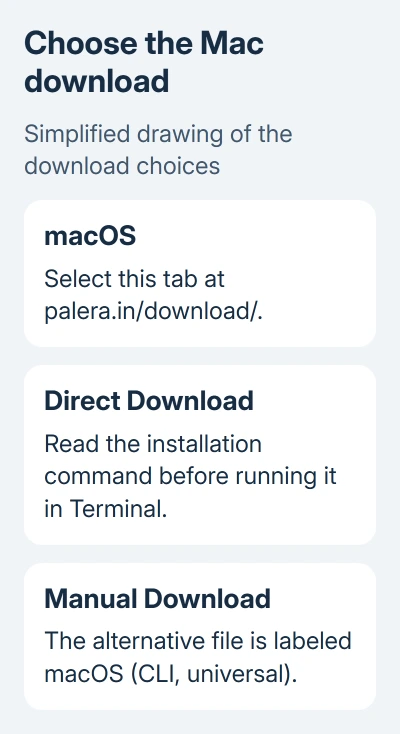
That command downloads the installer and runs it in Terminal. Read the full command and check the domain before running it. Don't substitute an installer from a similar-looking domain or a paid unlocking advertisement.
Finish the prompts, then enter palera1n --version in Terminal. If it shows a version number, the tool is ready to run. For a command-not-found error, finish the installer's path setup before connecting the tablet.
These Mac steps work with Intel or Apple silicon. The download page doesn't offer a version that runs directly in Windows. A Windows PC uses the separate palen1x bootable-USB procedure, not the Mac command in PowerShell.
If you're using Windows or Linux instead, follow the project's matching operating-system guide from that download page. Don't combine several operating-system procedures halfway through installation.
Connect the iPad and follow its startup prompts
Connect the supported iPad to the Mac with a data cable, then run palera1n in Terminal. The project's current command help differs from older guides that add an option for rootless mode, so follow the installed tool's prompts.
Press Enter when prompted and follow the timed instructions for DFU mode, a startup state that lets the tool work before iPadOS loads. These supported iPads have a Home button; keep it accessible while following the timer.
Follow that device-specific sequence rather than using instructions for a newer iPad without a Home button. A normal restart or the cable-and-computer recovery screen isn't the same state as DFU.
If a USB-C to Lightning cable prevents entry, the installation guide recommends a USB-A to Lightning cable, with a USB-C adapter for the Mac when needed. Change that connection before repeating the same failed timing indefinitely.
On an Apple silicon Mac connected through USB-C, the guide calls for unplugging and reconnecting after Checkmate! appears in the log. Unplug and reconnect at that point, rather than repeatedly disconnecting during the process.
For A9(X) and earlier hardware stuck in pongoOS, the guide describes stopping the run with Control+C and running the tool again. Use that step only when it's stuck in pongoOS; other errors need their own troubleshooting steps.
Finish in the loader and plan for restarts
After the tablet starts, open the palera1n loader on the Home Screen and choose Sileo. Complete its prompts, including a password for command-line access when requested, and check that Sileo appears.
Sileo installs and manages the extra software you can use with the jailbreak. Reaching the normal Home Screen alone doesn't confirm that this final installation has finished.
After a normal restart, the tablet can start without the jailbreak active. Reconnect to the computer and repeat the tool's startup steps to activate it again. You'll need computer access if you rely on a jailbreak tweak every day.
For an iPhone, use the separate phone jailbreak instructions. In particular, the A11 iPhone passcode restrictions described there aren't a reason to erase an older supported iPad without checking its own instructions.
Send project support the iPad model, software and tool versions, Mac type, and error text if installation fails. Remove private details from logs. Ask project support what the error means before choosing a restore that wipes the iPad.
The Short Version
Match the iPad against the hardware list, back up, and download the Mac tool from palera.in. Use its DFU sequence, then complete the loader setup. Keep computer access for activating the jailbreak after a restart.
Checked November 13, 2026.
 If you have any business, I can build it online






