An antiX USB headset can stay silent because sound is still going to the laptop's internal audio or HDMI output. Select the headset in Control Center > Hardware > Set Default Sound Card, then reopen the app playing audio.
If the headset isn't in the sound-card list, check whether Linux recognizes it. If it appears but stays silent, open its mixer to check the mute and volume controls.
In this guide
1. Make the USB headset the default output
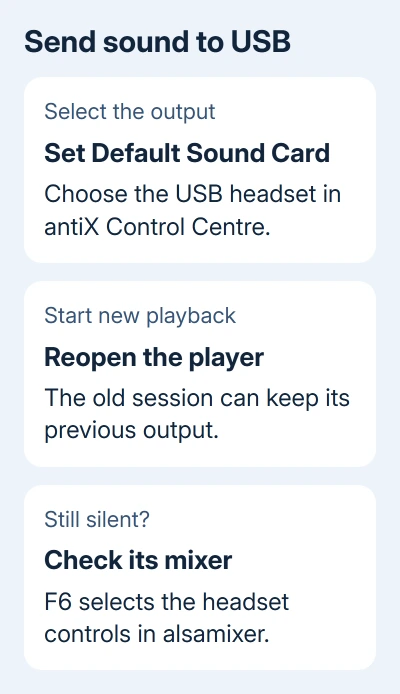
Connect the headset before opening Control Center. In Hardware, choose Set Default Sound Card and select the USB audio device that belongs to the headset. Keep it connected while testing.
A USB headset contains its own audio device. Selecting the laptop's built-in headphone output won't send sound through USB, even though both choices can be described as headphones elsewhere in the desktop.
USB audio and HDMI can each appear as separate sound cards. The first item in the list isn't necessarily the output you want; the antiX sound FAQ covers that distinction.
Close and reopen the music player, browser or call app after changing the default. An app that was already playing through the old output can keep using it until you start playback again.
Try a local audio file first, then the app that originally failed. If the local file plays through the headset but a website doesn't, move to the app-specific checks rather than changing the default again.
I'd make this selection before installing extra audio software. A working headset routed to the wrong card doesn't need a different sound system to produce audio.
2. Check whether ALSA can see the headset
To see which audio devices Linux recognizes, enter this command in a terminal:
aplay -lALSA is Linux's sound system. This command lists the playback hardware it recognizes. Look for a USB audio entry for your headset, along with any internal or HDMI audio devices.
Run it once with the headset connected and compare the list after disconnecting it. The entry that disappears is the useful one. Reconnect the headset before continuing, and don't assume its card number will always stay the same.
If the headset isn't listed, connect it to a different USB port without the hub. Insert the plug firmly, then repeat the command. Its indicator can light even when Linux hasn't recognized the audio device.
If it still doesn't appear, try the headset on another computer. If that computer can't detect it either, suspect the headset, cable or adapter. If it works there, check USB detection and support for that model on antiX.
Compare the plug and socket using the USB connector guide if an adapter is involved. Check the fit at each end; a similar shape can still be the wrong plug.
3. Unmute the headset's own playback controls
Open Control Center > Hardware > Adjust Mixer, or run:
alsamixerALSA's mixer manual explains the card selector. Press F6 and choose the USB headset. This chooses which card's controls you see in the mixer. You'll still need the default output selected in the first section.
Press F3 for playback. Select a control with the left or right key, then raise it gradually with the up key. Labels vary by headset; Master, Speaker and Headphone aren't available on every model.
When a control is muted, press M to unmute it. The mixer uses M indicators for muted controls and O indicators when enabled. Check the headset's physical volume buttons or inline wheel too.
Start at a low volume while wearing the headset. Once sound works, adjust it for comfortable listening rather than pushing every available slider to maximum.
Some USB devices have no software mixer controls. A message saying there are no controls in alsamixer doesn't mean the headset can't play sound. Try the sound test and the headset's physical volume control next.
4. Compare the default output with a named device
In Control Center > Hardware, choose Test Sound. The antiX control runs a stereo spoken-channel test. Listen for the voice in your headset. A command can finish successfully while sound goes to another output.
For a direct terminal test of the current default, run:
speaker-test -c 2 -t wav -l 1If the voice comes from the laptop speakers, the default route still points there. If it stays silent, list the available named playback routes:
aplay -LThis list differs from the hardware list in section 2. It includes software outputs that apps can play through. Find the entry belonging to the USB headset and copy its full device name, not just its friendly description.
Test that route with speaker-test -D DEVICE -c 2 -t wav -l 1, replacing DEVICE with the exact name from your list. Device names are case-sensitive. Don't paste a card number from someone else's computer.
If the named headset route works but the default doesn't, the headset can play audio and the remaining problem is output selection. Return to Set Default Sound Card and look for a saved device choice inside the player.
If the named test reports an error, keep the exact message. The device might be unavailable, the setting might be unsupported, or another app might be using it. The message tells you what to fix; volume changes won't fix all three.
5. Fix an app that stays silent after the headset works
When the sound test works, open the failing app's audio preferences and select its default output or the USB headset. A player with a saved HDMI or internal-audio choice can ignore a newly selected system default.
For Chrome, check the tab's mute control and the site's Sound permission. The site-permission settings let a website's sound be blocked independently of the system mixer.
For a different browser, use that browser's tab and site audio controls. Don't assume Chrome's exact menu labels apply to Firefox. A local file playing correctly is the useful comparison before changing browser settings.
A headset doesn't need the storage steps used when disconnecting a USB drive from Linux. Finish playback or recording before unplugging it to compare another computer.
When even the named device test fails, ask the antiX support forum for help with the headset model, antiX version, aplay -l output and exact test error. Include whether the headset works on another computer and whether a hub was involved.
The Short Version
Select the USB headset as the default card and reopen the player. Use F6 in alsamixer to check its controls. If it's absent, compare ports and another computer. A working sound test points toward the app's output choice.
Checked November 13, 2026.