Apple Passwords needs the iCloud Passwords extension to fill logins in desktop Chrome. On Windows, the extension also needs iCloud for Windows with Passwords & Keychain enabled; installing the extension alone isn't enough.
On a Mac, use the browser extension for Chrome. On an iPhone or iPad, check the system's AutoFill settings instead. Start with the section for your device, then check whether the missing login exists in your saved passwords.
In this guide
1. Enable the extension inside your usual Chrome profile
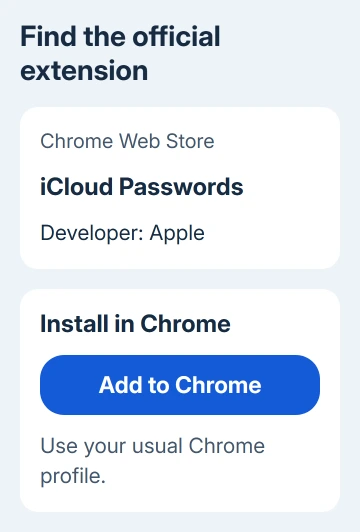
Open Chrome's Extensions > Manage extensions menu and look for iCloud Passwords. Turn it on if it's disabled. Check the Chrome profile that opens your login page, since extensions aren't necessarily enabled in every profile.
Apple explains the Mac route in its browser-extension instructions: open Passwords, choose Passwords > Get Browser Extension, then click View for the browser you want.
The extension supports macOS Sonoma 14, while the standalone Passwords app requires macOS Sequoia 15 or later. On Sonoma, get the extension from its official store listing instead of looking for that app.
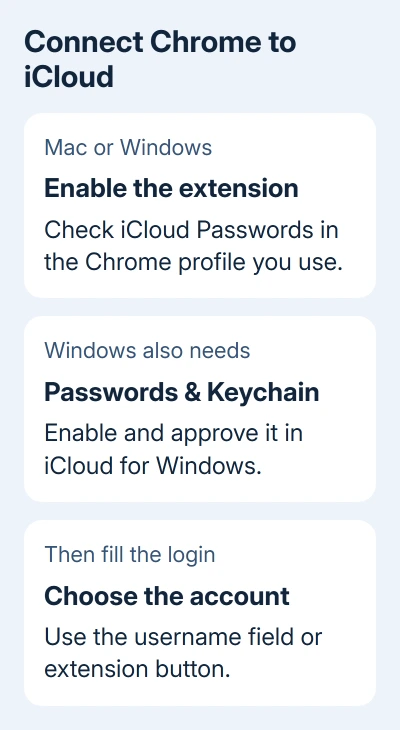
On Windows, open iCloud for Windows, open the controls beside Passwords and Keychain, and use Install Extension for Chrome. The next section covers enabling the Windows component that supplies the saved passwords.
The official extension listing identifies Apple as its developer and lists macOS Sonoma or later. Use that listing rather than an extension with a similar password-related name.
If Chrome won't allow the extension to be enabled on a work computer, ask IT whether extensions or password managers are restricted. A blocked installation needs the administrator's permission, not a change to your saved website password.
2. Turn on Passwords & Keychain on Windows
Open iCloud for Windows and confirm that you're signed into the Apple Account holding the passwords you expect. Open the controls to the right of Passwords and Keychain, then turn on Passwords & Keychain.
If Approve appears under Passwords and Keychain, click it and complete the verification requested. That can use a verification code delivered to your trusted phone number or device, or a security key when your account uses one.
Two-factor authentication must be enabled for the Apple Account. The device receiving the security code needs iOS 14, iPadOS 14, macOS 11 or later. These versions are for the device getting the code, not the one running Chrome's extension.
The current Windows setup also requires either Advanced Data Protection for iCloud to be enabled or your Apple device to be within Bluetooth range of the PC. Keep the trusted device nearby if you aren't using Advanced Data Protection.
Open the iCloud Passwords app on the PC and check for a login you know is saved. If that login is missing, Chrome doesn't yet have a matching password to fill. Check the account and synchronization before changing browser settings.
If your passwords appear in the Windows app, verify the extension next. The passwords are there, so check the browser connection or the particular website.
3. Unlock the extension and choose the saved login
Click iCloud Passwords in Chrome's toolbar. On Windows, enabling the extension generates a six-digit code in a pop-up window. Enter that code into the extension's verification dialog when prompted.
This is different from the earlier account-approval code sent to a trusted device. Use the code requested by the prompt on screen, not an old code from an earlier step.
Return to the website's sign-in page and click its username field. Choose the saved account when it appears. Or click the extension's toolbar button and choose the account there.
The login fields should now fill. Check the selected username when several accounts appear for one service. If the site rejects a filled password, check that saved entry rather than installing the extension again.
I'd try the toolbar button before replacing anything. If the button fills your login but clicking the field doesn't offer it, the saved entry is available. The problem is with offering it on that page, rather than missing passwords.
4. Check the saved website address and password
Search for the website in Passwords on a Mac or iCloud Passwords on Windows. Check the username and saved website address as well as whether an entry exists. A saved login for another username can make autofill appear broken.
If the login exists only in Google Password Manager, it isn't automatically an iCloud entry. The guide to finding passwords in Chrome helps check that separate collection before you change the wrong saved password.
When the website password has changed, sign in with the current password and accept Update Password if the iCloud extension offers it. For a password in a shared group, update the entry in the Windows iCloud Passwords app instead.
Enabling the iCloud Passwords extension turns off the browser's built-in password-saving feature. Missing Chrome save prompts can therefore be expected after the switch. Check whether iCloud's own login and save controls work.
The separate Chrome password-saving checks apply when you intend to use Google's manager. Avoid switching between managers repeatedly while checking where a particular login is stored.
5. Use system AutoFill on iPhone or iPad
Desktop extension instructions don't apply to Chrome on an iPhone or iPad. Go to Settings > General > AutoFill & Passwords, turn on AutoFill Passwords and Passkeys, and select Passwords as a password source when listed.
On iOS 17 and iPadOS 17, use Settings > Passwords > Password Options instead. Return to Chrome, tap the username or password field, and use the password suggestion or password button to choose the saved login.
If the suggested account is missing, use Other Passwords when offered and find the entry yourself. That lets you check whether just the suggestion is missing or the login isn't stored on the device at all.
If several sites fail despite passwords appearing in the native app, ask Apple Support about iCloud Passwords. Include your system, Chrome and iCloud versions, the exact prompt, and whether the toolbar button fills logins.
For one website only, also tell that site's support which login field won't accept autofill. Never send the saved password or a screenshot showing it. Describe what happens when you click or tap the field.
The Short Version
Enable the iCloud extension in your desktop Chrome profile. On Windows, approve iCloud access and enable Passwords & Keychain too. Check the saved website entry. iPhone and iPad use system AutoFill settings instead.
Checked November 13, 2026.