Saving your workbook and restarting Excel can stop it from selecting the wrong cell. This worked for one owner on Windows and Mac computers, though the problem could return later. Try that before changing the workbook.
A wrong selection, a delayed click and a cell that won't accept edits are different problems. Watch the selected cell's address as you click. If it doesn't match the cell under the pointer, use the checks that follow.
In this guide
1. Save the workbook and reopen Excel
Save each open workbook, then close Excel completely. Reopen the application and load the affected file. Click a few cells with clearly different addresses and check where the selection lands.
The Name Box sits beside the formula bar on its left and identifies the current cell. Clicking B2 should select B2. If the box reports C2 instead, the problem is selection rather than a number displayed in the cell.
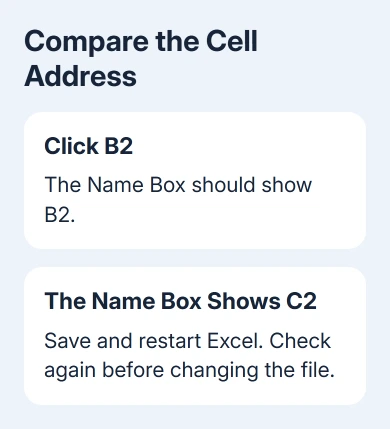
One owner on Microsoft's Excel forum reported both ignored clicks and incorrect selections. Saving and restarting restored normal selection, though the problem returned at unpredictable intervals.
Their report included different computers, Windows versions and a Mac, plus a trackpad and several mice. That makes restarting a useful first attempt without assuming your particular mouse or workbook caused the fault.
Keep a copy of important work before trying more changes. If a normal restart fixes it, continue working and note what happens before the next occurrence. If it doesn't, compare Excel with another application next.
2. Check whether clicks are wrong outside Excel
Open another application and click several separate controls. Try the laptop's trackpad if the problem started with an external mouse, or use another mouse if one is available.
If clicks land incorrectly across applications, check the display and pointing device before changing Excel settings. A system-wide pointer problem can't be explained by one workbook's formulas.
For a pause before a click takes effect, use the Windows delayed-click checks. Waiting for a click and seeing a different cell selected call for different comparisons.
If one press produces two selections or opens things unexpectedly, the mouse double-click checks help separate a failing button from software behavior.
When other apps accept clicks correctly, return to Excel and try an empty workbook. If clicks go wrong in the empty file too, check Excel itself. If they only go wrong in your original file, focus on that workbook.
If the blank workbook works, keep the affected workbook for the later file comparison. If both fail, check the display arrangement and Excel's startup extras.
3. Check display changes after docking or scaling
This section matters when the selection problem appears after moving Excel between screens, connecting a dock or changing display scaling. These display checks haven't been confirmed as a permanent fix for every wrong-cell problem.
Move Excel onto the laptop's main display, close it and reopen it there. Compare the same workbook without moving the window between monitors. Tell support whether clicks work on the laptop screen but go wrong with the other display setup.
Microsoft's Office display guidance addresses scaling and blurry windows. Its workarounds are most relevant when Excel also looks blurry or wrongly sized while selecting the wrong cell.
On Windows 11, open Settings > System > Display, select each screen and inspect Scale. On Windows 10, use Settings > System > Display and check Scale and layout for each screen.
If Office becomes blurry or wrongly sized after a display change, save the open files, sign out of Windows and log in again. The display guidance includes that step for apps affected by docking or scaling changes.
Some Windows Excel versions offer File > Options > General > When using multiple displays > Optimize for compatibility. Try it if present and restart Excel. Skip this step on a Mac or if you don't see that setting.
Don't change several display options together. A useful result is knowing that the problem occurs on one monitor, after a particular move, or only while screens use different scaling.
4. Compare a normal start with Windows Safe Mode
On Windows, save and close Excel. Press Windows + R, type excel /safe, then press Enter. Open a blank workbook and check selection before opening your usual file.
Safe Mode skips several Excel extras, including most COM add-ins, Excel add-ins and startup customizations. If Safe Mode accepts clicks correctly and a normal start doesn't, review those extras rather than replacing the mouse immediately.
Open File > Options > Add-ins. Note your current selections. Use Manage > COM Add-ins > Go to temporarily disable entries, then restart normally and compare. Review Excel Add-ins separately in the Manage menu.
When that helps, turn each entry back on separately and restart Excel after each one. Leave the entry that brings back the fault switched off and request an update from its developer or IT.
The Safe Mode command is a Windows procedure. On a Mac, compare a blank workbook after quitting and reopening Excel, then review Tools > Excel Add-ins if installed add-ins seem involved.
5. Separate file restrictions from misplaced selection
If the right cell is selected but typing doesn't change it, check for a message saying you don't have permission to edit or that the sheet is protected. That isn't the same symptom as Excel selecting a neighboring address.
Check a new blank workbook before removing protection or altering the original file. On a managed workbook, ask its owner whether particular cells are intended to be editable.
Install available Office updates through File > Account > Update Options > Update Now on Windows, where available. On a Mac, use Help > Check for Updates. Work-managed installations may require IT to handle updates.
For further help, tell IT or Microsoft Support your Excel version, operating system and display layout. Include the blank-workbook and Safe Mode results. A recording of the pointer and Name Box can help if it shows no private information.
Ask for help with both the misplaced cell selection and your display setup. The owner's restart workaround is useful for getting back to work, but send support those details if the fault returns.
The Short Version
Save and restart Excel, then compare clicked cells with their selected addresses. Check other apps, display changes and Windows Safe Mode. If it returns, report your Excel version and monitor setup; a restart can be a temporary workaround.
Checked November 13, 2026.