A Chromebook can reject the correct Google password when it's asking for a separate Chromebook password, can't reach Google's servers, or needs the previous password to unlock local files.
First, check which password the screen wants and make sure the Chromebook has a working Wi-Fi connection.
A network-verification message needs a connection fix. An old-password prompt after a password change needs a different response, especially when files in Downloads haven't been backed up.
In this guide
1. Match the password to the sign-in screen
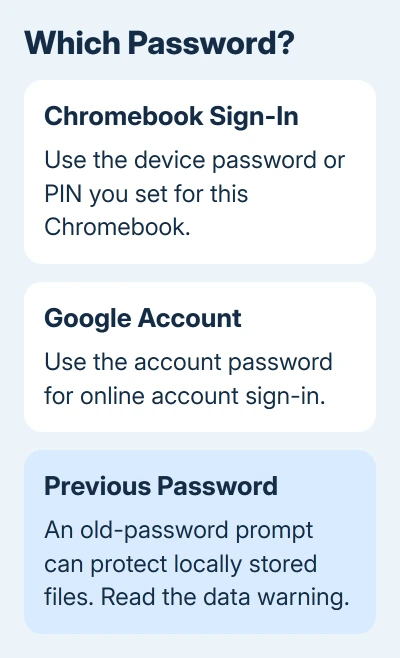
Read the account name and the prompt before typing again. Your Chromebook can have its own password or PIN, separate from your Google Account password. The password that opens Gmail isn't necessarily the one you've chosen for this device.
Confirm that the selected profile shows your full email address. This matters on a shared Chromebook, where two people can have similar names or profile pictures. For a non-Gmail account, enter the complete address, including its domain.
Type the password carefully, checking capitalization and the keyboard's selected language. A symbol typed with the wrong keyboard layout can look like a password problem even though the account itself is fine.
Don't change the Google password repeatedly to fix a device-password prompt. That gives you another password to remember without changing what the Chromebook is asking for.
If you're using the kind of password the screen asks for, check the connection and account next.
Once you're signed in, you can manage these options under Settings > Privacy and Security > Lock screen and sign in.
You can manage a PIN and Chromebook password there. If that page requests a password, enter the one for your Google Account.
2. Fix the network-verification message
Google recommends connection checks for a network-verification error.
A password can be correct while the Chromebook has too weak a Wi-Fi connection to verify it.
Open the lower-right status panel on the sign-in screen and check its Wi-Fi connection. Move closer to the router, then try the sign-in again. If the message stays, connect to another trusted Wi-Fi network.
I'd try a different network before changing any account settings. A successful sign-in there tells you to work on the original Wi-Fi connection, rather than replacing a password that already works.
For recurring drops after you get in, use the separate Chromebook Wi-Fi disconnection checks. That problem needs attention even if one sign-in attempt succeeds beside the router.
A hotel or public network can require an acceptance page before internet access starts.
When the screen specifically asks you to activate the network in a Guest session, select Browse as Guest, connect, and follow the network's instructions.
End the Guest session and try your normal profile afterward. Guest browsing doesn't open your profile's local files. If Browse as Guest is missing on a managed Chromebook, ask the administrator about network activation instead.
3. Handle a recent password change without losing files
An old-password request is different from an account rejecting your new password. The Chromebook can need the previous password to open data already stored on the device. Try the previous password when that is what the screen requests.
Read any warning about local data before continuing. Google Account recovery and local file recovery are separate: resetting an online password doesn't automatically unlock files encrypted on the Chromebook.
Local data recovery can help when it was enabled before access was lost. It became available for Chromebooks starting with ChromeOS 118; ChromeOS Flex support also depends on the device.
Follow the recovery choices the Chromebook actually offers.
You have to turn recovery on while you can still open your profile. Settings > Security & Privacy > Lock screen and sign in > Local data recovery is the preventive setting to review while you still have access.
If the files matter and the old password isn't available, stop at a data-loss warning. Check what is already in Google Drive from another device.
Files you can see in Drive are separate from anything saved only in the Chromebook's Downloads folder.
For the difference between device and account credentials, the Chromebook password guide explains what each setting changes.
For now, focus on opening the profile you already have.
4. Test the Google Account when online sign-in fails
On another trusted device, open a fresh browser session and try signing in with that Google Account's email and password. Make sure you're using the intended account, then recheck the password you entered.
A Gmail session left open from yesterday won't check today's password.
If that fresh sign-in also fails, use the Google Account recovery form. Enter the affected account and follow the recovery questions. Use a familiar device and location when possible.
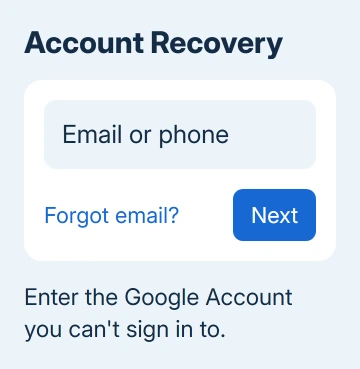
Recovery is for an account you can't access, rather than a shortcut around the Chromebook's separate device password. If online sign-in succeeds but the Chromebook still fails, return to its exact message and the credential it requests.
Complete any account verification on your own trusted device. Send support the wording of the error, never your password or a verification code. The wording helps support tell an account restriction from a problem on the Chromebook.
5. Follow permission and disabled-account errors
A permission to sign in error needs approval from the Chromebook owner. For managed school or work hardware, ask IT to check whether that account has permission to use this Chromebook.
A deleted-or-disabled-account message needs account help, not a stronger Wi-Fi signal. Use the account recovery or disabled-account route shown by Google.
Another permitted account can provide device access, but it won't unlock your original profile's local files.
If the problem survives these checks, give the Chromebook Help Community your model, full error wording, and the result of signing in elsewhere.
For managed devices, give those details to IT first and mention any unbacked-up local files.
Ask for help with sign-in and local data access before authorizing a reset. Those details help the person assisting you choose the next step. A rejected password doesn't always mean the device needs to be erased.
The Short Version
Read the prompt to see whether it wants your device password, Google password, or previous password.
Fix network-verification errors with a working connection, use recovery for failed account access, and preserve local files before accepting a reset.
Checked November 13, 2026.
 If you have any business, I can build it online