Removing AirPods from Find My requires the Apple Account they're paired with. Open Find My in that account, select the AirPods under Devices, and use Remove This Device. A Bluetooth reset alone won't unlink them from that account.
AirPods that disappear and return differ from a used pair linked to someone else. If an entry returns, check the existing pairing. For another-account warnings, the account holder needs to remove the AirPods from their account.
In this guide
1. Remove the AirPods from the owning account
On the owner's iPhone or iPad, open Find My, choose Devices, and select the AirPods. Open the device details, scroll through the controls if needed, then choose Remove or Remove This Device and confirm removal.
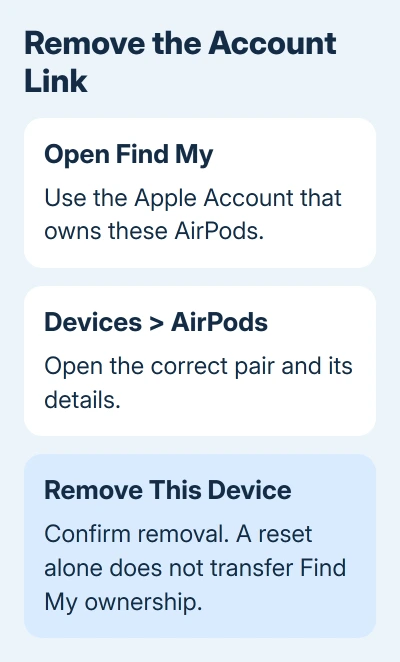
Use the account that originally registered these AirPods, rather than another family member's account. Seeing a pair through a shared device list doesn't make every account the owner. Confirm the device name before approving removal.
Keep the AirPods nearby and connected by Bluetooth when you can.
Apple's account-removal instructions say the process may be faster when they're connected and within Bluetooth range of the device handling removal.
After confirming, check the owning account's Devices list again. For a handover, the old account should no longer be linked, and the new owner should be able to finish setup without the previous-account warning.
If the control isn't available on the device you're using, try the same owning account on a Mac or on iCloud Find Devices. The next sections explain both routes; switching to an account that doesn't own the pair won't help.
2. Try the Mac or web removal route
On a Mac, open Find My > Devices, select the AirPods, and open their device controls. The current instructions include More and More Info controls; choose Remove or Remove This Device when the details open.
This Mac procedure applies to AirPods. The same support page distinguishes them from items such as AirTags, which can't be removed from an account through Find My on a Mac. Choose the instructions for the product you actually have.
For the web route, go to iCloud Find Devices and sign in with the owning Apple Account. Select the AirPods in the device list, then choose Remove or Remove This Device.
Sign in through your own trusted browser to check the account's device list. The public iCloud page can't show whether your AirPods are still linked to your account.
If a removal option is unavailable while the AirPods are online, place the earbuds inside their closed charging case. Then check their entry again.
Some device-list removal actions require an offline device.
Removing the pair on the web changes the account link; it doesn't factory-reset the AirPods. If the entry later returns, check the pairing described next. If a different owner still appears during setup, go to the previous-owner section.
3. Stop a removed entry from returning
AirPods can reappear in the list if an iPhone or iPad on that account still has them paired. Removing an entry from the list and preparing headphones for a permanent handover aren't always the same job.
Check Settings > Bluetooth on the phone or tablet still paired with these headphones. Open the information button beside the correct pair and choose Forget This Device when you're ending that pairing. Confirm the choice on screen.
Don't forget a missing pair simply to tidy the list while you're still trying to locate it. Removing them from your account changes how they're tracked. Decide whether you're finding the headphones or handing them over before you continue.
Once the old pairing is ended and account removal is complete, keep the AirPods away from another pairing attempt with the old account during handover. Let the new owner set them up with their own device instead.
The AirPods Find My setup guide covers the new owner's registration checks. Start that setup after removal succeeds. Adding the pair to Find My won't clear the old account link.
4. Have the seller release a used pair
A message saying the AirPods are paired to another Apple Account means that account still needs to release them. Ask the person who registered the AirPods to open Find My and remove this pair from their account.
They don't need your Apple Account password to do this, and you don't need theirs. The action happens inside their account. If they're not nearby, the iCloud Find Devices route provides another way for them to reach their list.
I'd settle this before accepting a used pair as fully transferred. Being able to play audio over Bluetooth doesn't tell you who owns the pair in Find My, so test setup with your own account after the seller completes removal.
Apple says it can't remove Find My Lock for you. A receipt or serial number isn't a replacement for the previous owner's removal action under this procedure.
If a seller can't complete it, request a return or resolve it through the marketplace.
For a pair you haven't bought yet, the AirPods authenticity checks cover a separate part of the buying decision. Genuine headphones can still be linked to someone else's account.
5. Use a reset for the right purpose
A reset can be useful when an accessory can't be removed, but it doesn't release Find My Lock or let you register someone else's AirPods to your account.
The current removal instructions say resetting prevents location sharing with the previous owner.
Use the model-specific AirPods reset instructions if that is your goal. Earbud generations and AirPods Max have different controls, so don't apply an older case-button sequence to every model.
If your own account still can't remove the pair through the supported routes, contact Apple Support with the model, exact message, and where removal fails.
Ask for help removing the pair from your Find My account, and explain whether they're still paired over Bluetooth.
The Short Version
Remove AirPods through Find My in their owning account, using an iPhone, iPad, Mac, or iCloud Find Devices. Check an old pairing when an entry returns.
Another owner's Find My Lock needs their removal action; resetting doesn't transfer ownership.
Checked November 13, 2026.
 If you have any business, I can build it online