

Battery status missing from the Windows 10 taskbar often means the Power icon is hidden or switched off. Open Taskbar settings and enable Power first; if you can't use the switch, check whether Windows detects the battery too.
If Settings can't show a battery level either, Windows may not be receiving battery information. Keep the charger connected while checking that case, particularly if the laptop also turns off when unplugged.
In this guide
1. Put the Power icon back in the notification area
Check the hidden-icons menu beside the clock. If the battery icon is there, drag it into the visible notification area. This changes where the icon sits without changing how Windows detects or charges the battery.
Next, open Taskbar settings from the taskbar's right-click menu. Under Notification area, select Turn system icons on or off and set Power to On.
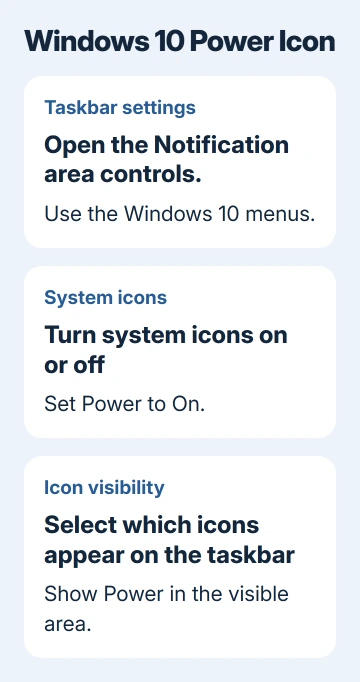
Return to Taskbar settings and open Select which icons appear on the taskbar. Turn on Power there as well if listed. The system-icon setting enables the control, while the visibility setting keeps it in the visible taskbar area.
Microsoft says to use the notification-area settings to choose visible Windows 10 system icons. Select the Windows 10 instructions rather than copying Windows 11's different system-tray layout.
Point to the returned battery icon and check whether a level appears. If it does, the missing display was a taskbar setting. If the icon is enabled but absent, try restarting the desktop interface next.
A desktop PC without a battery doesn't need a laptop Power icon. For a desktop connected to a battery backup unit, the software and status reporting depend on that unit and its USB connection.
2. Restart Windows Explorer when the icon stays missing
Press Ctrl+Shift+Esc to open Task Manager. Choose More details when only the compact app list appears, then select the Processes tab. Find Windows Explorer, right-click it and choose Restart.
The taskbar and desktop can disappear briefly while Explorer restarts. Wait for them to return, then inspect the notification area again. This restarts the Windows interface without restarting the whole PC.
Use this check when Power is already enabled but the icon stays absent. It restarts the interface displaying the reading; it won't repair a battery that the laptop can't detect.
If Explorer isn't listed or the taskbar doesn't return normally, save open work and use Start > Power > Restart. After signing back in, check whether the icon has returned and still shows a sensible charge level.
If the other taskbar controls work but the battery stays missing, continue with the reading in Settings. This helps you check whether Windows has a reading to display.
3. See whether Settings can read the battery
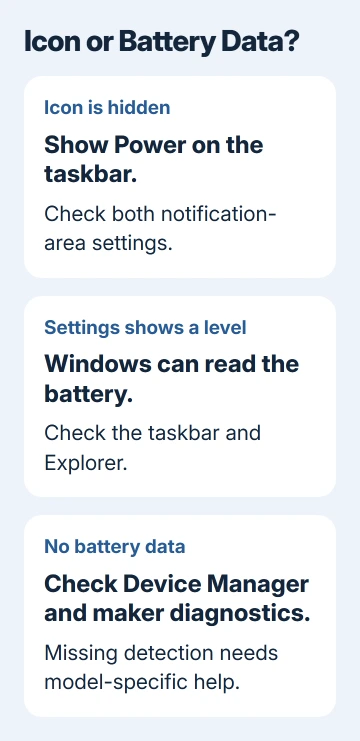
Open Start > Settings > System > Battery. Look for the charge level or battery information. If a current level appears here but the taskbar stays blank, Windows is still getting battery data, so focus on the taskbar settings.
If no battery information appears, or the laptop reports that a battery isn't present, move to Device Manager. Check whether Windows detects the battery before trying to move the icon again.
Don't confuse a missing remaining-time estimate with a missing battery. Windows can show a percentage without an hours-and-minutes estimate. The percentage and whether the charger is recognized are more useful for these checks.
If the icon returns but the battery level never rises, the problem has changed from display to charging. Note the percentage and charging message so you can ask for the right repair rather than repeating taskbar changes.
For unusually short battery runtime, the laptop battery health guide explains the capacity report. An icon that disappears and a battery that holds less charge need different repairs.
4. Re-enable the battery device when Power is grayed out
Connect the laptop to its charger before this step. Right-click Start, choose Device Manager, then expand Batteries. Look for Microsoft AC Adapter and Microsoft ACPI-Compliant Control Method Battery.
ACPI is the system Windows uses to exchange power information with the laptop. The control-method battery entry reports battery information; changing it doesn't replace or physically disconnect the battery.
If an entry is already disabled, right-click it and select Enable device. Otherwise, right-click the control-method battery entry, choose Disable device, confirm, then right-click it again and select Enable device.
One owner using Windows 10 reported that disabling and re-enabling the battery device brought the icon back, though it later disappeared again. This can bring the reading back, but it may not stop the problem from returning.
Return to the Power settings and check the icon and level. If they return but fail again after another restart, record that pattern for support rather than making device toggling part of your daily routine.
If the battery entry is absent, avoid random driver downloads. In Device Manager, try Action > Scan for hardware changes. If it stays missing, ask the laptop maker for the detection procedure for your model.
5. Check detection with the laptop manufacturer
Run the battery test in the maker's support app or model-specific startup diagnostics. Record any failure code or battery-not-detected result. Dell, HP and Lenovo use different startup procedures.
For an Acer, the Acer charging checks explain its model-dependent power-reset routes. Use the model or serial number to locate the correct support information.
If a firmware or chipset update is recommended for battery detection, follow its power requirements and installation instructions rather than choosing an unrelated download.
A laptop that shuts down immediately when disconnected from external power needs a battery or power-path assessment. Keep it connected while saving your work, and tell support that this happens as well as the missing status display.
Tell support whether Settings can read the battery. If Windows and the startup test both miss it, ask support to check the battery and its connection, using warranty service if you're covered.
Windows 10's normal support ended in October 2025. Plan a supported Windows upgrade or eligible extended security coverage separately; an upgrade won't repair missing hardware detection.
The Short Version
Enable Power in both taskbar menus and restart Explorer if needed. Compare the icon with Battery settings. If the Power switch is unavailable or battery data is missing, check detection and seek model-specific help.
Checked November 13, 2026.
 If you have any business, I can build it online






