

Outlook's message The request could not be completed doesn't identify one cause. When it appears on an attachment, try downloading that individual file instead of previewing it, then compare the same message in another supported browser.
A single failed attachment, every attachment in one browser, and attachments in an additional work mailbox need different fixes.
Keep the email open while checking which case applies so you don't reset an account that can still read and send mail.
In this guide
1. Download the attachment separately
Open the affected email and use the menu beside one attachment. Choose Download, then open the saved file from your computer. The More actions menu beside a web or new Outlook attachment contains the available file commands.
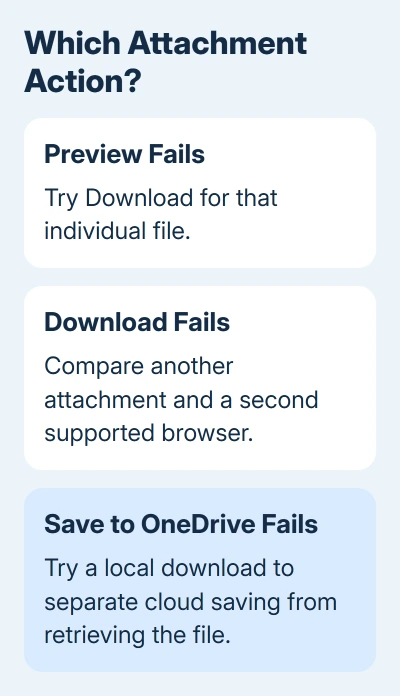
Previewing a file inside Outlook and downloading it are separate actions. If the file downloads and opens in its usual app, you can get your work done while the preview problem is checked.
Don't keep clicking the preview tile expecting a different result.
Try an individual attachment when Download all fails. If one file works but the combined download doesn't, tell support the group download fails. Make clear whether the combined download fails or you can't download any file.
Also separate Save to OneDrive from downloading to the computer. A cloud-storage failure can leave the attachment available for download to your computer.
Choose the download to your computer for this check, then check where the browser saved it.
If Outlook specifically labels a file type as blocked, ask the sender or IT how to share it safely. Don't disable protection to make it open. The generic request message alone isn't a reason to declare a file unsafe.
For the supported controls in each version, use the attachment opening and saving instructions.
Classic Outlook, new Outlook, and web Outlook don't put every command in the same place.
2. Compare another message and browser
Open an attachment from a different sender or older message in the same mailbox. Choose a file you recognize.
If only one original message fails, ask its sender to resend the file or share it through the organization's approved file service.
If multiple messages fail, sign in to the same mailbox in current Edge or Chrome and test the same attachment.
Personal Outlook.com and work or school Outlook have different sign-in destinations, so make sure you're testing the same account in both browsers.
A working second browser points toward the original browser's setup. When both browsers fail, move to mailbox and service checks instead of repeatedly clearing browser data.
If the error appears in the Windows new Outlook app, the web comparison is especially helpful. Both can reach the same mailbox, so tell support whether the same attachment fails in both.
Recreating a classic Outlook profile isn't the first repair for that pattern.
For an inbox that won't open at all, use the separate Outlook browser-opening checks. This guide's attachment tests assume you can reach the message and its file menu.
A page showing object readable byte stream before the inbox opens needs the browser-loading checks rather than attachment download steps.
I'd keep a short record of the results: one file or all files, preview or download, app or browser. That record makes the next repair easier to choose and saves you from retrying an action without learning anything new.
3. Check blockers when one browser fails
Ad and pop-up blockers can interfere with Outlook's web interface. Microsoft's supported-browser guidance warns about them. Try allowing Outlook in the blocking extension, then refresh the mailbox and repeat the same attachment download.
In Chrome, open More > Extensions > Manage extensions to identify installed extensions. Prefer the blocker's own site-specific allow setting.
If you temporarily disable one extension for the test, turn it back on after checking the result.
Change one suspected extension at a time. A successful download after a particular change tells you which browser setting to adjust. Turning everything off together leaves you without that answer and changes more than the test requires.
If browser updates are pending, finish them and relaunch. Save unfinished work first. For a managed work browser, ask IT to check the extension or update policy if its controls aren't available to you.
If the fault survives in a second current browser, stop treating extensions as the whole problem. Next, check whether your mailbox runs in the cloud or is an additional mailbox on a company-hosted Exchange server.
4. Have IT check an additional Exchange mailbox
A documented Exchange Server fault affects attachments after an additional mailbox is opened through Open another mailbox in Outlook Web App. Previewing can fail, and downloading can open an empty page instead of saving the file.
This specific issue involved Exchange Server 2019 Cumulative Update 7 and Exchange Server 2016 Cumulative Update 18. A cumulative update is a package of server fixes.
This fault doesn't explain every generic request error in Outlook.com or a Microsoft 365 cloud mailbox.
The documented Exchange repair was a server update: CU8 or later for Exchange 2019, or CU19 or later for Exchange 2016.
Those versions tell IT when the fix arrived. They aren't recommendations for which server version to install today.
Ask the administrator whether that exact additional-mailbox scenario fits. They should check the server version and how to keep it supported and updated. A mailbox user can't install a server cumulative update from Outlook's settings.
The published workaround is to use the Outlook desktop client for the additional mailbox's attachments. IT can also check whether the documented workaround using OWA's simpler light version fits that server.
Don't try an old web-address workaround for a company-hosted server on a cloud mailbox at random.
5. Escalate a failure across apps and browsers
With organization email, have IT check Microsoft 365 admin center > Health > Service health for an Exchange Online incident. Give them the time, affected mailbox, and what happened with the same attachment in each app or browser.
If another supported app already opens the file, use that route while the fault is checked. When no route works, ask the sender for an approved shared-file link so the document can reach you without relying on the failing attachment action.
Personal Outlook.com users can open Help in the mailbox, search for the attachment error, and use the available support option.
Include the complete error and compare an individual download with a preview and a OneDrive save.
If sending or moving mail shows a different error, follow the fix for that exact message.
The Outlook operation-failed guide separates classic Outlook tasks that need different checks from this attachment workflow.
The Short Version
Try an individual download, compare another message, then use a second supported browser. Repair a browser blocker when that comparison succeeds.
Failures across clients need mailbox or service checks; additional Exchange mailboxes have a separate documented server fix.
Checked November 13, 2026.
 If you have any business, I can build it online






