

A keyboard that isn't working on an HP laptop can stop responding because of input settings, a connection fault or damaged hardware. Restart first, then compare its built-in keyboard with a wired USB keyboard before changing any drivers.
Delayed typing and wrong characters need different fixes from a keyboard that won't respond at all. If normal letters work but the brightness or volume keys don't, skip to the function-key section instead of removing every keyboard device.
In this guide
1. Restart, then set up temporary input
Save open work with the touchpad or mouse, then choose Start > Power > Restart. Test several letters in Notepad after Windows returns. Restarting ends your current Windows session and loads the devices again.
If the keyboard prevents you from signing in, select Accessibility on the sign-in screen and open the on-screen keyboard. Click the displayed keys to type your sign-in details.
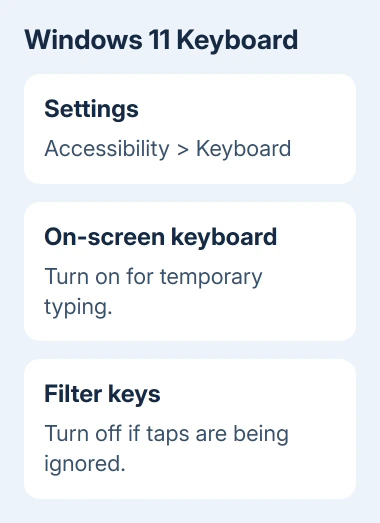
Inside Windows 11, open Settings > Accessibility > Keyboard and turn on On-screen keyboard. Windows 10 places this under Settings > Ease of Access > Keyboard. Use it to search and change settings while the physical keyboard isn't working.
Connect a wired USB keyboard directly to the laptop if you have one. Try its letters in the same Notepad document. If it works while the built-in keyboard doesn't, you can keep working and focus on the built-in keyboard.
When the built-in and USB keyboards both type in Notepad but fail in the other program, check the box or document you're trying to type in. Restart the program before altering Windows settings.
2. Turn off Filter Keys when typing is delayed
Open the Keyboard accessibility settings again. Find Filter keys in Windows 11 or Use Filter Keys in Windows 10, and turn it off unless you rely on it to help you type.
This feature changes how Windows handles brief or repeated key presses. It can make a working keyboard appear to miss taps or accept a character only when you hold the key down.
Open the Filter Keys options too and disable its keyboard shortcut if you keep enabling it accidentally. Microsoft's input accessibility controls explain the on-screen keyboard and filtering options.
Test a few short words, then a repeated letter. If normal taps now appear right away, leave the driver alone. Filter Keys was changing how your typing appeared.
If only one or two keys still fail while others respond normally, move to the physical-key check. The same key failing in every program points more toward a physical problem than Filter Keys.
3. Check keys and the selected keyboard layout
Shut down before checking for visible debris around a sticking key. Keep liquid cleaners away from the keyboard and don't pull off a keycap just to see underneath it. Notebook key mechanisms can break during removal.
When keys produce the wrong characters, check the active keyboard layout instead. On Windows 11, open Settings > Time & language > Language & region, then the language's menu and Language options.
Look in Keyboards for the layout that matches your physical keyboard. On Windows 10, use Settings > Time & Language > Language, select the language, then Options to review its keyboards.
Select the correct input layout from the taskbar's language indicator if several are installed. Test punctuation as well as letters. A wrong layout can make the keyboard seem faulty even though Windows is receiving each key press.
For a Windows key that fails by itself, use the shortcut-specific checks. A single failed shortcut needs different checks from a built-in keyboard that won't type at all.
4. Compare the keyboard before Windows loads
Shut down the HP laptop. Turn it on and immediately tap F2 repeatedly to try to open its HP diagnostics menu. Use the built-in keyboard for this comparison, not the external one.
If F2 opens that menu, at least that key and its connection work before Windows starts. That doesn't tell you whether every key works. But if the keyboard responds here and stops after sign-in, the problem could be in Windows.
If the menu never appears, repeat once from a complete shutdown in case you missed the brief chance to press F2. Then compare with the USB keyboard if one is connected.
Tell the HP repair team if the external keyboard opens the menu but the built-in one doesn't. Don't reset unrelated startup settings just because you've reached the menu.
Return to Windows for the driver checks if the keyboard responds during startup. If it stays dead during startup and after restarting, skip the driver checks and use the HP service advice in the final section.
5. Check Windows updates and the keyboard device
In Windows 11, open Settings > Windows Update > Check for updates. Windows 10 uses Settings > Update & Security > Windows Update. Apply the updates Windows offers, including its requested restart.
Microsoft's keyboard troubleshooting steps also support checking a device's driver through Device Manager. Right-click Start, open Device Manager, and expand Keyboards.
Open the keyboard device's properties and check whether Windows lists an error. On its Driver tab, select Update Driver and follow the prompts. Windows might report that it has no newer driver to offer.
If typing stopped just after the driver was changed and Roll Back Driver is available, use that option to return to the earlier driver. Leave other devices alone while you check whether that change gets typing working again.
6. Separate function keys from a failed keyboard
When letters work, try the marked brightness or volume key both by itself and while holding Fn. HP notebooks can assign the action and F-number functions differently, so the required combination depends on the model.
If only screenshot capture is confusing, the HP screenshot methods explain alternatives that don't depend on identifying a particular Print Screen combination.
If keys still fail, contact HP support with your product number. List the affected keys and the startup-menu and USB-keyboard results. Mention a spill or drop if one preceded the fault. Ask whether the keyboard assembly needs service.
The Short Version
Restart, get temporary input through USB or the on-screen keyboard, and check Filter Keys. Compare typing in several apps and during HP startup. If the keyboard stays dead outside Windows, ask HP to check its hardware.
Checked November 13, 2026.
 If you have any business, I can build it online






