To change the picture Windows 11 shows before you sign in, open Settings > Personalization > Lock screen. Choose Picture, select your image, and enable the option that also shows it on the sign-in screen.
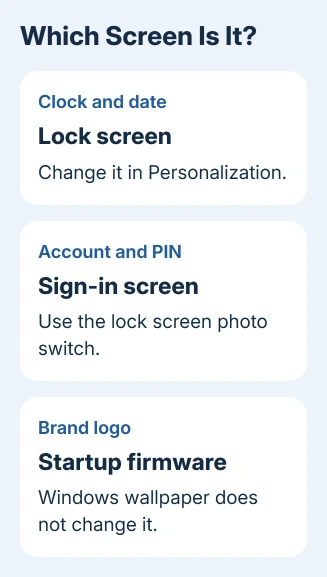
This changes both the screen with the clock and the background behind your PIN. The manufacturer's logo appears before Windows loads and is separate from Windows personalization. Desktop wallpaper has its own controls too.
In this guide
Choose the screen you want to change
Look at when the unwanted picture appears. A clock and date belong to the lock screen. Your account name and a password or PIN box belong to the sign-in screen. A background behind the taskbar and desktop icons is desktop wallpaper.
The first brand logo comes from the computer's startup firmware. Windows Personalization can't replace it. I'd leave it alone rather than install a tool that changes startup files.
To check the picture without waiting for another startup, press Windows+L. This locks your account without restarting, so you can check the picture while keeping your apps open.
If the issue is a PC that never gets past its logo, use the computer stuck on the boot screen checks. A personalization change won't repair a startup failure.
Put your own picture on the lock screen
Save the image somewhere you can find it in File Explorer. A landscape picture with the subject away from the center usually leaves more room for the clock and sign-in controls. Windows can crop the image to fit the display.
- Open Start > Settings. The Windows+I shortcut also opens Settings.
- Select Personalization, then Lock screen.
- Open Personalize your lock screen and choose Picture.
- Select an existing thumbnail, or use Browse photos to choose your own file.
- Select the image in the file picker and confirm your choice.
The Lock screen preview should update to your chosen image. If the preview still shows the old picture, check that the selector says Picture rather than Windows spotlight or Slideshow, then choose the file again.
Press Windows+L to see the result at full size. Check the important part of the photo, since the small Settings preview can't show every crop clearly. Sign back in and choose another image if the clock covers the subject.
The picture you choose applies to your Windows account. Someone else using the PC can have another picture. Check whose name appears at sign-in if the photo changes after another person has used the computer.
Use that image behind the PIN box too
On the same Lock screen settings page, turn on Show the lock screen background picture on the sign-in screen. Microsoft's lock screen instructions describe this as the setting that shares the background between those screens.
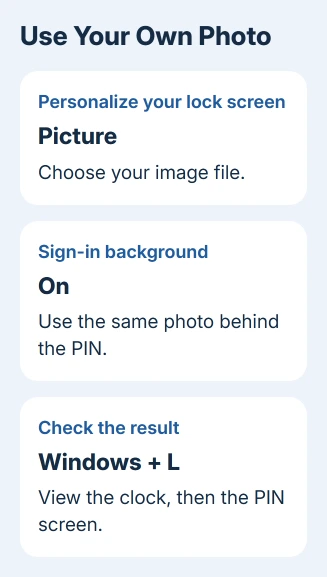
Lock the PC, then dismiss the clock screen to reach the PIN or password box. Your chosen picture should appear there too. It can look different at sign-in because Windows adds your account controls and visual effects over the picture.
If the clock screen changes but the PIN screen doesn't, return to that switch. Selecting a photo alone doesn't turn it on. This setting doesn't offer a second photo picker just for the PIN screen.
Turning the switch off stops using the lock screen photo behind sign-in. It doesn't delete the image file or undo the photo you chose for the clock screen. Try both switch positions to compare the appearance without replacing the image.
Stop the background from rotating
Choose Picture when you want one image to stay in place. Windows spotlight supplies changing pictures, while Slideshow draws from folders you choose. Either mode can explain why yesterday's startup picture is different today.
For a slideshow, select Slideshow in the same menu and add the folders containing the photos you want. Check the extra slideshow options here; they aren't exactly the same as the desktop slideshow settings.
Changing the photo doesn't control the extra text shown with it. Where offered, turn off Get fun facts, tips, tricks, and more on your lock screen to reduce the promotional text that accompanies the picture.
Newer Windows 11 layouts also have a Widgets switch here. Turn it off to hide widgets without replacing the photo. Older layouts can have different status controls; use the options displayed on your PC.
Change desktop wallpaper when that is the picture you mean
For wallpaper behind your icons, right-click the desktop's empty space and choose Personalize > Background. Select a background mode and picture there. That page doesn't control the clock or PIN background.
Check the desktop after closing Settings. If the wallpaper changes but the clock and PIN backgrounds stay the same, that's expected. Return to Lock screen for the image that appears before your account opens.
Keep the original photo when replacing or reorganizing your photo folders. You can then select it again if you change themes or want a different crop. Leave the Windows system folders alone.
When Windows won't let you choose a picture
Organizations can enforce a background on their computers. If a choice is grayed out or you see an organization message, ask your IT administrator about it. This also applies when the enforced image returns after you sign in again.
Ask whether a policy enforces the image for your account or device. Say which option is unavailable and which screen is affected: the clock, PIN entry or desktop. This gives IT a specific setting to check.
If Personalization reports an activation problem, check Windows activation first.
If your personal PC is activated but the preview won't update, open Windows Get Help. Explain which background mode you chose and what you see after pressing Windows+L.
The Short Version
Select your photo under Personalization > Lock screen > Picture and enable the sign-in background switch. Check with Windows+L. Desktop wallpaper uses Background settings; the manufacturer's logo is separate.
Checked November 13, 2026.