Missing Chrome bookmarks can still be in another folder or profile, even when the bar looks empty. Search Bookmarks and lists > Bookmark Manager for a familiar site before changing accounts or resetting Chrome.
The fix depends on what's missing. Show a hidden bar, switch back to the profile with your bookmarks, or recover deleted bookmarks from an existing export or another copy that still has them.
In this guide
1. Search the full collection before restoring anything
On Windows, Mac or Chromebook, open Chrome's three-dot menu and select Bookmarks and lists > Bookmark Manager. You can also enter chrome://bookmarks in the address bar. Search for part of the site's name rather than its entire address.
Look through the folders too. A bookmark in Other bookmarks or another folder won't necessarily appear as a button across the top of the browser. If it's in Bookmark Manager, the bookmark is still saved in this profile.
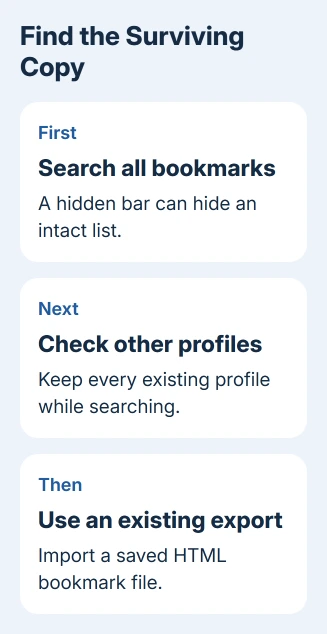
For a direct bookmark search, type @bookmarks, press Tab or Space, then enter a word from the saved page. This searches saved bookmarks, rather than asking the search engine to find the website again.
If the manager contains your collection but the toolbar is absent, follow the bookmarks bar settings. I'd check the manager first, because importing a backup into an intact collection can give you duplicates.
If searches return nothing, continue to the profile check. Repeatedly toggling the bar won't recover an empty collection, and clearing browsing data doesn't import missing bookmarks.
2. Reopen the profile that held the bookmarks
Open the profile picker using the picture in Chrome's upper-right area. Open each existing profile you recognize and search its Bookmark Manager. Work, school and personal profiles can each hold different saved pages.
Check the email address as well as the profile name. A familiar photo isn't enough when you use several accounts. Signing in to Gmail in a tab also doesn't tell you which browser profile currently contains your bookmarks.
Google's profile instructions explain that removing a profile erases its bookmarks, history, passwords and settings from that computer. Keep existing profiles while you're looking for the missing collection.
On a Chromebook, check which Chromebook user is signed in rather than looking for the same desktop profile-switching layout. Use the user account that previously held the bookmarks and open Chrome there.
If the list appears in another profile, your bookmarks are still there. You can keep using that profile or export its bookmarks for the profile you prefer. Don't delete it just because the profile name looks unfamiliar.
3. Check folders on Android, iPhone and iPad
On Android, open Chrome's three-dot menu and tap Bookmarks. With a bottom address bar, swipe upward from that bar for Bookmarks when that layout requires it. Search the bookmarks view for the missing page.
Chrome can reopen the folder you used last time. Tap Back within the bookmarks view to reach the other folders, then check them. An empty folder isn't the same as an empty bookmark collection.
On iPhone or iPad, tap Chrome's three-dot More menu, then Bookmarks. Review the folders and tap Back in the upper-left corner to leave that folder. Make sure you're using Chrome rather than looking in Safari's bookmarks.
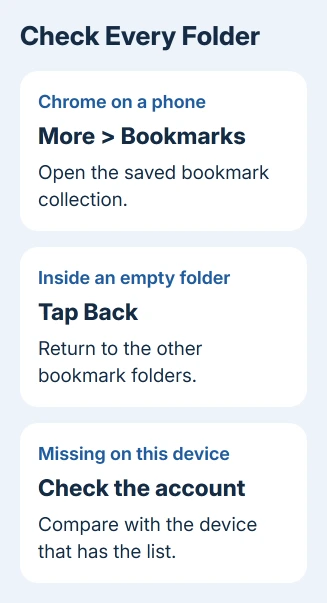
If the collection exists on your computer but not the phone, check the account shown in Chrome on both devices. The Chrome bookmarks sync guide covers saving existing device bookmarks into the intended Google Account.
If another device or profile shows the complete list, the bookmarks haven't all been deleted. Save that copy before making broad changes, then correct the account or folder that kept them out of view.
4. Save a surviving desktop copy before moving it
In the desktop profile that still has your bookmarks, open Bookmark Manager and its three-dot menu. Choose Export bookmarks and save the HTML export in a folder you recognize.
This creates a portable list of saved links. It doesn't back up browser passwords or the full browsing profile, so label it as a bookmark export. Give the file a name that tells you which computer or profile it came from.
Load that HTML export in your browser and check for several familiar entries and folders. You can keep that readable copy while you work on the profile with the missing list. Keep the original export unchanged during recovery.
A phone doesn't offer the same desktop HTML export procedure. If its bookmarks are saved in your account, open that account in Chrome on a computer and check whether the collection appears there before trying to export it.
5. Import an existing bookmark backup
Use an HTML export made before the disappearance, or the export from a profile that still holds your collection. A newly exported file from the empty profile won't contain the missing bookmarks.
- Open Chrome's three-dot menu on the destination computer.
- Select Bookmarks and lists > Import bookmarks and settings.
- Choose Choose file when importing a bookmark file, and select the saved HTML export.
- Choose Open, then Done, and search Bookmark Manager for a familiar entry.
On Chromebook, use Bookmark manager > Organize > Import Bookmarks from HTML file instead. Upload the saved HTML file, then inspect the imported collection.
The imported collection can appear in the bookmarks bar or Other bookmarks, depending on the existing collection. Check both before importing again. On Chromebook, an existing collection puts the added links in an Imported folder.
The backup contains the links present when it was made. Pages saved later need a newer surviving copy or manual re-adding. An old export can restore most of a collection without restoring every recent addition.
6. Know when a deleted list has no recovery copy
If a deletion just happened and Chrome offers Undo, use it immediately. On iPhone and iPad, the deletion prompt includes an undo opportunity. Once Undo is gone, you may have to add that address again if you know it.
With empty profiles and no export, check your computer backups for an older Chrome profile. Ask the backup provider to help restore a separate copy while preserving the current data.
For more help, tell the Chrome Help Community your operating system, whether any collection survives and whether you have an HTML backup. Leave out private addresses. With those details, they can suggest how to recover any remaining copy.
The Short Version
Search the full list, other profiles and the phone's other folders. Preserve any surviving collection before importing an HTML backup. Showing a hidden bar is straightforward; recovering a deleted list requires a copy.
Checked November 13, 2026.