Fun things to add to Apple Watch include personal photos, animated faces, favorite app shortcuts and music for a walk without your phone. Start with a face you enjoy, then add something you'll actually use.
Several good options are already built in. A new app is useful when it adds a particular activity, but you don't need a paid face pack to make the watch feel personal. The watch model and watchOS release determine which options appear.
In this guide
Start with a face that makes you smile
On your paired iPhone, open Watch, then select Face Gallery. The larger preview makes it easier to compare designs than editing everything on your wrist.
Look for Snoopy if you want animation. The characters interact with the watch hands, and Sunday Surprise changes the background colors on Sundays. Choose it if you'd rather have a little animation than a face full of data.
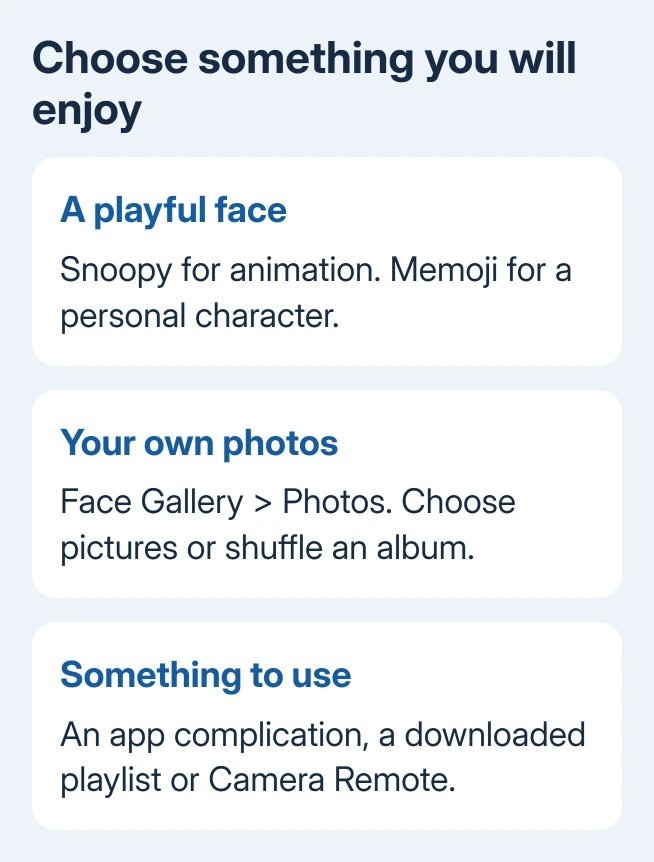
Try Memoji for a character you've created, or Kaleidoscope for moving patterns made from an image. With Kaleidoscope displayed, tap it, then rotate the Digital Crown for a different pattern.
Mickey Mouse and Minnie Mouse offer another playful option. On the watch, open Settings > Clock and enable Speak Time. Raise your wrist and place two fingers on the face to hear the time.
Apple's face and feature list describes each design's controls and supported complications. Use the faces offered for your own watch, since the collection isn't identical across every model.
In the current Face Gallery, select the face, tap Get where shown, adjust its options, then choose Add to Watch. Older layouts can use Add. Check the result on your wrist before choosing another design.
Make a Photos face from people, pets or a trip
A Photos face is the most personal option if character animation isn't your thing. Choose pictures with a clear subject and enough space for the time to remain readable.
On the iPhone, open Watch > Face Gallery > Photos and choose a style. Tap Choose Photos to pick images manually. The current guide allows up to 24 photos for that selection.
For a changing collection, choose Shuffle. Select Featured or People, or choose Collection and pick an album. Continue to the layout options and finish with Add.
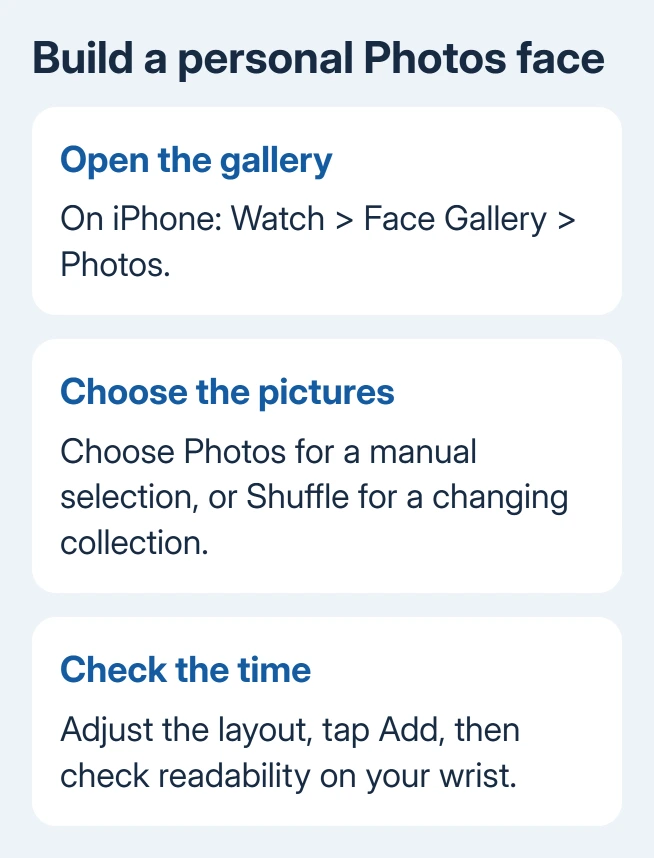
Waking the display with a wrist raise or a tap changes the picture. If an image makes the time hard to read, change the layout or replace that photo. A favorite photograph doesn't always make the clearest background for small text.
The Photos face instructions also describe creating a face from a picture already in the watch's Photos app. Open the photo, use its sharing control, then choose Create Watch Face > Photos.
When the expected pictures don't appear, check the album synced to the watch. Adding a photo to the phone's library and selecting the album used by the watch are separate choices.
Give a favorite app a place on the face
A complication is a small area on a watch face that shows app information or opens an app. Add one for something you enjoy checking, such as weather, music recognition or a timer for a hobby.
Hold a finger on your current watch face until its editor appears. Tap Edit and swipe across to the complication controls. Tap a position and use the Crown to browse its supported apps. Press the Crown to save, then tap the face.
Try opening that complication once. Check that it opens the app you chose and that you can read its information. Not every face has the same positions, and a design such as Snoopy doesn't offer the same layout as Modular.
Our watch-face controls guide covers switching, editing and keeping saved designs in order. I'd keep a simple everyday face alongside the playful one, so the useful information is still easy to reach.
If an app you want isn't offered, check whether its watch version is installed. A face can't display a complication the app or that particular position doesn't support.
Add an app for a specific kind of fun
For a small game or a hobby companion, press the Digital Crown to reach the app list. Open App Store there. Search for the activity, open a listing and check its screenshots and Apple Watch support.
Check the description for the required watchOS version and whether it needs an iPhone app or a separate account. An iPhone screenshot alone doesn't tell you how useful the app will be on your wrist.
Tap Get or the displayed price, then double-click the side button when asked to confirm. A free download can still contain subscriptions or in-app purchases, so review that part of the listing before installing.
For apps already on your iPhone, the current route is Watch > My Watch > Apps > Available Apps. Tap Install next to the compatible app. In an earlier Watch app layout, look for Available Apps on My Watch itself.
Open the new watch app and follow its setup prompts. The watch app installation guide explains the two download routes and what to check when an app is missing.
Put a playlist on the watch
A short playlist makes the watch more useful during a walk or workout. In the iPhone's Watch app, open My Watch > Apps > Music, then tap Add Music under Playlists & Albums.
Choose the albums or playlists you want. Music is added while the watch is near the iPhone. An earlier layout puts Music on My Watch itself, without the Apps submenu.
Apple Music subscribers can also add an album or playlist through the watch's Music app. Open its more-options menu and choose Add to Library. Use the menu again and choose Download for playback without internet.
Check that downloading has finished before leaving the phone behind. Adding something to your library makes it available to stream; it doesn't by itself mean the music is stored on the watch.
Try Camera Remote before installing anything else
Camera Remote is already a useful party or group-photo tool. Place your iPhone securely, open Camera Remote on the watch and use the preview to fit the group into the picture.
Turn the Digital Crown to zoom, then tap the shutter. The default three-second timer gives you a moment to lower your arm. The picture is saved in Photos on the iPhone.
Keep the devices within normal Bluetooth range, roughly 33 feet or 10 meters. If the camera preview doesn't connect, bring them closer before changing settings or looking for another app.
If a built-in feature is missing, give Apple Support your watch model, watchOS version and the feature's name. For a downloaded app, ask its developer whether that model and region are supported.
The Short Version
Choose a playful or personal face, add a complication you'll use, then try an app or a downloaded playlist. Camera Remote adds another useful activity without a new download. Keep the choices that work well on your own watch.
Checked November 13, 2026.
 If you have any business, I can build it online