

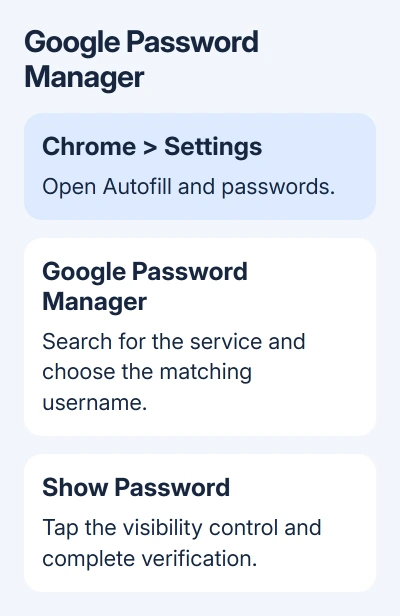
Saved Android passwords are usually in Google Password Manager. In Chrome, open Settings > Autofill and passwords > Google Password Manager, select a login, and use its visibility control after verification.
Samsung Pass and other password managers keep separate collections. An empty Google list can mean the password was saved elsewhere or under another Google account, rather than lost from the phone.
In this guide
Open Google Password Manager from Chrome
Launch Chrome on the Android device. Tap the three-dot menu, then Settings. Choose Autofill and passwords, followed by Google Password Manager.
Some Chrome releases show a Google Password Manager entry directly in Settings. Use that entry when it appears; you need the password manager, rather than Chrome's general privacy or browsing-data controls.
Google's Android password instructions describe viewing website logins and supported app accounts kept in that manager.
Search for the website or service name. Select its entry and check the username or email address before revealing the password. Several accounts for one service can have different saved passwords.
If your phone already has the Passwords app or a Password Manager shortcut, opening it can reach the same Google manager. Installing a second manager isn't necessary just to inspect an existing saved entry.
Reveal the password and check the account details
Open the matching entry and tap Show password, usually represented by an eye control. Complete the device or account verification when requested. The hidden password should become readable once you pass that check.
Read the username alongside it, especially if you use both a personal and work login. Even a correct password won't work if the website has a different account's address entered.
Use the entry's copy control if you need to paste the password into an app. Keep the password off shared screens and avoid pasting it into a message or search box by mistake.
If you're simply trying to sign in, return to the app or website's sign-in form and select the saved suggestion. You don't need to read and type every character when autofill offers the correct account.
An entry marked as a passkey works differently. A passkey signs you in through device verification and doesn't provide an ordinary password to reveal. Look for a separate password entry if that account also has one saved.
Check Samsung Pass if the password isn't in Google
On a Galaxy phone, open Settings and search for Samsung Pass. Authenticate to open it, then look for Sign-in info, Sign-in, or Web sign-in information, depending on the version.
To view an entry, select its app or website. Samsung's Pass instructions describe viewing and editing these details.
The route into Pass varies by Galaxy software. Older phones can use Settings > Biometrics and security > Samsung Pass. Newer versions can place it under Security and privacy or the password and autofill settings.
If your phone has Pass inside Samsung Wallet, open Wallet and look for All > Samsung Pass. Using Settings search is often quicker than following a menu path from a different Galaxy generation.
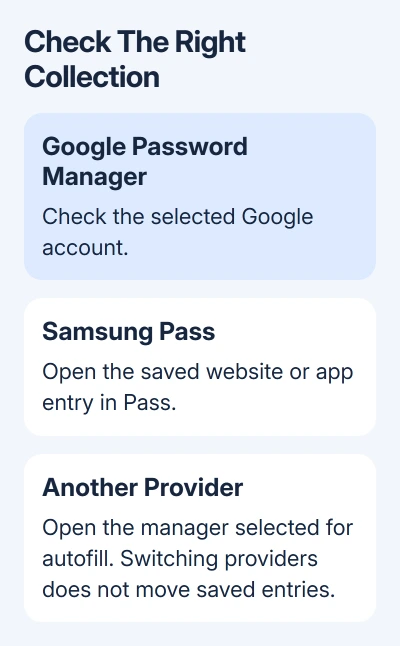
A password saved through Samsung Pass doesn't automatically appear in Google's list. Check the manager that handled the original sign-in, particularly when Samsung Internet fills a login that Chrome doesn't offer.
I'd check this second location before changing any settings. Changing which app fills in passwords doesn't move the passwords saved in the other app.
Look in the correct Google account or autofill provider
Select the Google account that originally saved the entry, then search again. The website's login address can differ from the Google account holding its password.
Passwords can be saved to your account or kept only on the device, as explained in the Google Password Manager overview. A device-only entry won't automatically appear on another phone.
For account-saved entries, sign into passwords.google.com with that Google account. This web list won't show Samsung Pass or another manager's vault.
Search Settings for autofill or passwords to identify another provider. Galaxy phones can use General management > Passwords, passkeys, and autofill; other Android menus vary.
Read the selected service name. If it names another password manager, open that app and unlock its vault, its collection of saved logins. A work-managed phone may limit your choices; ask IT before replacing the service it uses.
For a network credential, find the saved Android Wi-Fi password through its sharing controls. A website login belongs in the password manager instead.
Handle an outdated password or a missing entry
When a saved password no longer works, use the website or app's Forgot password route. After changing it successfully with the service, update the saved entry so the phone stops suggesting the old password.
Editing a password inside the manager changes its stored copy. It doesn't change the password on the website. Finish the service's password-change process first, then make the manager match it.
If a search returns nothing, try the service's website domain as well as its app name. Check other accounts and managers before deciding the password was never saved.
An account created through Sign in with Google may use that route instead of a separate password.
If Chrome's list suddenly vanishes, check the existing profile before making bigger changes. Keep any signed-in phone available during recovery.
Avoid Delete all data when the goal is to find one login. That command removes saved information; exporting everything is also unnecessary for reading one entry and creates a file containing many private login details.
Use the service's official recovery option when an entry can't be found. If the vault won't unlock, send Google's, Samsung's, or your chosen manager's support team the error and your phone's software version.
The Short Version
Open Google Password Manager, search for the service, select the right username and reveal the saved password after verification.
If it's missing, check Samsung Pass, the selected Google account and any other autofill provider before resetting the service's password.
Checked November 13, 2026.
 If you have any business, I can build it online






