A hard refresh in Chrome reloads the page while ignoring cached content. Press Ctrl + Shift + R on Windows, Linux or a Chromebook, or Command + Shift + R on a Mac. Try it when a page keeps showing an old layout or outdated files.
An ordinary reload can reuse stored files. A hard refresh asks Chrome to load without relying on that cache for the reload. It doesn't erase your bookmarks, reset the browser or sign you out by deleting cookies.
In this guide
Use the shortcut for the computer you're on
Select the tab, then click a blank spot on its page so Chrome receives your keypresses. Save any unfinished form or editor work first. Reloading replaces the open page, which can discard changes that the website hasn't saved.
On Windows or Linux, hold Ctrl + Shift, press R, then release the keys. Shift + F5 is another listed shortcut. A laptop that assigns brightness or media controls to its function keys may need Fn with F5.
On a Chromebook, use Ctrl + Shift + R. That's a page reload. Don't confuse it with a Chromebook hardware reset, which involves other keys and restarts the device instead of reloading one tab.
On a Mac, hold Command + Shift and press R. Command is the key used here, rather than Control. The page should begin loading again in the same tab without opening a new window.
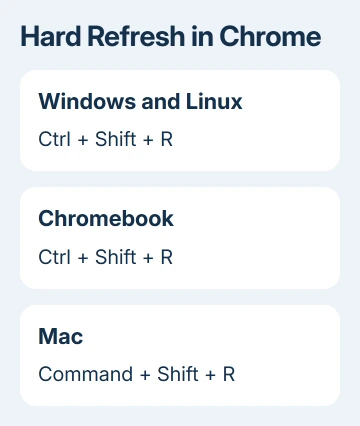
Google says these keys reload while ignoring cached content, unlike the ordinary reload. Ctrl + R on Windows and Command + R on Mac perform the ordinary version, which can use cached files.
Wait for the loading indicator to finish, then revisit the part that was wrong. Check whether the image, button or layout is now right. Seeing the page flash only tells you it reloaded.
If the page reloads but still looks outdated, try the reload menu next. Choosing the command there lets you check whether Chrome missed your shortcut or the website is still sending the same content.
Open the reload menu when the shortcut isn't enough
Open Chrome's three-dot menu, then More tools > Developer tools. On Windows or Linux, Ctrl + Shift + I opens the same tools. On Mac, use Command + Option + I.
Developer tools, also called DevTools, is a panel that lets you examine how a page works. Opening it doesn't change the site. Leave it open while using Chrome's Reload button, the circular button beside the address bar.
Press and hold Reload until its menu appears. Choose Hard Reload to bypass the cache without emptying it. If that command reloads the page but doesn't correct the stale view, try the stronger choice in the next section.
The extra reload menu depends on DevTools being open. If holding Reload only performs an ordinary reload, open the tools again and check that their panel is visible beside or beneath the page.
This menu helps when another program uses the same keyboard shortcut and stops Chrome from receiving it. It also lets you choose the exact reload type instead of pressing different function keys and guessing which action happened.
Know what Empty Cache and Hard Reload changes
With DevTools still open, press and hold Reload, then select Empty Cache and Hard Reload. Chrome clears its cache for all sites before reloading the current page. This goes farther than bypassing the cache once.
The cache holds saved website files, such as images and scripts that run parts of a page. Sites may load more slowly as Chrome downloads fresh copies of those files. Cookies and account passwords are different categories of stored data.
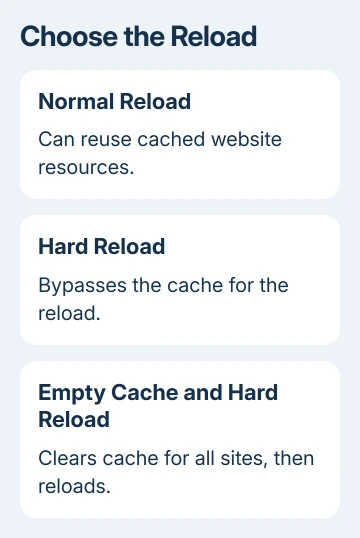
The DevTools reload documentation describes those three choices separately. Choose the cache-emptying action when you want Chrome to download those files again, rather than repeatedly selecting Normal Reload.
Close DevTools after checking the result. Its panel can stay closed during ordinary browsing. Opening it again restores access to the extra Reload choices when you next need them.
I'd use the plain hard refresh first. Emptying every site's cache adds downloads and waiting when the original shortcut may already fix the one page you're trying to use.
Clear browsing data only when the problem needs it
A hard refresh and deleting browsing data aren't the same operation. If a broken site needs its stored data removed, open Chrome's three-dot menu and choose Delete browsing data. Check the time range before selecting categories.
To clear cached website files, select Cached images and files. Leave Cookies and other site data, passwords and browsing history unselected unless you intend to remove those too. Review the selection, then confirm the deletion.
Removing cookies can end your website sign-in sessions. Reserve that choice for an account or stored-site-data problem, instead of combining it with every reload. A cache-only reload doesn't need that extra step.
On a shared computer, confirm the active Chrome profile before deleting data. Look beside the address bar for its profile picture so another person's browsing session stays untouched.
When a fresh download doesn't fix the page
A website can keep serving the same content after a successful hard refresh. The problem could be with the website's server, an extension or your account data. Reloading harder doesn't change information the server is sending.
Try another ordinary website and note whether it loads. If only one site stays broken, record its address and the exact page behavior for its support team. Include whether a hard refresh and the cache-emptying action changed anything.
When a tab flashes its content before turning white, use the Chrome blank-page checks. That symptom can need a graphics or extension repair rather than downloading the page's files again.
A tab that won't respond at all needs different handling from a responsive page showing old information. The Chromebook freezing checks separate a stuck tab from a computer that has stopped responding.
These keyboard and DevTools instructions apply to desktop Chrome. Chrome on iPhone and Android doesn't offer the same desktop DevTools reload menu. Those mobile apps have different controls, so the missing desktop menu is expected.
If the same site stays wrong across browsers or devices, ask the site's support team to review your account and the published page. Give them a screenshot without private information, the page URL and when you last saw the correct content.
The Short Version
Use Ctrl + Shift + R on Windows, Linux or Chromebook, and Command + Shift + R on Mac. Open DevTools for the Reload menu's stronger cache-emptying option. Keep cookies unless the problem calls for removing site data.
Checked November 13, 2026.
 If you have any business, I can build it online