

Upgrading from Windows 11 24H2 to 25H2 uses a small package to activate existing features. Older releases need a full feature upgrade. One download figure can't describe both, so check your version before planning storage or data use.
Download size and free installation space are different numbers. Even a small 25H2 package can arrive alongside larger monthly updates. Start with the version check, then follow the storage requirement Windows shows on your PC.
In this guide
Check whether the PC already runs 24H2
Press Windows + R, enter winver, and press Enter. Read Version in the About Windows window. Write down whether it says 24H2, 23H2, 25H2 or another release.
If it says 24H2, the 25H2 feature update can use an enablement package, a small download that turns on features already supplied through 24H2 updates. It doesn't need to replace the entire operating system with a separate full copy.
Microsoft says both releases share core system files in its 25H2 enablement package explanation.
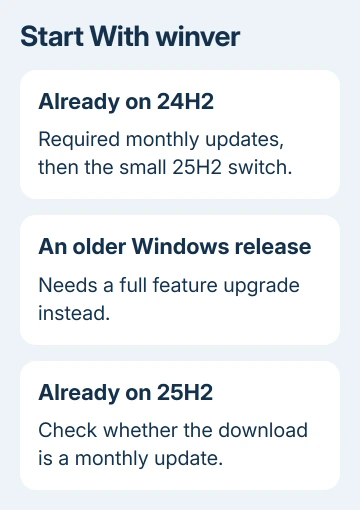
A version reading 23H2 or earlier needs a different upgrade route from that small package. A full feature upgrade needs more to download and install. Don't use a size quoted for the 24H2 switch to plan that PC's download.
If it already says 25H2, check the update's full name. A pending cumulative update is a monthly package for the version you already have, rather than the original upgrade to 25H2 again.
Include the updates needed before the small switch
The enablement package requires Windows 11 24H2 with KB5064081, build 26100.5074, or a later cumulative update installed. A PC that hasn't been updated for a while may need a large download before it's ready for that package.
Open Settings > Windows Update and check the names of the offered updates. Finish the current release's pending updates and restart when requested. Then return to Windows Update to check the feature update again.
This explains why two 24H2 computers can use different amounts of data while reaching the same version. One already has the shared files; the other still needs the cumulative updates that carry them.
Don't add the sizes of every historical monthly update. Windows Update chooses the packages needed for that installation. Check the downloads Windows Update is offering your PC now.
I'd finish this check before paying for additional metered-connection data. A small feature switch doesn't mean the whole Windows Update session will be equally small, especially on a computer that's been offline for months.
The enablement update needs a restart. Connect the laptop's charger and save open work before accepting it. A quick download and a completed version upgrade are separate stages.
Separate a full installer from the update in Settings
A Windows ISO stores installation media in a disk-image file. Its size describes that installer, rather than the amount Windows Update must download for an already updated 24H2 computer.
Likewise, the storage needed for a USB installer isn't a measurement of the enablement package. These are different ways of delivering Windows, with different files and preparation requirements.
If a download tool currently offers a newer Windows release, its size also doesn't describe 25H2. Read the release name before starting. Check the stated release rather than relying on a generic Windows 11 button label.
For a workplace machine, ask IT for the installation package approved for your PC. Their managed download can include updates, language files or other files your organization needs, so a consumer download figure may not describe it.
Use the 25H2 installation-failure guide when an actual error or rollback stops the upgrade. Replacing a small package with a larger installer doesn't explain or repair the error by itself.
Make room for installation, not just the download
Open Settings > System > Storage and read your Windows drive's free-space figure (usually C:). The installer needs working space while it applies changes, so fitting the downloaded file isn't the only requirement.
The Windows update storage guidance says free-space needs vary. Its general figures for feature updates don't give you a fixed download size for the 25H2 enablement package.
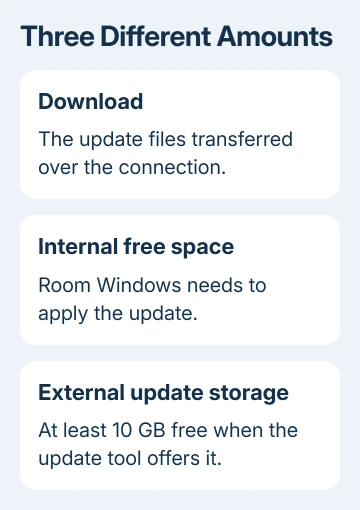
If Windows reports that more space is required, use the amount shown in its update tool. That message applies to the current installation. A different computer's free-space figure won't tell you how much yours still needs.
Open Cleanup recommendations on the Storage page and review the offered categories. Select only files you can remove, then choose Clean up. Recheck free space before retrying the update.
Copy irreplaceable files to a safe location before starting cleanup. Review Downloads and previous-installation categories carefully; removing a previous Windows installation also removes its rollback files.
Move large videos and other personal files onto a separate drive when deletion isn't appropriate. Confirm that those copies open before removing the originals from the Windows drive.
Let the update tool use an external drive
When Windows Update lacks room, it can offer Fix issues. Choose that control to open the tool that helps make room for the update. If the tool offers external storage, connect a drive with at least 10 GB free and select it from the list.
Follow Next and the remaining update prompts. Windows can still ask for more internal space even with that drive attached. External storage helps with installation; it doesn't turn an unsupported upgrade into a supported one.
Leave the external drive connected until the update finishes. Once installation is complete, it can be removed safely. The tool's completion message matters more than the download reaching 100%.
After the restart, open winver again and check for 25H2. If the version changed successfully, use the 25H2 issue-by-symptom guide for a new fault rather than continuing storage cleanup.
If Windows still refuses to proceed, open Get Help and give your Windows version, update name, free internal drive space and full error message. Ask whether the remaining block is storage, installation failure or device compatibility.
The Short Version
24H2 can reach 25H2 through a small switch after its required updates. Older versions need a full upgrade. Budget for pending downloads and installation space separately, and use the storage amount Windows requests for this PC.
Checked November 13, 2026.






